
Gateway FPD2485W: 24" LCD Beauty or Beast?
- Posted in
- Displays
Features - OSD
One of the more interesting aspects of this LCD is its On-Screen Display (OSD). Depending on how you intend to use the LCD, you may find yourself accessing the OSD infrequently or on a regular basis. If you use multiple inputs, you will use the OSD to select among the various connected devices. We definitely get the impression that Gateway was trying to make a "cool" OSD. Rather than having actual buttons, the right black border hides touch sensitive areas that light up when you press the menu option.
The initial press of the menu button brings up several quick access options to get you to the most commonly used areas. At the top is a "scrollable" area where you can select among several different color themes: movie, web, picture, game, warm, cool, and user. These options basically adjust the brightness, contrast, and color levels to preset values, with the exception of "user" which is for user-defined adjustments. The next four options provide quick access to input selection, picture in picture settings, and video adjustments. The bottom option takes you to the main menu, which is necessary in order to reach a few other areas.
Choosing among the six available inputs is pretty simple. After exiting the Input Select option, you choose the appropriate input and you're done. The currently active input is not listed, which is why there are only five inputs shown - we used the DVI input for most of our testing. It's a bit odd that they don't simply put the sixth input in place of the Cancel option, however, so that all of the menu items would always be in the same position.
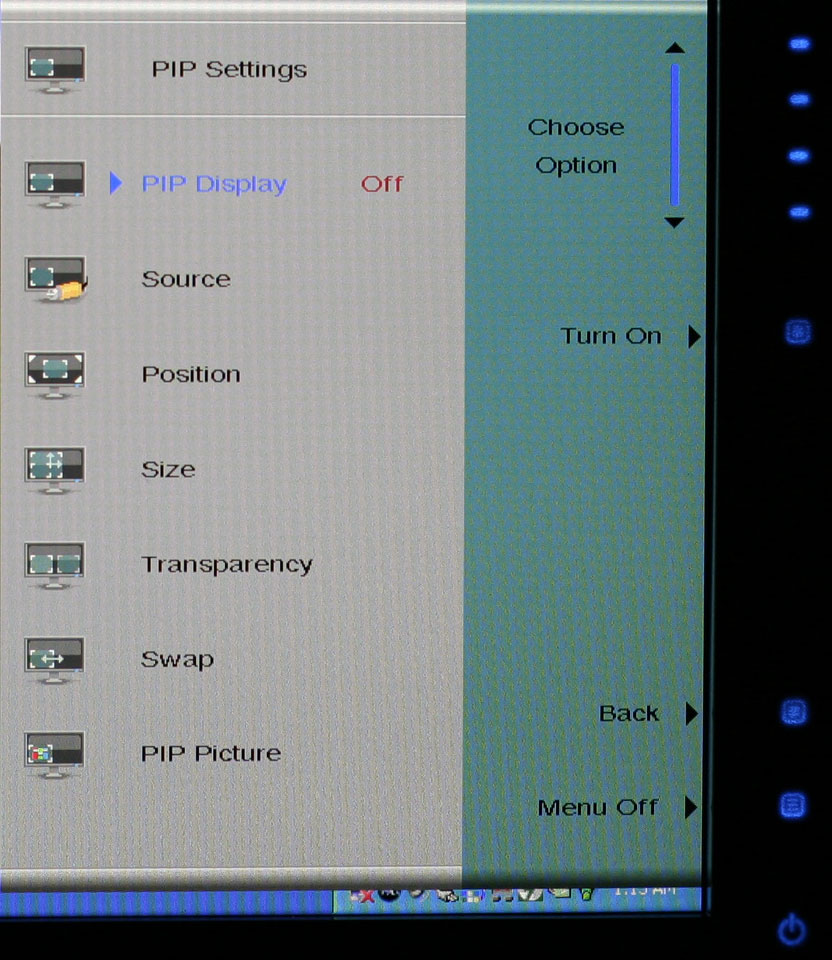
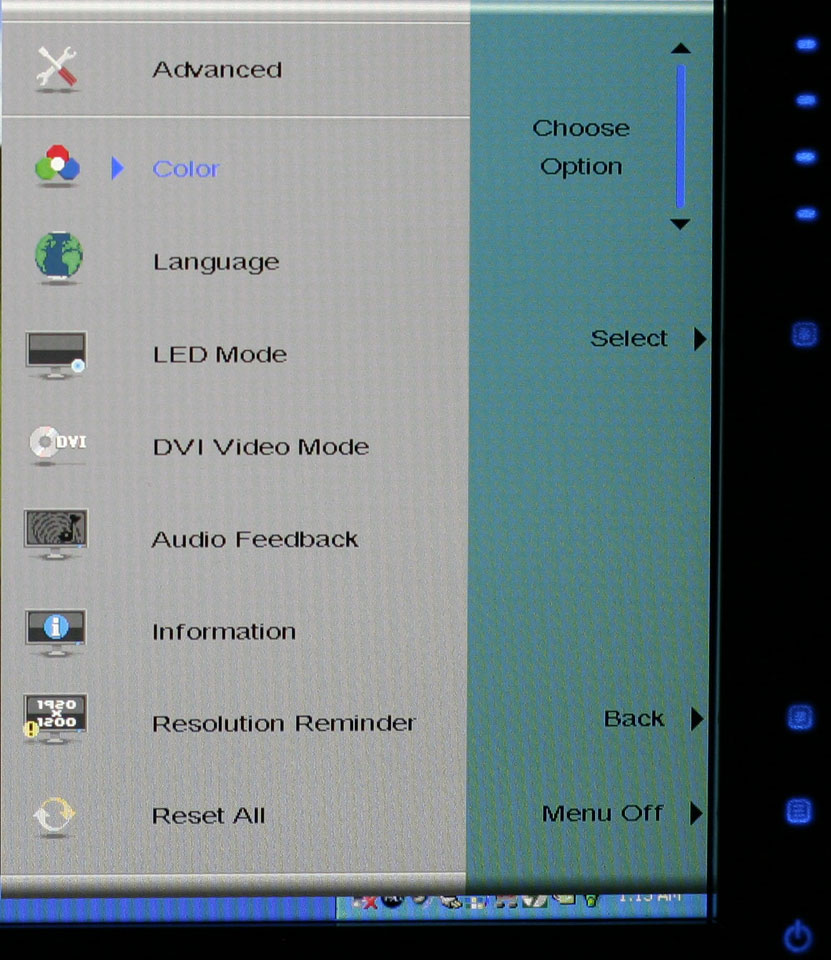
Outside of the initial menu and input selector, the way the On-Screen Display functions changes - somewhat counter-intuitively, we might add. The remaining menus move the various options into a gray area on the left side of the OSD, and the top "scroll" buttons are now used to move up and down among the options. These buttons aren't particularly sensitive, so sometimes you will tap a button and get no result while other times you will push it once and the selection will jump twice. Above you can see the images of the Picture, PIP, and Advanced menus; the various submenus are self-explanatory and we didn't bother capturing screenshots taking pictures.
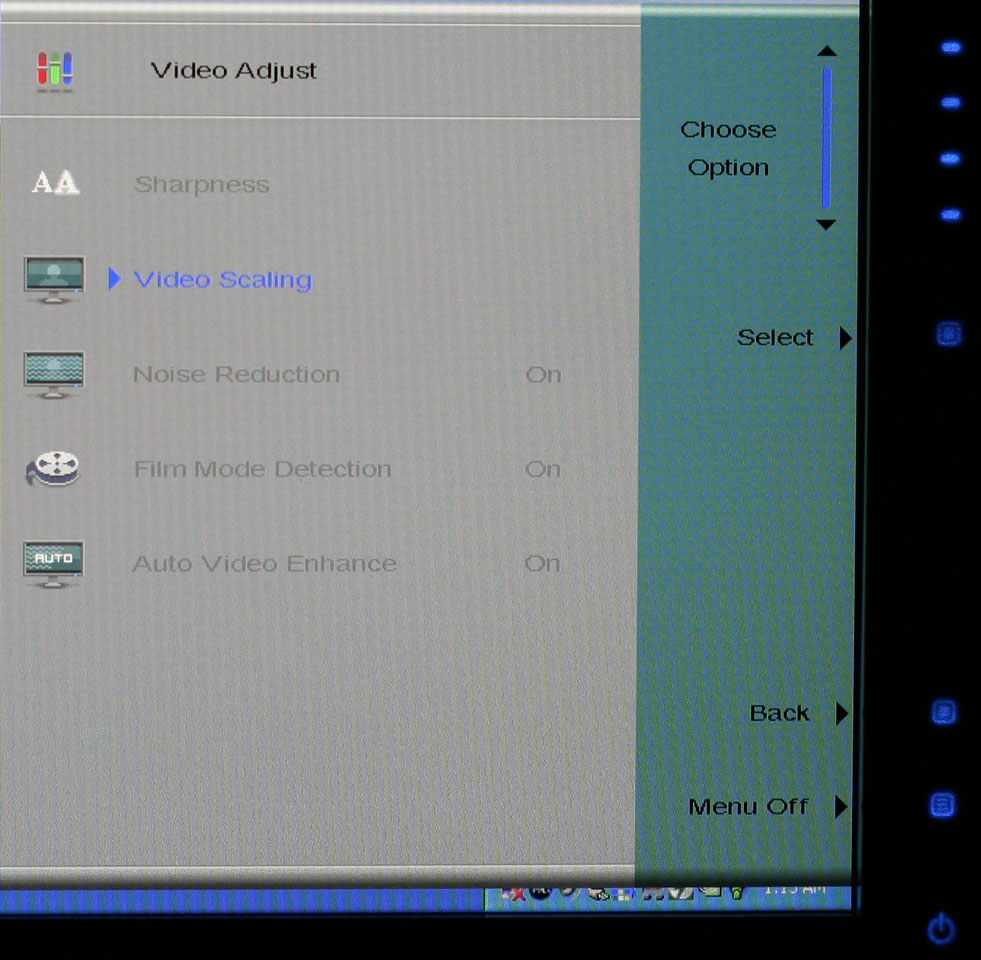
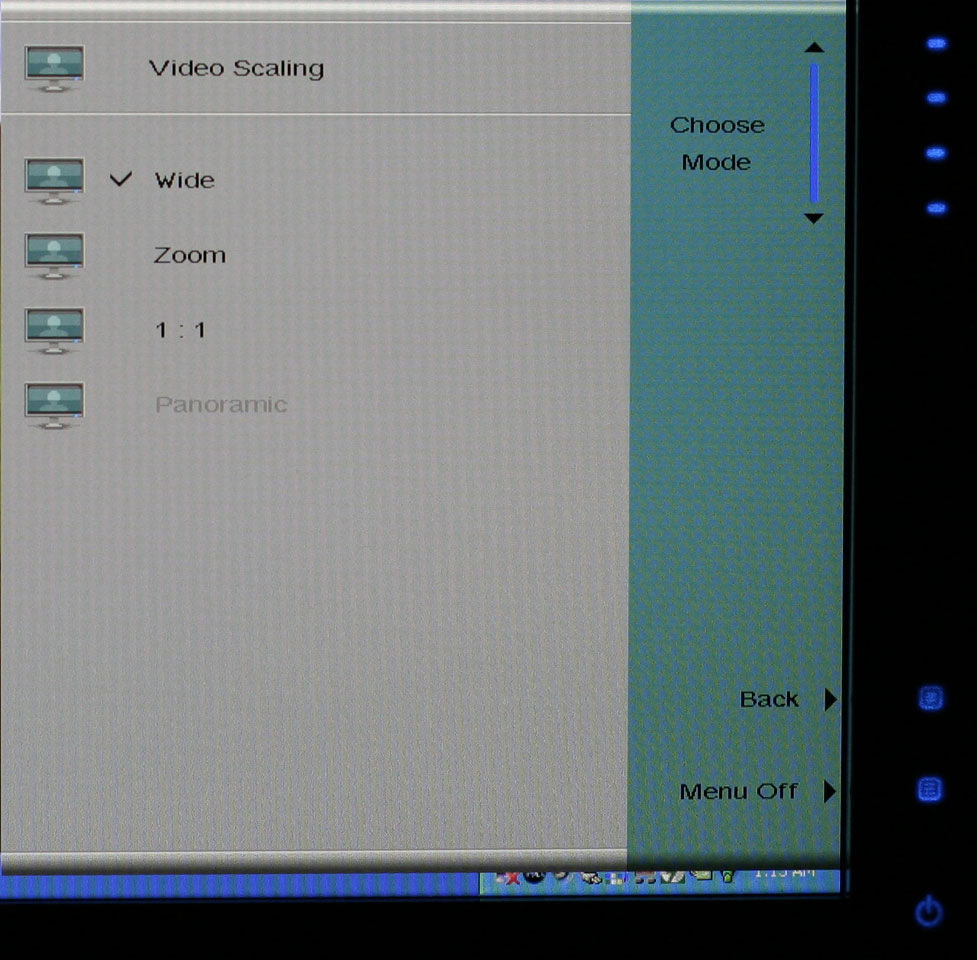
The final two OSD menus contain items related to adjustment of signal properties. If you are using a digital connection, several of the items are grayed out - Sharpness, Noise Reduction, Film Mode, and Video Enhance all deal with improving the quality of analog signals. Video Scaling allows you to customize how non-native resolutions are handled, including the option of displaying the content at a one-to-one ratio (unscaled). The Panoramic function is a nonlinear stretch that is only available with analog connections.
The OSD certainly provides all of the options we like to see, but navigating through the various menus is not quite as straightforward as we would like. This is due in part to the less sensitive "scroll" buttons at the top of the menu - or at least they didn't seem to be quite as responsive as the other menu buttons. If you find yourself frequently accessing the OSD menus, it can be a little irritating at times, and it seems like things could have been made easier by turning the "scroll" area into a couple more buttons and eliminating the need to move up and down among the various options. Still, the OSD does provide a good set of adjustments, and while it could have been streamlined it works well enough to get the job done.
One of the more interesting aspects of this LCD is its On-Screen Display (OSD). Depending on how you intend to use the LCD, you may find yourself accessing the OSD infrequently or on a regular basis. If you use multiple inputs, you will use the OSD to select among the various connected devices. We definitely get the impression that Gateway was trying to make a "cool" OSD. Rather than having actual buttons, the right black border hides touch sensitive areas that light up when you press the menu option.
 |
 |
| Click to enlarge | |
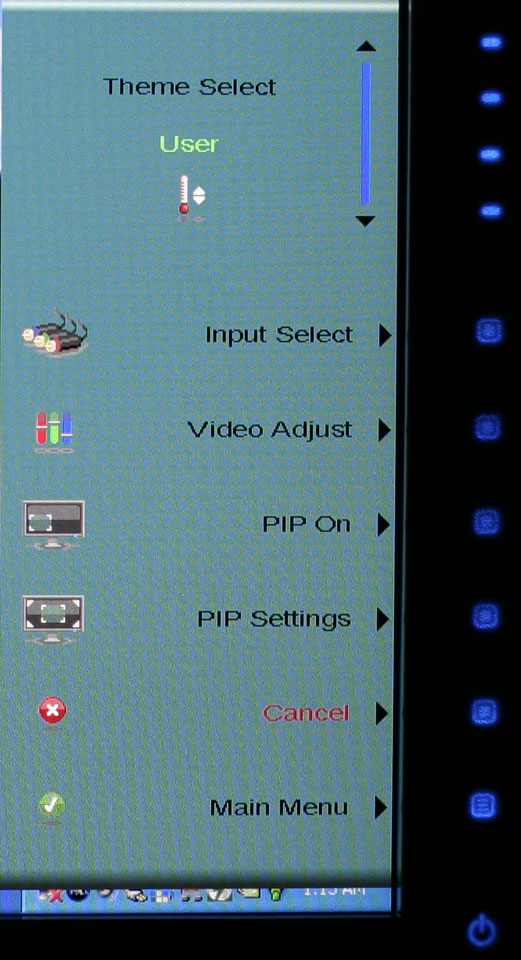
The initial press of the menu button brings up several quick access options to get you to the most commonly used areas. At the top is a "scrollable" area where you can select among several different color themes: movie, web, picture, game, warm, cool, and user. These options basically adjust the brightness, contrast, and color levels to preset values, with the exception of "user" which is for user-defined adjustments. The next four options provide quick access to input selection, picture in picture settings, and video adjustments. The bottom option takes you to the main menu, which is necessary in order to reach a few other areas.
 |
| Click to enlarge |
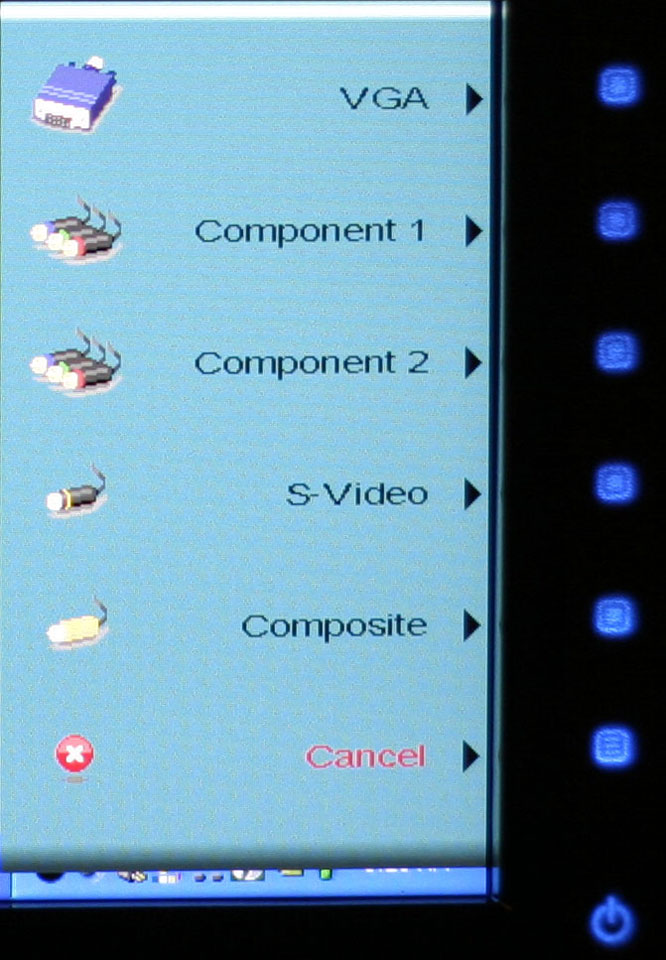
Choosing among the six available inputs is pretty simple. After exiting the Input Select option, you choose the appropriate input and you're done. The currently active input is not listed, which is why there are only five inputs shown - we used the DVI input for most of our testing. It's a bit odd that they don't simply put the sixth input in place of the Cancel option, however, so that all of the menu items would always be in the same position.
 |
 |
 |
| Click to enlarge | ||
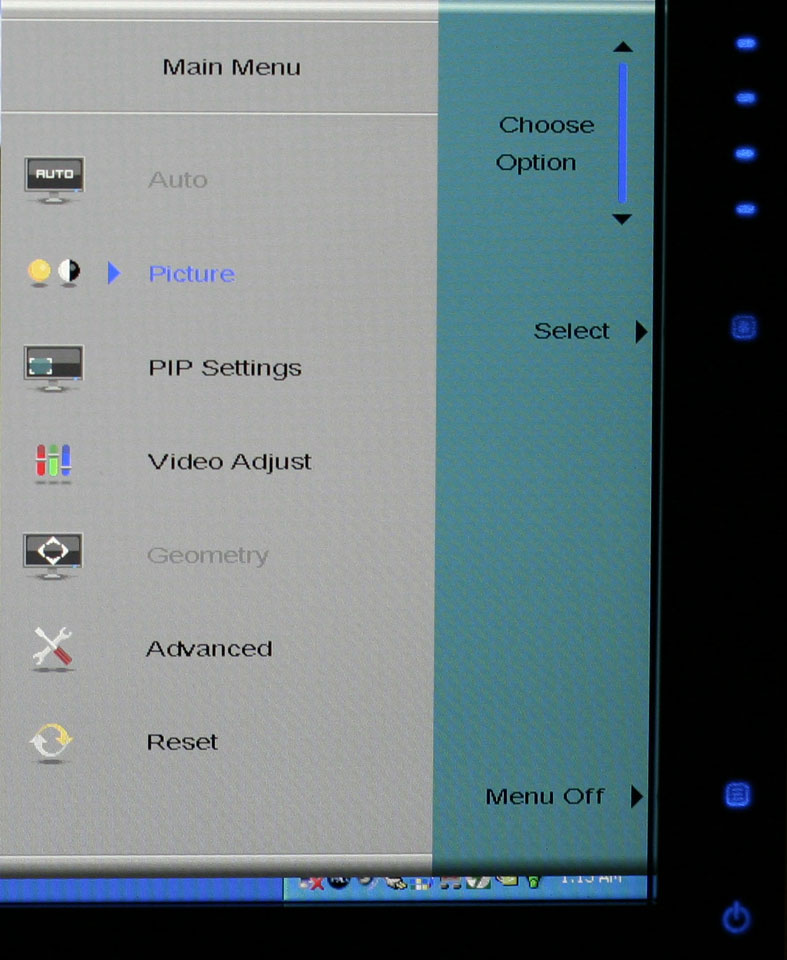
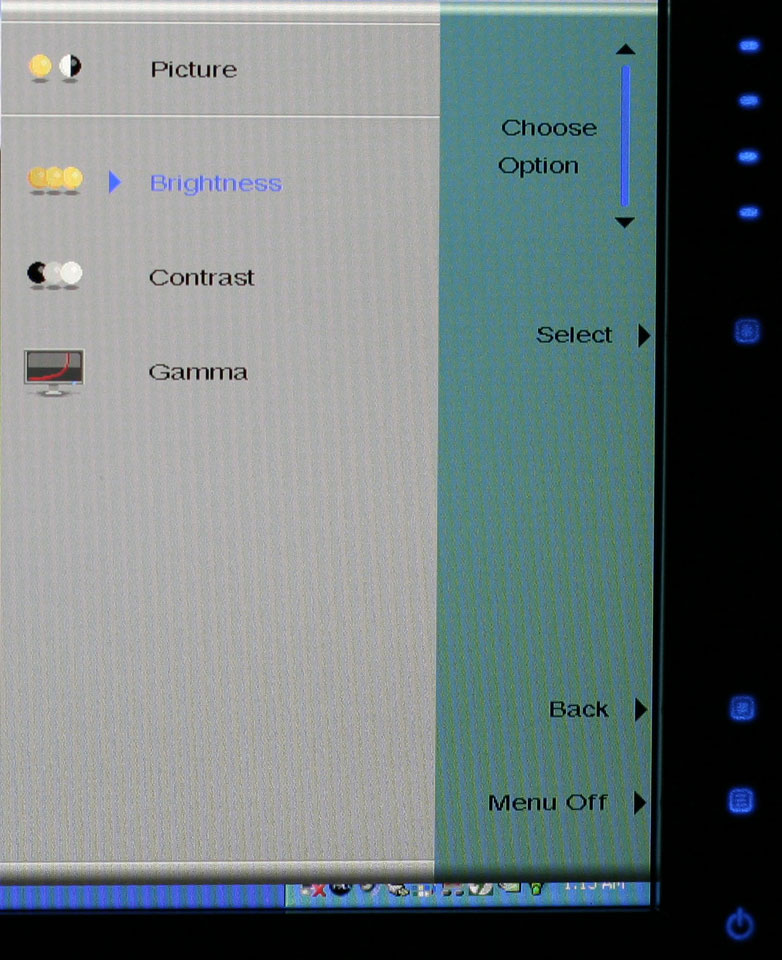
Outside of the initial menu and input selector, the way the On-Screen Display functions changes - somewhat counter-intuitively, we might add. The remaining menus move the various options into a gray area on the left side of the OSD, and the top "scroll" buttons are now used to move up and down among the options. These buttons aren't particularly sensitive, so sometimes you will tap a button and get no result while other times you will push it once and the selection will jump twice. Above you can see the images of the Picture, PIP, and Advanced menus; the various submenus are self-explanatory and we didn't bother capturing screenshots taking pictures.
 |
 |
| Click to enlarge | |
The final two OSD menus contain items related to adjustment of signal properties. If you are using a digital connection, several of the items are grayed out - Sharpness, Noise Reduction, Film Mode, and Video Enhance all deal with improving the quality of analog signals. Video Scaling allows you to customize how non-native resolutions are handled, including the option of displaying the content at a one-to-one ratio (unscaled). The Panoramic function is a nonlinear stretch that is only available with analog connections.
The OSD certainly provides all of the options we like to see, but navigating through the various menus is not quite as straightforward as we would like. This is due in part to the less sensitive "scroll" buttons at the top of the menu - or at least they didn't seem to be quite as responsive as the other menu buttons. If you find yourself frequently accessing the OSD menus, it can be a little irritating at times, and it seems like things could have been made easier by turning the "scroll" area into a couple more buttons and eliminating the need to move up and down among the various options. Still, the OSD does provide a good set of adjustments, and while it could have been streamlined it works well enough to get the job done.
Originally published at https://www.anandtech.com/show/2179 (Wayback Machine).