
Gateway FPD2485W: 24" LCD Beauty or Beast?
- Posted in
- Displays
Features and Appearance
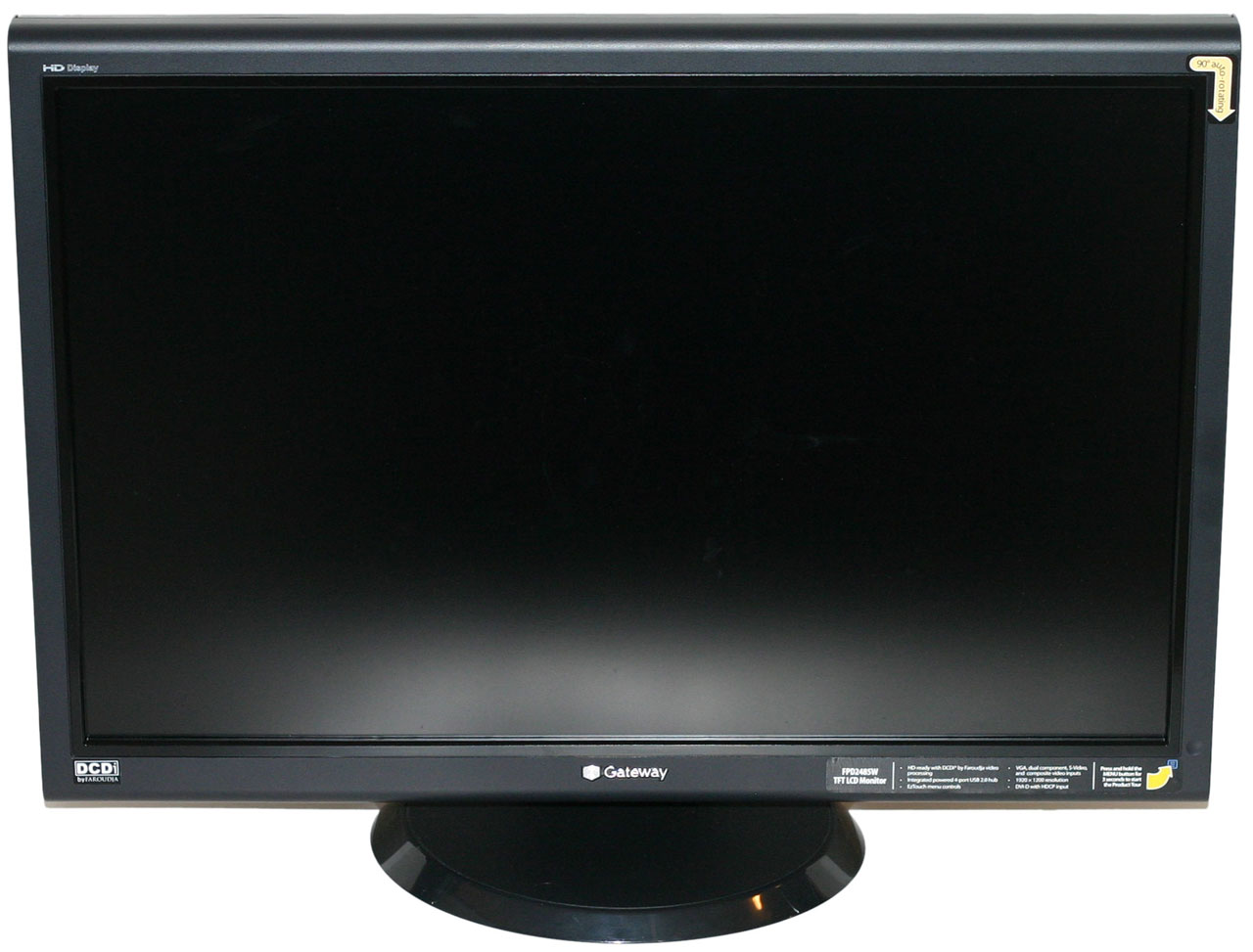
We've already covered some of the features on the specifications page, but we're going to take a closer look at the display here and provide images from various angles. Assembling the display is extremely simple: after removing the three major pieces from the box (the display as well as the two parts of the base stand), you first attach the circular base to the mounting arm and lock it into place using the provided screw on the bottom of the stand. After that all you have to do is insert the top of the LCD mounting mechanism into the stand and then lower it until it snaps into place.
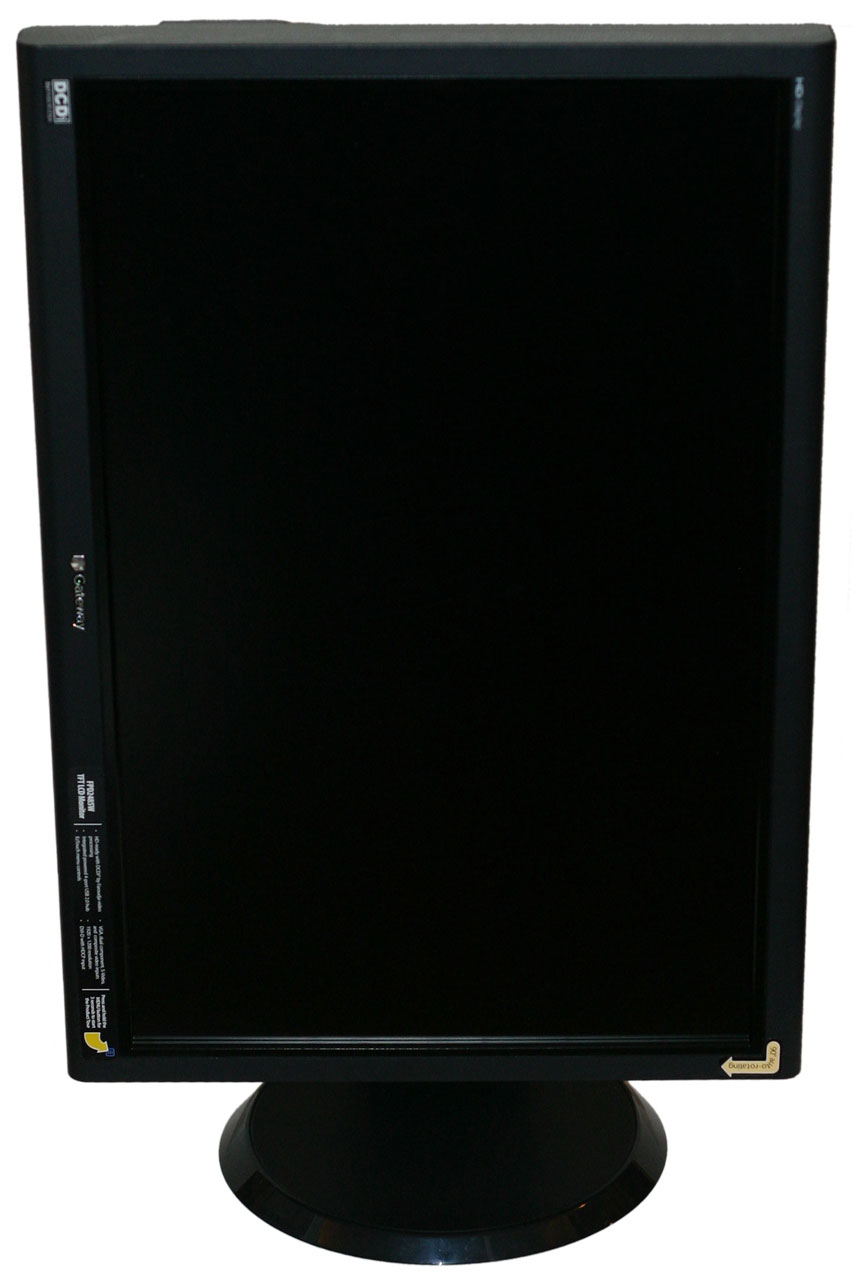
The base stand provides five inches of vertical travel, which gives you a reasonable amount of height adjustment. The stand also allows you to rotate the LCD and use it in portrait mode. While we can't say using a 24" LCD in portrait mode is something we found to be particularly useful, some people might feel otherwise. One of the great things about having such a large LCD is that it gives you the ability to view two documents (or document pages, web pages, etc.) side-by-side with room to spare, making portrait mode largely unnecessary.
With the display in portrait mode, you don't get quite as much vertical travel, and cable routing can be a bit trickier as well. The display supports auto rotate functionality, so as soon as you rotate the display Windows will automatically recognize the new orientation and change your resolution as appropriate. It is unlikely that this functionality works outside of Windows, due to a lack of native drivers for other operating systems, but we did not actually test this functionality outside of Windows; regardless, as stated already we don't find portrait mode to be particularly necessary on widescreen displays.
Here you can see a shot of the display with the optional speaker bar installed. The speaker bar attaches to the bottom of the LCD and receives power via a short cable that connects to the rear of the main display. The speakers only support stereo audio inputs (standard 1/8" DIN or RCA jacks), but they can try to emulate 3D surround sound if you'd like and the overall quality is pretty good given their size. There are plenty of better sounding speaker options available for $70 or less, but one nice benefit of the attached speaker bar is that you get reasonable quality audio without taking up much desk space. If you're more concerned with eliminating cable clutter than with getting premium quality audio, we would definitely add the speaker bar to a purchase of this display. The speakers also have the potential disadvantage of making portrait mode more difficult to access, so if you do intend to use the portrait mode we would forgo purchasing the speaker attachment.
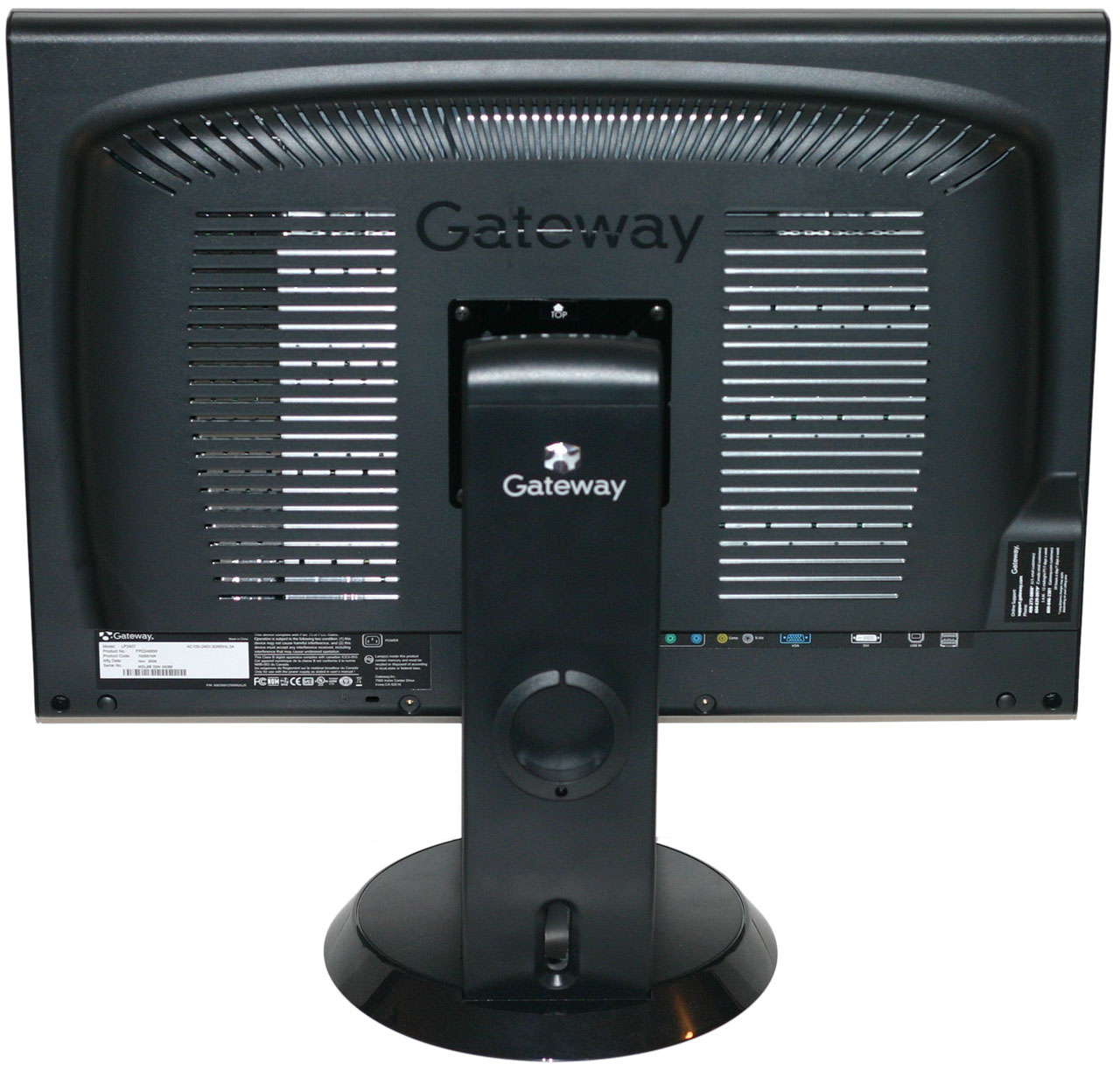
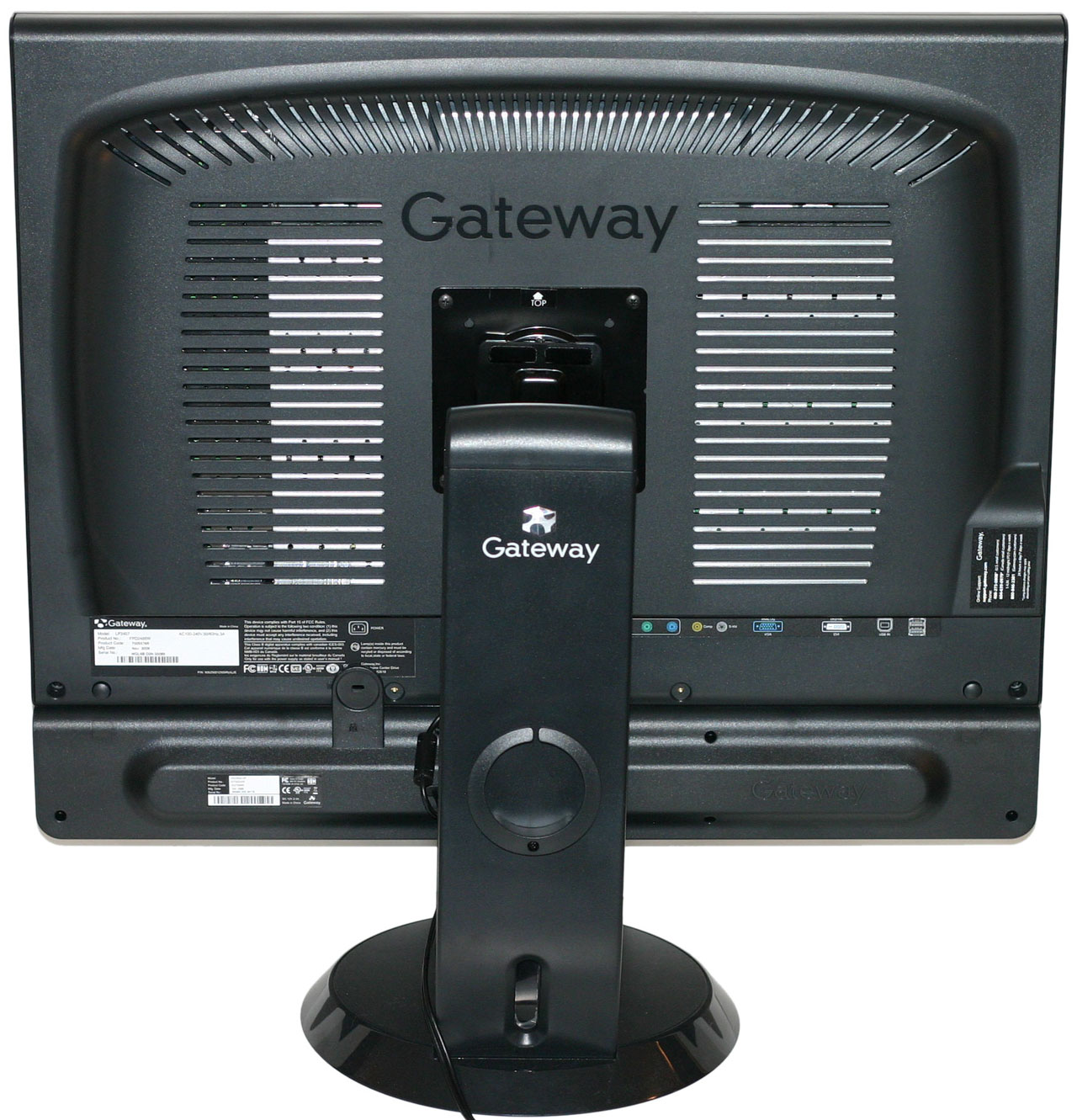
Here you can see the rear of the unit, with or without the speaker bar. The back of the base stand also includes a small ring that can be used to aid in cable routing. If you would rather do without the base stand, you can of course remove the mounting bracket and use a standard VESA wall mount instead.
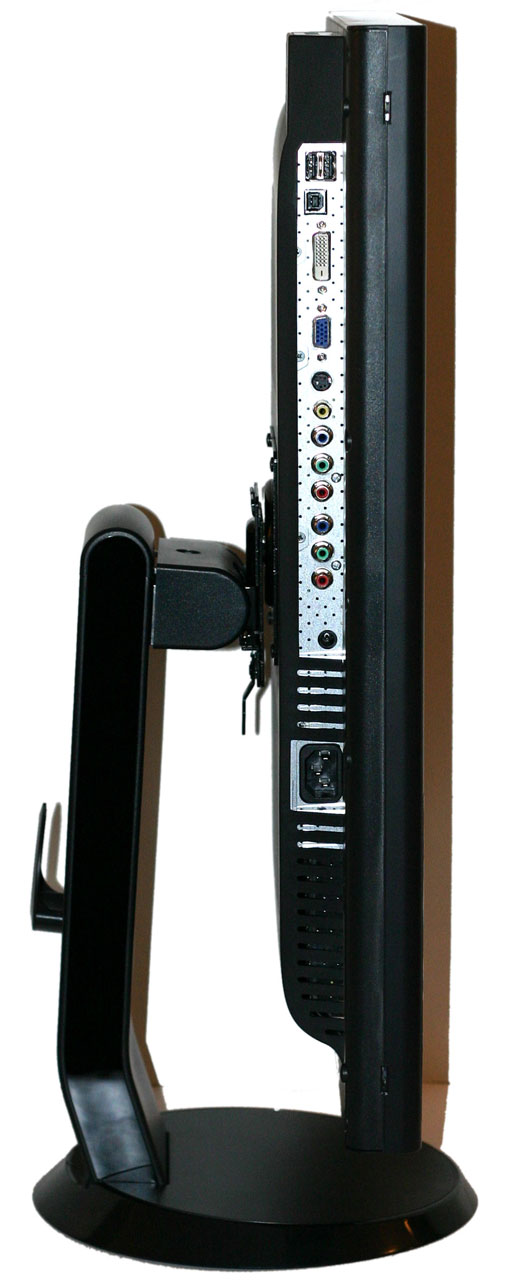
All of the input ports are located on the back of the unit, facing downward. One of the advantages of being able to rotate the display is that it makes it easier to install the cables initially. The only ports not located on the bottom of the display are two additional USB ports which are located on the left side. The ability to have the display function as a USB hub can be useful, although personally we prefer the integrated flash memory readers found on competing Dell LCDs. Flash memory readers are cheap, but integrating them into the display is one more way of eliminating cable clutter. If you have a flash reader integrated into your PC, of course, having a second reader on your display is largely superfluous.
We've already covered some of the features on the specifications page, but we're going to take a closer look at the display here and provide images from various angles. Assembling the display is extremely simple: after removing the three major pieces from the box (the display as well as the two parts of the base stand), you first attach the circular base to the mounting arm and lock it into place using the provided screw on the bottom of the stand. After that all you have to do is insert the top of the LCD mounting mechanism into the stand and then lower it until it snaps into place.
 |
 |
| Click to enlarge | |
The base stand provides five inches of vertical travel, which gives you a reasonable amount of height adjustment. The stand also allows you to rotate the LCD and use it in portrait mode. While we can't say using a 24" LCD in portrait mode is something we found to be particularly useful, some people might feel otherwise. One of the great things about having such a large LCD is that it gives you the ability to view two documents (or document pages, web pages, etc.) side-by-side with room to spare, making portrait mode largely unnecessary.
 |
| Click to enlarge |
With the display in portrait mode, you don't get quite as much vertical travel, and cable routing can be a bit trickier as well. The display supports auto rotate functionality, so as soon as you rotate the display Windows will automatically recognize the new orientation and change your resolution as appropriate. It is unlikely that this functionality works outside of Windows, due to a lack of native drivers for other operating systems, but we did not actually test this functionality outside of Windows; regardless, as stated already we don't find portrait mode to be particularly necessary on widescreen displays.
 |
| Click to enlarge |
Here you can see a shot of the display with the optional speaker bar installed. The speaker bar attaches to the bottom of the LCD and receives power via a short cable that connects to the rear of the main display. The speakers only support stereo audio inputs (standard 1/8" DIN or RCA jacks), but they can try to emulate 3D surround sound if you'd like and the overall quality is pretty good given their size. There are plenty of better sounding speaker options available for $70 or less, but one nice benefit of the attached speaker bar is that you get reasonable quality audio without taking up much desk space. If you're more concerned with eliminating cable clutter than with getting premium quality audio, we would definitely add the speaker bar to a purchase of this display. The speakers also have the potential disadvantage of making portrait mode more difficult to access, so if you do intend to use the portrait mode we would forgo purchasing the speaker attachment.
 |
 |
| Click to enlarge | |
Here you can see the rear of the unit, with or without the speaker bar. The back of the base stand also includes a small ring that can be used to aid in cable routing. If you would rather do without the base stand, you can of course remove the mounting bracket and use a standard VESA wall mount instead.
 |
 |
| Click to enlarge | |
All of the input ports are located on the back of the unit, facing downward. One of the advantages of being able to rotate the display is that it makes it easier to install the cables initially. The only ports not located on the bottom of the display are two additional USB ports which are located on the left side. The ability to have the display function as a USB hub can be useful, although personally we prefer the integrated flash memory readers found on competing Dell LCDs. Flash memory readers are cheap, but integrating them into the display is one more way of eliminating cable clutter. If you have a flash reader integrated into your PC, of course, having a second reader on your display is largely superfluous.
Originally published at https://www.anandtech.com/show/2179 (Wayback Machine).