
Ricoh EncryptEase: CD-R Password Protection Made Easy
- Posted in
- Storage
EncryptEase Complete Software - The Burn Process
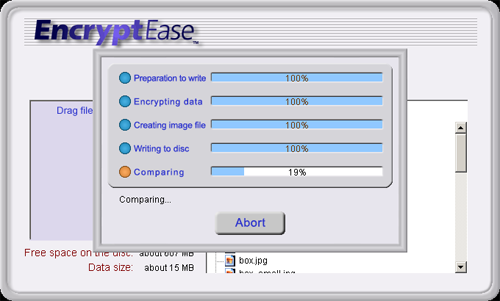
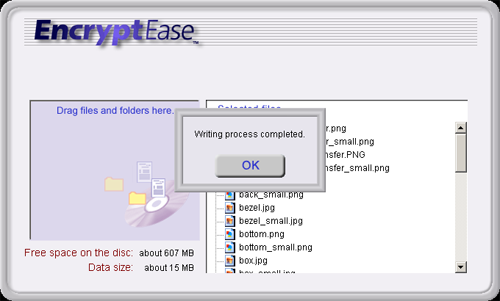
The burn process is more than just writing the data to the disc. There are a total of 4 or 5 steps, depending on what we select for comparing data. In the first step, the data is prepared for the entire process. The second step involves encrypting the data followed by creating an image file on the hard drive selected. These first three tasks finished fairly quickly because of our Athlon 64 based test bed. We're assuming that it will take much longer on a 133MHz processor, which is the minimum requirement for a Windows 2000 system.
The burn process is more than just writing the data to the disc. There are a total of 4 or 5 steps, depending on what we select for comparing data. In the first step, the data is prepared for the entire process. The second step involves encrypting the data followed by creating an image file on the hard drive selected. These first three tasks finished fairly quickly because of our Athlon 64 based test bed. We're assuming that it will take much longer on a 133MHz processor, which is the minimum requirement for a Windows 2000 system.
Originally published at https://www.anandtech.com/show/1940 (Wayback Machine).