
HP Z27q Monitor Review: Aiming For More Pixels
Contrast and Brightness
Monitors for desktops don’t need the very high brightness of a tablet or smartphone, since they are used indoors. HP rates the Z27q as a 300 cd/m2 display, and I was able to hit almost exactly that at 296 cd/m2 which is plenty for indoor use. Minimum brightness was 50 cd/m2 so there is quite a bit of dynamic range there to find a suitable brightness for pretty much any office space.
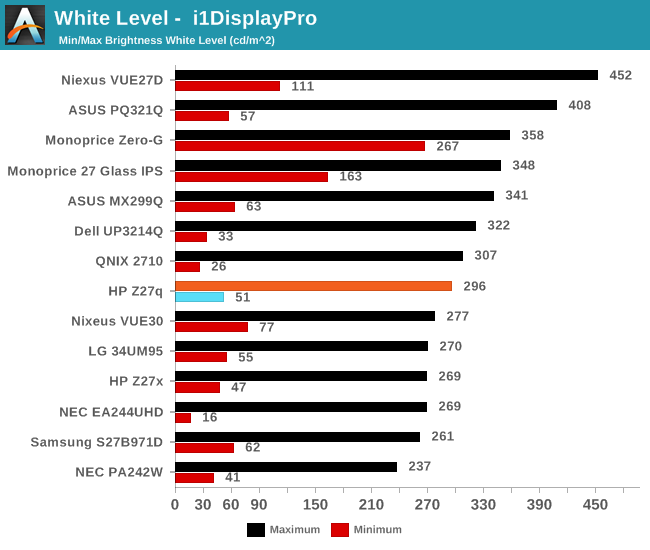
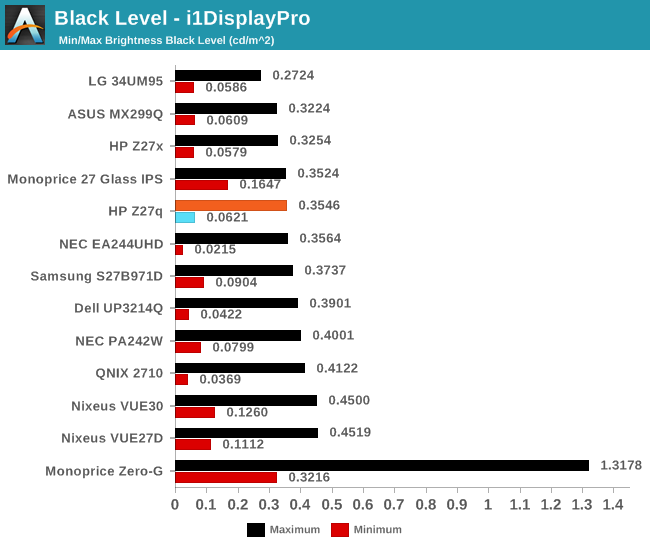
Black levels are pretty consistent with IPS desktop panels, but overall they are a bit too high. Techniques like photo-aligning the backlight and panel can bring some big gains in black levels, but HP is not using such a panel. As such, the overall black levels are less than amazing. Contrast is ultimately not as important as proper gamma for this type of display, but still it would be nice to see better in expensive desktop panels at this point since the technology is available.
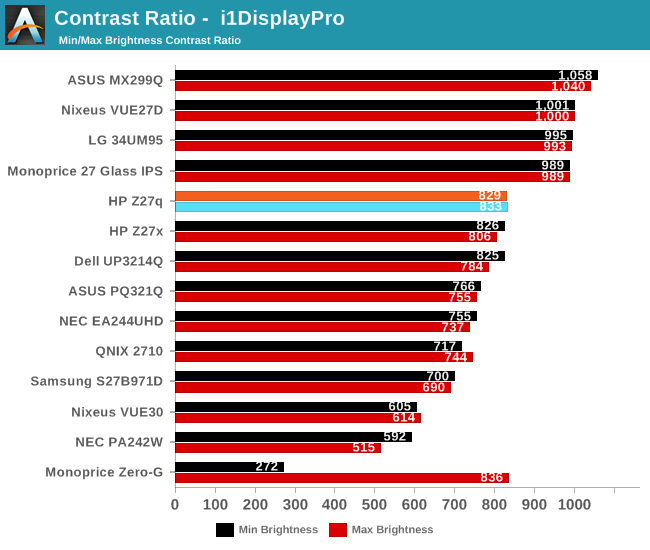
This gives us a pretty paltry contrast ratio of 833:1, which is a long way from the 1800:1 seen in some tablets and notebooks. HP is clearly ok with this performance though since it matches the Z27x almost exactly.
Ultimately even though this is a low price for a 5K monitor, it is still far from inexpensive. This is targeted more towards professionals who are after a better overall gamma curve and color accuracy, and consumers may want to stick to a more traditional panel with better contrast for things like watching movies.
Gamut Options
HP offers the very high gamut Z27x display, but the Z27q trades off that gamut for a higher resolution. Still, it can cover both sRGB and AdobeRGB (as well as Rec. 709) and there are built in options for picking the color gamut. The Z27q has a 14-bit LUT, but it is not user accessible, and is calibrated at the factory. Once dialed in, there is no way to adjust it after the fact, so people who are after the utmost in accuracy will likely have to spend a bit more.
Below you can see the gamut options for the Z27q. The additional gamut of AdobeRGB is easily achieved by this panel.
 sRGB Gamut
 AdobeRGB Gamut
The built in calibration is quite impressive, with the Z27q nicely matching both the sRGB and AdobeRGB spaces with no issues. Some additional options would be nice though, especially DCI/P3, if only because the gamut is likely covered by this display anyway, but there is no way to set the panel to that range.
Originally published at https://www.anandtech.com/show/9870/hp-z27q-monitor-review-aiming-for-more-pixels (Wayback Machine).