
The Windows 10 Review: The Old & New Face of Windows
- Posted in
- Operating Systems
- Microsoft
- Windows 10
The Free Upgrade and Activation
For the first time ever, Windows is being offered as a free upgrade to existing users. In this case, anyone with a valid Windows 7 or 8.1 is entitled to the free upgrade, which means the majority of Windows users are eligible. This is really unprecedented. Windows 8 had a brief lower cost upgrade, but it was still $40. It’s hard to beat free. This offer is valid for one year, meaning you have until July 29, 2016, to take advantage.
As part of the process, Microsoft has rolled out updates to users with Windows 7 and 8.1 which puts a Windows icon in their system tray. This lets them “reserve” a copy of Windows. Once reserved, the app will scan your system for potential hardware issues, and if you are clean, it will download the files for the upgrade. Once it is ready, you will be prompted to upgrade. You can defer this of course, but it will always be there, waiting, waiting, for you to hit yes.
Windows 10 will be rolling out in waves, and as of now that is very much underway. With a huge Windows Insider program, Microsoft has a lot of data on what configurations have a good experience with Windows 10, and known good hardware combinations are going to be the first to get the ugprade through the pop up. Devices which may need a driver update from the OEM will not get the upgrade pushed to them until it is ready, which should help with people having issues post upgrade. I have personally had a good experience with the upgrade process on all of the devices I have tested, but even though I have more to test than most people, I am sitll a pretty small sample size. If you are an owner of a device with WIMBoot and very low amounts of storage, the upgrade may not appear automatically if you do not have enough free storage to download it, and WIMBoot is offering some challenges for the entire upgrade experience as well which is likely compounded by the WIMBoot devices having little free space anyway. If you want to force the issue, you can always do that as well by downloading and installing it yourself.
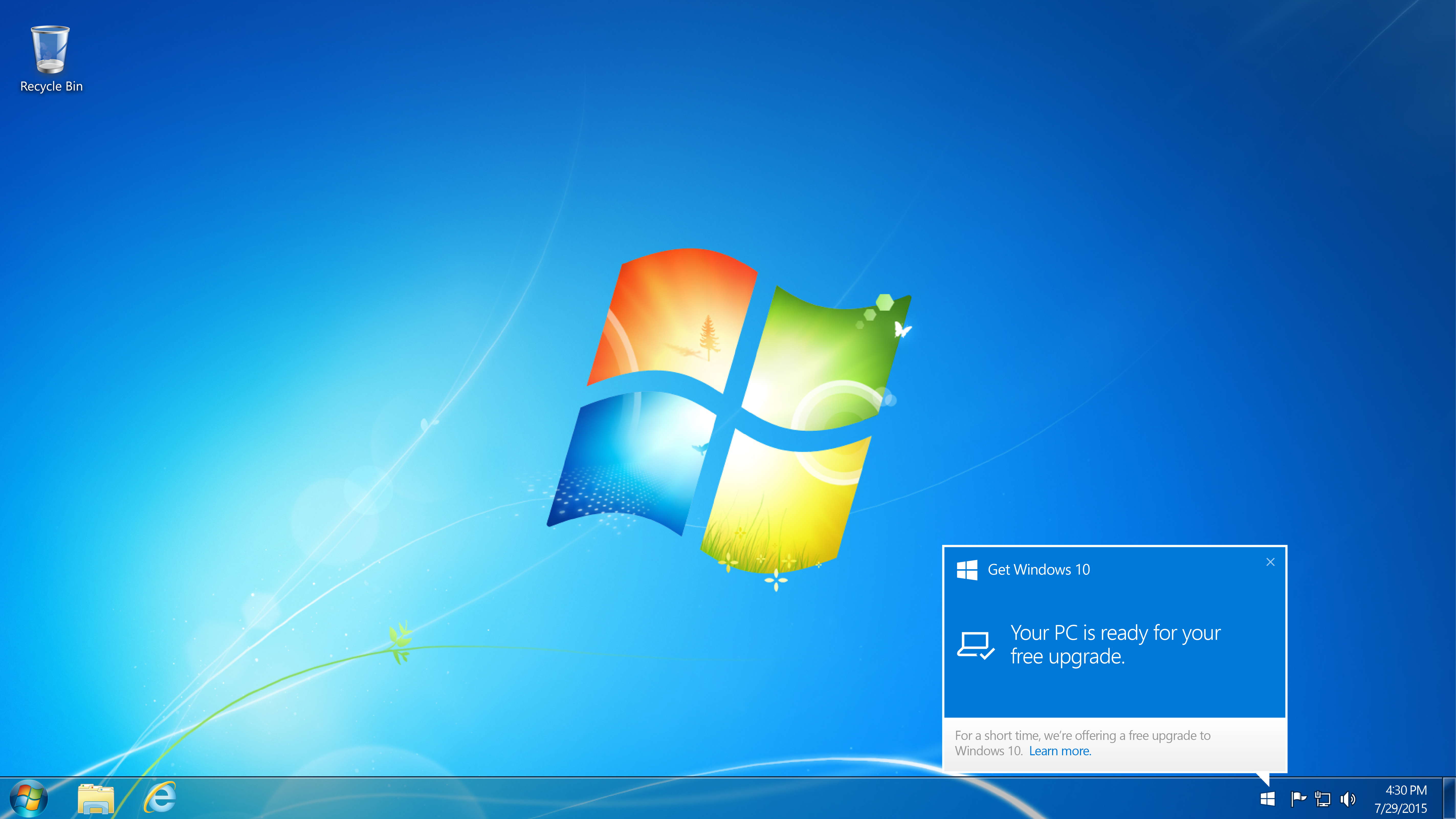
Although I’m not a huge fan of the pop-up, Windows 10 is a big bet for Microsoft, and part of that bet is to get as many users onto the platform as they can. The entire Universal Windows App strategy depends on getting a large user base.
In the end, it’s hard to complain about a free upgrade, especially when it’s optional.
But what happens when you do install?
The upgrade
When you are prompted to install, you will have the option to keep your existing files, or keep nothing. There seems to be some confusion out there about keep nothing, but it really means keep nothing. You will get a clean Windows 10 install if you choose the latter, but you will also lose all of your software including any OEM installed drivers or utilities. If you choose to keep your files and programs, this won’t be the case.
It’s going to depend on your hardware how long the upgrade takes, but it is generally pretty quick. If you choose to keep nothing, it is very fast because it doesn’t have to migrate any of your data around on the disk.
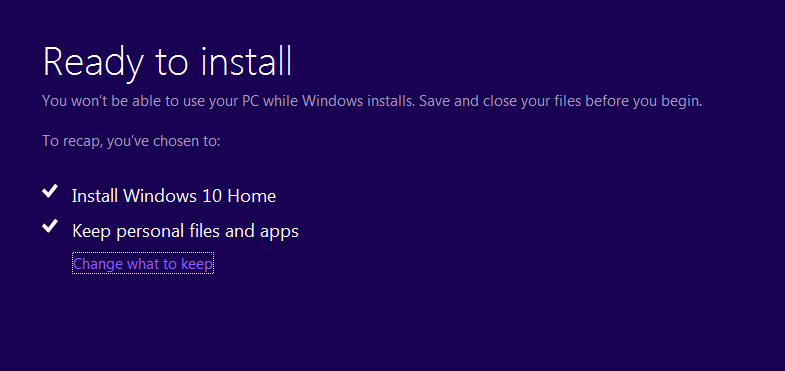
Any accounts on the computer will be kept intact, with their user data migrated.
The process is surprisingly easy, and robust as well. I’ve upgraded several machines and found no issues doing an in-place upgrade.
For those that want to do a clean install of Windows 10, be aware that in order to get a valid Windows 10 key, you first have to upgrade from 7 or 8.1 (to take advantage of the free upgrade offer) but once you do that, your product key is tied to your hardware and kept my Microsoft. Any future reinstalls on the same hardware will not need to be activated again.
As always, you should ensure you do a backup of your system and especially your data before undertaking this, but then again you should have a backup regardless so please make one. Windows 10 will let you know during the upgrade that you can roll back for up to 30 days after the upgrade, in case you have a bad experience. This also means that you will have extra storage used up with a Windows.old folder in your C: drive. This will be automatically removed after the 30 days, but you can also get rid of it with the disk clean-up tools. If you do want to roll back, you can find this under the Recovery section in settings.
Originally published at https://www.anandtech.com/show/9543/the-windows-10-review (Wayback Machine).