
Z77 mITX Round-Up: Five of the Best – MSI, Zotac, ASRock, EVGA and ASUS
ASUS P8Z77-I Deluxe In The Box
Out of the motherboards tested in this roundup, the ASUS P8Z77-I Deluxe comes near the top in terms of cost – only to be outdone by the EVGA Z77 Stinger. Technically there is not much scope for additions in the box, for example no USB 3.0 bracket is needed unless a vendor decides to put a second USB 3.0 header on board – which is a limited possibility with the lack of PCB space on offer. Typically ASUS kit out their high end motherboards quite well, and as this is the ‘high-end’ mITX product, we hope for the best.
In the P8Z77-I Deluxe box, we get:
Driver Disk
User Guide
Rear IO Shield
Four SATA Cables
Two Antenna
ASUS Q-Cable
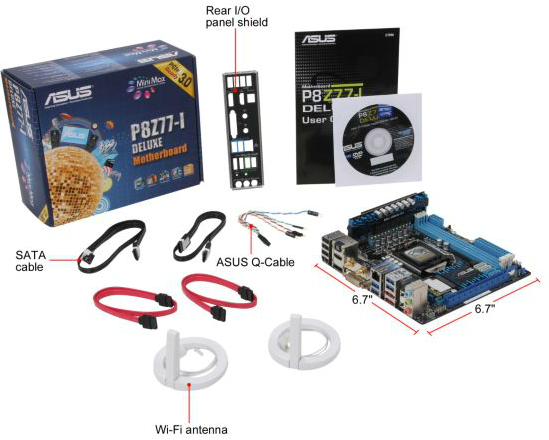
The WiFi antenna in the box use ASUS’ magnetic ring design, with part of the aerial designed to be perpendicular to the rest of the ring. Using two of these attached to a metal case usually provides ample opportunity for maximizing 2.5 GHz / 5 GHz WiFi reception. In the case of the WiDi model of this board, it would also help with video streaming.
The Q-Cable is a handy way of extending out the front panel connectors so both save space and make them easier to attach. Four SATA cables fill our complement, one for each internal SATA port on the board.
ASUS P8Z77-I Deluxe Software
When reviewing a motherboard, having a nice software install and selection to choose from puts me in a good mood. I want to install XYZ and then let the machine do its thing – if I have to sit around and press OK/Yes repeatedly, it zaps my energy and good hearted cheer, especially when most of the installers used have silent install options. Thankfully, we get the easy option with ASUS.
Now one thing that should be brought to light is the concept of licensing deals with installation packages. Some manufacturers go out and organize bulk licensing deals for useful software with the motherboards. Other bits of software are used as advertising, wherein the user gets a ‘free 30 day trial’ to some software as part of the installation package. This one technically generates revenue to help bring the cost of the product down, at the annoyance of the user trying to install the package.
ASUS does the latter by a factor two: we get Google Chrome and Norton Internet Security as part of the package. I am a big advocate of Chrome, and given that it is free to download I am hoping that ASUS added it on to the install disc out of kindness rather than as a money driven exercise. I am not a fan of Norton products though, and often disable the install.


ASUS wrap their OS software into one install package with multiple options – they call this AI Suite II, which we have seen on ASUS motherboards for at least the past couple of years, with minor incremental updates over time.
AI Suite II

The main bar of AI Suite splits the sub-programs up into groups, with major utilities having their own buttons. In the case with the P8Z77-I Deluxe, this is the Auto Tuning option for overclocking. We will go through these utilities in turn.
TurboV Evo

TurboV Evo is the operating system based overclocking tool provided. It allows for changes of all the important voltages and frequencies onboard, as well as providing the Auto Tuning options for ‘Fast’ and ‘Extreme’ overclock settings. I usually find TurboV Evo a good bit of kit when overclock testing, though I would like to put in some values by numbers rather than having to fiddle with sliders all the time.
DIGI+ Power Control

In order to give users better control over the power delivery, ASUS implements their DIGI+ Power Control on the mITX boards as well. There are fewer options here than on some of their higher end motherboard offerings, but if a user wants to give more current capabilities or adjust load line calibrations through the OS for overclocks, the options are here for the CPU (but not the RAM like on the larger boards).

In a similar vein, we also have the EPU (Energy Processing Unit) menu and settings, designed to adjust and power gate different parts of the motherboard to save energy.
Fan Xpert

ASUS are well known in the motherboard space for using better fan controllers than most of the motherboard industry – typically one per fan header which is configurable within the BIOS and in software. The beauty of these fan headers lie in their independent control – the system has access to the RPM output and can adjust the speed on the fly. Pair that up with some software that actually can manipulate such a system and we have a nice fan configuration. The software behind this is Fan Xpert – bundled as part of AI Suite, it will test all the fans in the system and provide RPM vs. Power applied values (as this relationship is rarely linear). This allows users to adjust the temperature/RPM curves as required – the only thing missing is the ability to apply hysteresis.
WiFi Go! and WiFi Engine

Much in the same way that Dropbox or Google Drive is used to synchronize files between devices, ASUS has its own non-cloud solution for use between a PC and a mobile device in the form of WiFi Go!
WiFi Engine allows the user to configure the PC as either a normal client, or as an access point for other computers to connect to. This allows users to install a WiFi access point in their property if they do not already have one, or extend the range of an existing connection – as long as the machine is switched on of course. If the motherboard was used in a HTPC/NAS type environment via Ethernet cable, then setting up the motherboard as an access point would actually be very useful.
Ai Charger+ and USB Charger+

These two fast charging utilities are used to force more current though one USB port for fast charging of compliant devices. A USB port might only send 100 mA (USB 2.0) or 300 mA (USB 3.0) while in ‘data’ mode, but these utilities allow certain ports to go into a ‘Battery Charging Specification’ mode, which depending on the version that ASUS are using, might result in up to 900 mA with data or 1500 mA without data in S3.
It should be noted that this solution fast charges all smartphones and tablets that are compliant while under S1, S3 and S4, whereas other charging features on other motherboards are limited to Apple devices currently.
USB 3.0 Boost

As part of the ASUS methodology, we have onboard an ASMedia controller which can take advantage of the most up to date USB 3.0 transfer protocols. By attaching a compatible USB 3.0 device, and a click of the USB 3.0 Boost interface, the software will apply a driver over the standard ASMedia driver in order to enforce these under the hood commands. As we have shown in previous reviews, this affords a nice bump in the speeds provided at low transfer size workloads, making a USB device more tenable for everyday random access use rather than just storage. USB 3.0 Boost can also apply a modified driver to the chipset USB 3.0 ports for a similar boost using BOT protocols rather than UASP. (Note, this is fairly moot for Windows 8, where UASP is part of the standard driver package for all compliant devices, and BOT for non UASP-compliant ones.) Standard Intel USB 3.0 ports also get a boost under Windows 7 with a slightly different modified driver.
Network iControl

For the past couple of years it has been clear that users in the motherboard industry would prefer the ability to manipulate the network ports onboard their system. While doing some epic downloading while playing a twitch FPS online is a little bit of an odd combination, using software tools in the OS to manage the priority of these programs is never a bad thing. On the ASUS side this comes in the form of Network iControl, and within this software the user can adjust the software that uses the Ethernet connections and rank them in order of priority. Alternatively the system can be left on automatic, and the program will use a series of pre-defined rules to prioritize a lot of the well known programs that typically rely on low-latency throughput.

USB BIOS Flashback
Rather than update the BIOS through the BIOS or OS, users can opt to flash the BIOS using USB BIOS Flashback. This utility is also handy as the BIOS can be flashed without a CPU, memory or GPU present – the ultimate fallback if the BIOS is corrupted or unrecoverable. The USB BIOS Flashback utility in AI Suite allows users to set up a USB with the correct files for USB BIOS Flashback if they do not wish to use the OS utilities.


Originally published at https://www.anandtech.com/show/6516/z77-mitx-roundup-five-of-the-best-msi-zotac-asrock-evga-and-asus (Wayback Machine).