
Z77 mITX Round-Up: Five of the Best – MSI, Zotac, ASRock, EVGA and ASUS
ASUS P8Z77-I Deluxe BIOS
The BIOS from ASUS has been a rock solid part of their motherboard package since the advent of graphical BIOSes on mainstream motherboards hit a couple of years ago. ASUS divides functionality at the top level, providing an easy mode with images and bars to help identify the main points of the product, as well as a one button click for greater performance and boot priority. The other side of the coin is in advanced mode, where the feature sets are laid out to make sense to the user, and all options take the form of the old text-based BIOS. This lays the plans down for other features of the system, like USB BIOS Flashback.
While the BIOS from ASUS is one of the best on offer out of all the motherboard manufacturers today, there is room for improvement in all of them. The beating heart of a graphical BIOS should be functionality, representation of those functions, and usability. Very rarely do I ever see all three meshed together. Part of this is down to the size of the BIOS – even ASUS limit themselves to a 64 megabit BIOS chip, meaning 8 MB of storage to play around with for all the initialization procedures and protocol. It makes efficiency important in BIOS coding, and vendors are unwilling to double the size of the BIOS because of the additional cost. With the motherboard market in decline, innovation in this area is unlikely any time soon, but with bulk buying deal, ASUS could lead that charge. Then all would be left to do is to encourage the BIOS engineers and developers to create something.
The ASUS BIOS however is one of the best available today. The front ‘easy’ mode screen is full of information that a system builder or diagnostician needs before opening up a case – we get access to the motherboard model, BIOS version, CPU installed, the size of the memory installed, CPU and system temperatures, fan speeds, voltages and the boot order. There are options to apply a basic turbo mode, a power saving mode, a Boot Menu to select which device to boot from and shortcuts to advanced mode features.

Stepping into the advanced mode gives us a tabbed interface of options. When first entering we are presented with the Main screen, which offers similar data to the easy mode, as well as security options.

The next tab along is the AI Tweaker, where all the cool stuff happens. Users can choose to overclock their system through this menu, with options for CPU multiplier, CPU base frequency, MultiCore Enhancement, XMP on the memory, separate memory straps, and associated voltages. There are separate menu options as well to deal with memory timing, power management, and the DIGI+ VRMs.

The Advanced menu is for enabling and disabling the functionality on board – this extends to processor functionality (to disable sleep states), SATA functionality, USB functionality, Rapid Start, Smart Connect, integrated graphics, PCIe configuration and onboard devices such as audio, network, WiFi and Bluetooth.


Fan controls are hidden in the Monitor tab, which gives us details on temperatures, fan speeds and voltages. The fan options are relatively basic compared to those offered in the OS, despite the fact that the graphical BIOS way of thinking should offer some form of stepped graphical control over fan speeds. I look forward to seeing it on future BIOS designs.

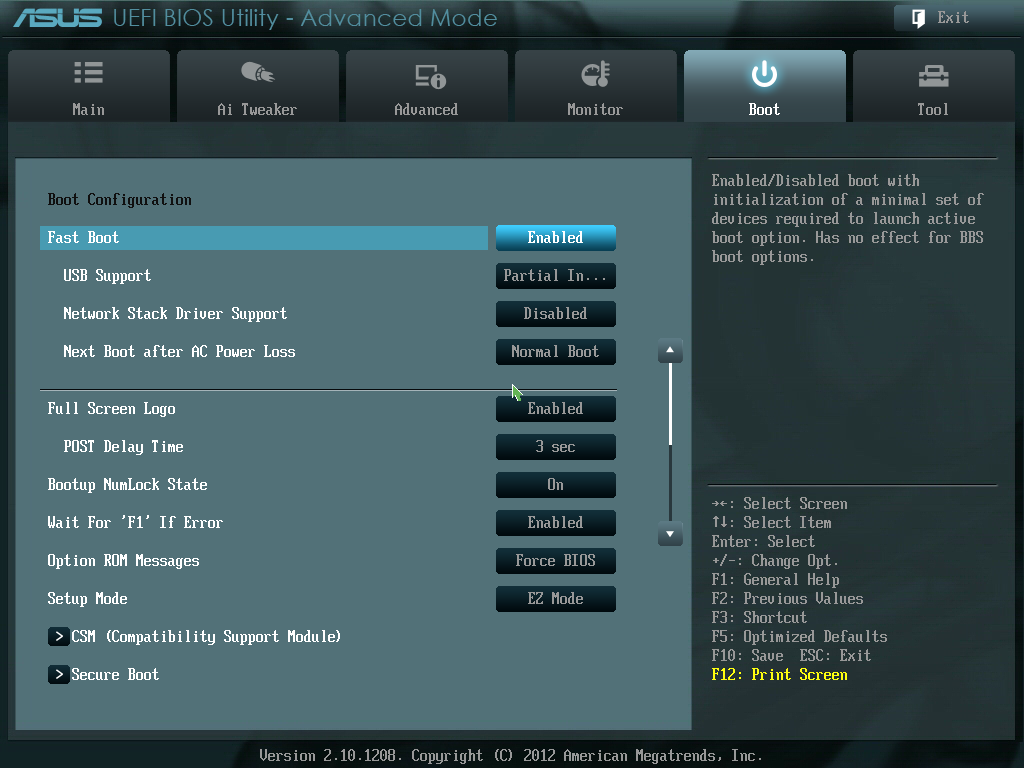
The Boot tab allows users to adjust the boot order or select a device for a single boot override. Users of Windows 8 can also take advantage of the Fast Boot option which reorganizes the initialization procedure at POST in exchange for not being able to get into the BIOS without a BIOS reset or selecting an OS software option.
The ASUS BIOS also supports BIOS flashing if the correct file is on an attached storage device, although not directly from the internet. A newer feature in ASUS’ offering allows users to save BIOS profiles direct to a USB stick as well.


Another feature to mention is USB BIOS Flashback, which allows users to update a BIOS without having a CPU, memory or a graphics device installed. With the correct BIOS file and filename on a USB stick, by pressing a button on the IO panel, it will update the BIOS onboard (exact procedure is listed in the manual).
Originally published at https://www.anandtech.com/show/6516/z77-mitx-roundup-five-of-the-best-msi-zotac-asrock-evga-and-asus (Wayback Machine).