
LG Google TV Review
Intel was a surprise partner for the first generation of Google TV hardware. It was also the first time that the hardware platform for an Android device was almost utterly prescribed by Google. There’s a lot to unpack there but let’s start with the hardware itself. Let’s peek at an image we first published in 2010.

It seems easy to scoff at the Atom CE4100's CPU today, just as we’re on the cusp of seeing IPC in mobile SoCs intersect with the lowest end PC CPUs. At the time though, the delta between the fastest mobile processor and the lowest end x86 core was fairly massive. So the compute capabilities should be more than sufficient. Looking just to the right, you see that big grey box with three key components for an A/V tailored SoC. The media decoder can handle two simultaneous H.264 streams at once, and backed up by a display processor that can handle scaling, noise reduction and de-interlacing duties. Graphics are rendered by the venerable Imagination Technology’s PowerVR SGX535, seen also in the iPhone 4, plenty powerful enough for the UI and 3D gaming.
So, why the switch to ARM? If I had to guess, cost as much as anything else. The initial roll out of Google TV devices were . . . pricey. Foregoing the cost of an x86-based SoC would go some way to bring costs down to the $99 sweet spot being hit by so many other streamers. Our best guess has the CE4100 adding as much as $40+ dollars to the bill of materials, while a capable ARM SoC could cost as little $5-10.
Today’s Google TV devices use a Marvell solution, though not universally. LG opted to make their first foray into SoC design and produced what’s being called the LG L9. The specifics of the SoC will sound familiar to our readers: two Cortex-A9 cores, matched to a Mali-400 GPU. That combination provided plenty of performance for phones in the form of Samsung’s first Exynos SoC, and sounded like an excellent platform for a streaming device. So, how’d it fare?
Testing on Google TV is a tricky thing. Indeed, benchmarking any mobile OS device is a lesson in compromises, as most of the tests we use have their caveats. Some of the best are packaged for easy use on the Google Play store, and require little more than a quick download, installation and running it a few times. Others can be run through the browser, while others still require a bit more effort than all of that. On Google TV, though, there’s a different challenge. Applications in the Play Store are limited to those that are built for Google TV or that meet certain filters to ensure a good experience on the larger screen. None of our usual benchmarking apps appear through Google’s filters, and trying to sideload some was mainly an exercise in failure.
I did get the browser benchmarks to run, which should give us some idea of the JS performance.
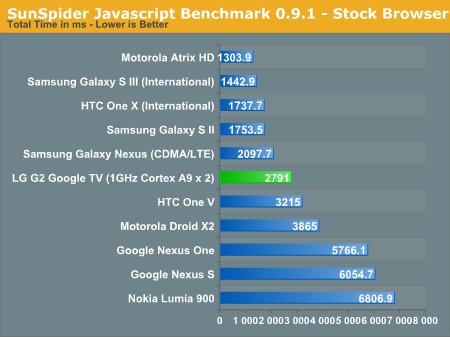
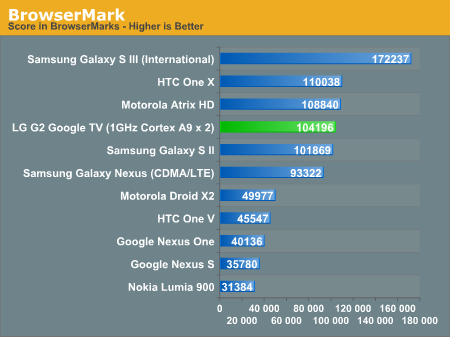
If you take last gen SoCs and take the power management brakes off, that’s what you end up with. The SunSpider score is somewhat disappointing, but we've come to expect the occasional score hiccup there. The L9 fares well against the Exynos 4212 it resembles (in Browsermark), but this doesn’t really give you a good idea for how the device itself performs. And it’s here that things start to tumble a bit. I couldn’t get any GPU tests to run, and if they did I’m sure that performance would be adequate, but it’s the actual UI composition that suffers tremendously here. Moving between home screens, opening the app drawer, scrolling around lists or web pages... all of these things are stuttery and glacial. There’s no denying it: Honeycomb is inside, and the console suffers for it.
Where everything feels hunky dory is in media playback. Watching streamed content, either in Flash or through the YouTube app, everything plays seamlessly and stutter free. And other content?
One of the challenges for companies in this space is user behavior. Typically when people watch television, they turn on their set, their set-top box, and then change the channel or pull up their guide to select their program. When your content comes from apps or local files, the experience is a little alien. Thanks to modern smartphone OSes we’ve become accustomed to using apps to view some content, but what about a local file? It took me some time to figure out how to even pull up a listing of local media files, let alone how they would get played back. The appropriate app for both, Media Player, doesn’t show up on the home screen by default, which goes to show the emphasis LG and Google place on that particular use case.
Our media playback test is absolutely brutal, but the LG does a decent job with it. Unlike other Google TV devices we've encountered, it seems to have no difficulties playing back MKVs of various combinations. Where it falls short is a bit of a mixed bag. There's no support for Blu-ray rips packaged as .m2ts files. There's also no support for subtitles, nor alternate audio or video streams. And oddly for a 3D display, it fails at autodetection of 3D content, both in the media player and other sources. All that said, in some of our highest bit rate files, the LG drives without a stutter. Interestingly, there are some lower bit rate files that presented some stuttering, but I suspect that had to do with some scaling difficulties.
Which brings me to the one big reason why you’ll want to playback local files on something other than the LG. Within Media Player there are just two display options: Full Screen and Original Resolution. In Full Screen the content is stretched to fit the 16:9 of the screen, and the results are as horrific as you can imagine. In Original Resolution the content is displayed untouched, so if you’re content is in 720p, or worse yet in something obscure, it will sit surrounded by a lot of black. So, if all your content is 1080p, or at least 16:9, you’ll never notice an issue; otherwise, expect some frustration.
Originally published at https://www.anandtech.com/show/6287/lg-google-tv-review (Wayback Machine).