
Dell XPS 15 L521X: A Detailed First Look
Dell XPS 15 Thermal and Throttling Investigations
Considering the CPU throttling that’s occurring with the current BIOS, we have several sets of data to examine. We logged clock speeds and temperatures on the CPU and GPU using HWiNFO64, and we’ll analyze the results here. Let’s start first with the system running “stock” with the A04 BIOS. Again, the current results likely do not represent exactly what we’ll see from future BIOS revisions, but I expect temperatures will be somewhere between the stock and ThrottleStop figures we’ll discuss in a moment. For the stress testing that we’re doing here, we loaded up Cinebench 11.5 rendering with three threads (looped), and we ran 3DMark06 at 1080p on the four gaming tests in a loop. There are slight gaps that occur each time one test ends and the next begins, so a short-term drop in clock speeds isn’t particularly noteworthy; it’s only when we see sustained lower clock speeds that we can clearly state that the system is throttling.
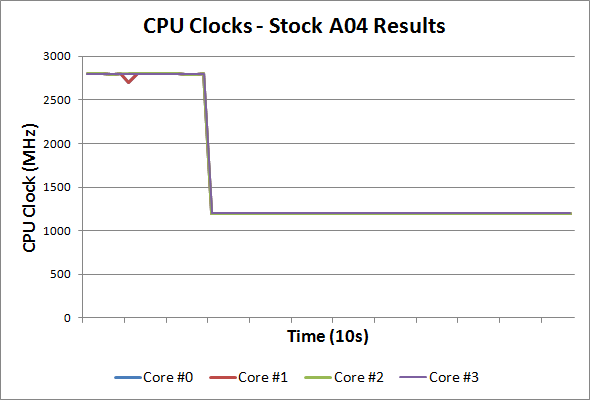
Starting with the clock speeds, it’s immediately obvious how far the CPU is throttling and how significant the problem is. With our stress test workload we’re able to hit the thermal limits (around 80C on the CPU) in just 30 seconds, at which point the CPU drops to 1.2GHz from 2.8GHz. While our graph only shows the first couple of minutes, the 1.2GHz clock remained in effect for over five hours of stress testing, with nary an upward spike until we halted the tests. Most of the time, we were able to run this workload without problems, but we did experience at least one crash. There’s also the question of what would happen under more extreme environmental conditions, as our testing was done in a 70-73F AC cooled environment. Here’s a look at the temperatures for the CPU cores and GPU at stock:
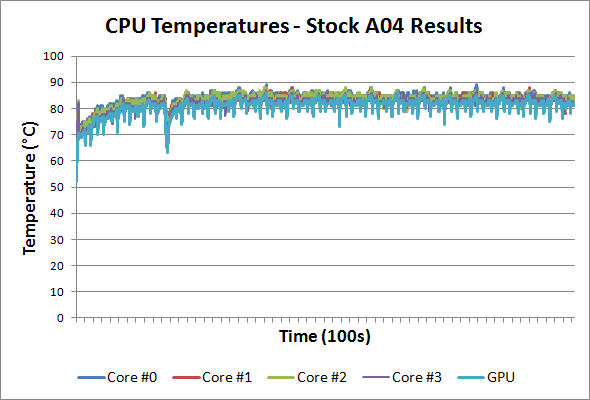
With our particular workload, we reach a maximum CPU temperature of 88C after 20 or so minutes, at which point the cyclical nature of our workload causes the CPU/GPU to fluctuate between 79C and 88C every six or seven minutes (the length of time for a complete 3DMark06 loop). The GPU reaches a maximum temperature of 85/86C after 40 minutes, and again temperatures fluctuate depending on the workload between 76C and 85C over the course of six or seven minutes. A more difficult workload (e.g. Furmark with OCCT) might present problems, but we’re looking at a more realistic scenario and at least the thermal throttling keeps the laptop from crashing.
Running stock is well and good for many, but can we push performance any higher by increasing the CPU clocks? That’s what we attempted to do, and we turned to ThrottleStop for this purpose. Having successfully run all of our gaming suite at 2.3GHz using ThrottleStop, that’s where I started the stress testing. I was a little surprised when the laptop shut down after just 7.5 minutes. Ouch! The CPU cores top out at 100C and the GPU hits 93C, with the laptop sustaining those temperatures for about 30 seconds before crashing (powering off with no warning). With that result in hand (and confirmed with a couple of retests), I stepped the CPU clock back to 2.1GHz. With 200MHz knocked off the CPU clocks, the stress test ran successfully for 20 minutes before once again crashing, and this time the CPU cores maxed out at 99C with the GPU again reaching 93C. The laptop managed to run for five minutes after the first instance of those temperatures, so we’re at least heading in the right direction.
Next up I tried 2.0GHz, thinking I was getting close to “stability”, and the XPS 15 ran for just over an hour before it crashed once again. Maximum CPU temperatures dropped to 98C and the GPU topped out at 92C, but we’re not quite there yet. Interestingly, 1.9GHz on the CPU didn’t do any better, with crashes occurring after 45 to 60 minutes three times before we gave up, and similar max temperatures. At 1.8GHz, we finally reached relative stability, with the XPS 15 handling our looped workload for over four hours. The maximum CPU temperature at 1.8GHz was 95C, and the first time it reached that temperature was just over an hour into the stress test, with the core temperature cycling between 89C and 94/95C every six or so minutes. The GPU maximum temperature was 89C, cycling between 84C and 89C. We put together charts of the CPU/GPU temperatures for our four test runs and you can see them in the following gallery.


As for the system itself, surface temperatures are significantly lower than the CPU and GPU core temperatures reported by HWiNFO, and the chassis never felt uncomfortably hot in our experience—the silicone coating on the bottom helps in this regard, though it may also be inhibiting the radiating of heat through the chassis and contributing to the higher temperatures.
Noise levels are relatively loud (I’d guess around 40dB—I don’t have my SPL meter with me right now), but given the throttling issues the fan should really be spinning faster to compensate—and apparently it can’t. Also note that the exhaust is located under the LCD hinge, which is potentially exacerbating the issue. If the airflow weren’t inhibited by the LCD/hinge, it’s possible the temperatures would drop 5C or more, which might be enough to avoid most of the throttling problems. At idle, noise isn’t a problem at all, with the XPS 15 typically coming in at or below the noise floor of our equipment (30dB). I’d personally rather have a laptop that gets louder but doesn’t overheat, throttle, or even worse crash than a laptop that runs quietly but experiences all of those problems. Of course, in an ideal world you could get both reasonably quiet as well as high performance, but doing so with a thin laptop chassis isn’t in the cards right now. We’ve seen the same issues with throttling (or at least lower clocks) on most of the Ultrabooks we’ve tested as well.
Originally published at https://www.anandtech.com/show/6103/dell-xps-15-l521x-detailed-first-look (Wayback Machine).