
Biostar TZ77XE4 Review: Dichotomy by Default
- Posted in
- Motherboards
- Biostar
- Z77
Biostar TZ77XE4 Software
When buying a motherboard from a non top-tier manufacturer, a user must understand that the software package behind it may not be what they expect. This is especially true in Biostar's case. We start with the software install, which requires a user to manually select each item to install it. In a top tier product, we typically see that a user can one-click an 'Install Everything' or 'Install Selected' option to cut through the requirement for a user to sit at the desk over 15 minutes clicking every now and again.

Perhaps I am being overly critical, given that this is something that would only happen after installing an operating system. Though it is a small feature that I feel as a user should be part of the package. Biostar have taken the suggestion on board and we may see a change in future products.
G.P.U (Green Power Utility)
The software installed comes in several small packages, rather than one overriding interface. The first being Biostar's confusingly named energy saving utility, G.P.U. Rather than standing for Graphics Processing Unit, we are talking about the Green Power Utility, whose job it is to save power (read - reduce voltage and phases in use).

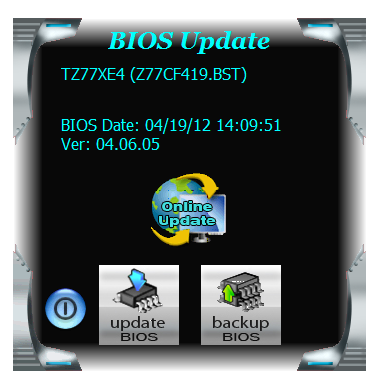
BIOS Update
Should the 'Press F12 to install BIOS' during the POST sequence pass a user by, there is an option to download the latest BIOS from Biostar's servers and install it via the operating system.
eHotLine
System builders will recognize the frustration that arises when you have a hardware fault. When asking for details, the company will require you to take an AIDA64 test or email them a memory dump. Should you need Biostar's support personnel, they may ask for an eHotLine system dump instead, from their own software. Through the software, a user should be able to describe the symptom and email support as required. How quickly you would get an answer is perhaps subject to debate depending on how busy Biostar are.

TOverclocker
The overclocking utility, TOverclocker, attempts to combine all the aspects of operating system overclocks into one interface. On the front screen, it gives a lot of detailed information - CPU speed, motherboard, motherboard model, BIOS version, and the details of the processor installed:

The main menu option here is the OC Tweaker, which allows users to adjust the frequency of the CPU (BCLK manipulation only), the voltage (which never worked for me), and a series of auto overclocking modes. These overclocking modes were actually quite poor, only giving 2 MHz BCLK overclocks which were unstable.

When we tested this software on 990FX for AMD chipsets, it was good and worked well. However, on an Intel chipset, it is fatally flawed and should be redesigned from the ground up.
Fan control is found in the H/W Monitor menu, and is similar to the BIOS implementation:

One last comment about TOverclocker: any overclock you perform in the software is lost on the next reboot until you open up the software. However, if you apply a 2 MHz overclock in the software, then apply it in the BIOS, the next time TOverclocker is opened it will attempt to apply that 2 MHz overclock on top of the BIOS overclock. This will result in an unstable system, meaning the user will not be able to use the software again until the BIOS overclock is set back to default. It is a very odd system to work with on the TZ77XE4.


Originally published at https://www.anandtech.com/show/6097/biostar-tz77xe4-review-dichotomy-by-default (Wayback Machine).