
ASUS Republic of Gamers and X79 ROG Review – Rampage IV Gene, Formula and Extreme
- Posted in
- Motherboards
- Asus
- X79
- ROG
ASUS BIOSes, since the integration of UEFI, have been some of the best designed that we have come across. The combination of an easy mode that covers all the important numbers that a user should know about, and then an advanced mode that enthusiasts can easily use and tinker with, is great. The ASUS solution has very few contenders for that top crown, but they are coming thick and fast (especially Intel with Z77, surprisingly).
The ROG BIOS however differs somewhat from the normal ASUS channel motherboard BIOS. Rather than start in the easy mode, by default we are thrown into advanced mode. The impression here is that anyone who has bought an ROG motherboard should know what hardware is being used and how to manipulate it more so than the average user.
With that in mind, the ROG BIOS is also covered in the red and black theme of the branding, rather than the green and grays from the channel board. For the extreme overclocker, ASUS also has an LN2 mode switch on board - when enabled, this gives more options in the BIOS relevant to tweaking the hardware, as well as exposing higher voltage limits.

The initial landing page is in the Extreme Tweaker mode, for all options overclocking related. The usual gamut of options for overclocking is here, from adjusting voltages to clock speeds and memory straps. What new users to the ROG branding will also see are the automatic profiles provided by ASUS for certain usage scenarios (Normal OC, Gamers' OC, Extreme OC and so on), as well as options they may not have come across (such as CPU Clock Gen Filter).

This is where the ASUS Forums come in to play. As ASUS hire motherboard experts, enthusiasts, and extreme overclockers, there are people to ask about this important information - or even guides to which users can download and call upon to figure out what everything does. For example, for overclocking, instructions for that CPU Clock Gen Filter in the ROG forums states:
"CPU Clock Gen Filter: A setting of Auto is recommened for most overclocking. For memory speeds over DDR3-2200 use 10UF, for speeds over DDR3-2400 use 20UF. If using the 166 strap then a setting of Disabled is recommended."
Note, that guide in the link is written by Rajinder Gill, our previous AnandTech Senior Motherboard Reviewer - he knows his stuff.
In the BIOS as well are predefined ASUS profiles for various types of memory that enthusiasts may be using - if anyone has some old but high end Elpida Hyper modules, then ASUS provide a default profile to deal with this memory on the X79 platform. The same goes for users of high-end PSC kits:

If you know your memory, then ASUS open up a large selection of memory parameters for users to fine tune. Again, this is more focused on the extreme overclocking community.
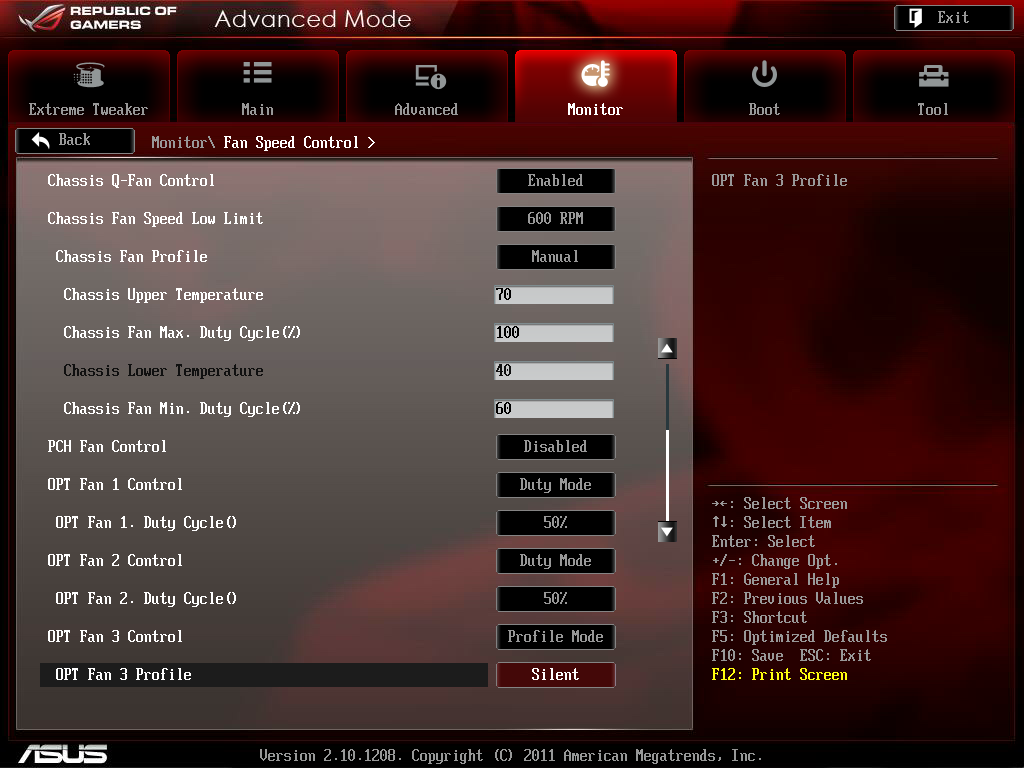
Elsewhere in the BIOS, we get our usual selection of Digi+ power management (again, slightly beefed for the ROG enthusiasts), CPU configurations, enabling/disabling of onboard features and controllers, voltage and temperature monitors, and importantly the fan controls.
Due to the way that ASUS have skillfully done the fan controls using software in the operating system through Fan Xpert in AI Suite, to use the BIOS controls for fan manipulation does seem a little redundant. However, for users who do not use Windows, the BIOS controls are a little limited - CPU and Chassis fan headers get a normal gradient treatment, whereas the Optional fans are limited to profiles or duty modes. Nevertheless, this is still better options that a user could receive with other motherboards.

Elsewhere in the BIOS is the option to save OC Profiles, set up the Go Button for one touch overclocks, and options to update the BIOS via a USB stick. There is also a 'GPU PCIe Simulation' section to inform users of the best set up for their PCIe devices.


Originally published at https://www.anandtech.com/show/6082/asus-republic-of-gamers-and-x79-rog-review-rampage-iv-gene-formula-and-extreme (Wayback Machine).