
Back To School Technology Buyer's Guide
Monitors
Displays are the one category of computer hardware that I always actively encourage others to spend a lot of money on. They depreciate in value much slower than most other components, the technology does not develop as rapidly as, say, CPUs and GPUs, and they can be re-used over and over, no matter how many times you upgrade specific components or entire systems. The 24" LG MVA panel I spent $500 on in 2007 still looks very nice—the same can't be said of the Intel Core 2 Duo system that cost $600, which is now quite long in the tooth. [Note from Jarred: I wish I could say my Dell 3007WFP was holding up better; I've got issues with image persistence now. It's not unusable by any means, but having images persist for a minute or two after the content is gone worries me for how much longer this LCD will last!]
Another reason why college students in particular should consider spending a substantial chunk of their tech budget on displays is that dual displays can boost productivity. My usual workflow requires two monitors for maximum productivity. Or, if you're not dedicating 100% of your attention to working, you can always watch Hulu, Netflix, or even cable TV (with a tuner card) on a second monitor while you work at a more relaxed pace on the primary monitor. We outline here what type of display you can expect to buy at given price points.
$100 or less
Monitors at the lowest end of the price range are functional. They're not going to win awards, they have limited features, but they get the job done. You can usually find a 19" LCD with a 1440x900 or 1600x900 resolution screen and a standard D-sub input (but neither DVI nor HDMI) on sale for less than $100. The Acer V193WEJb is about as good as you'll find for $100 barring a ridiculously hot deal or clearance.
Around $150

At this price point, you should expect to be able to find LED LCD monitors that are 20" or larger and have 1080p resolution. These monitors should also support DVI as well as D-sub inputs. Viewsonic's VX2250wm-LED and ASUS' VE228H are good examples of good deals at $150 and $145 (after $10 rebate), respectively.
Around $300
$300 is about where displays start diverging between increasingly large (24"+) and increasingly quality panels. VA and IPS panels look nicer than less expensive TN panels for just about every use, and you should look for an MVA or IPS panel if you're thinking about spending $300 on a display. The Viewsonic VP2365wb is a 23", 1080p IPS panel display. It also features a height adjustable stand. If you'd rather have a bigger TN panel, Planar's PX2710MW is about as good as TN panels come, and its screen is 27".
$500 or more
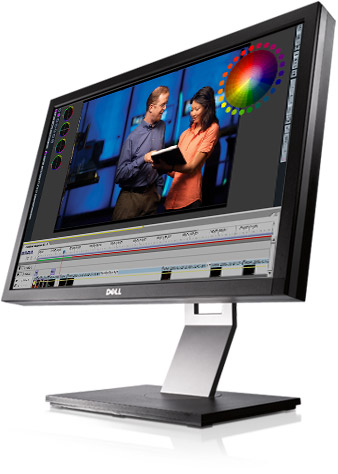
For $500, you can get a gorgeous 24", 1920x1200 resolution IPS panel like the perenially popular Dell UltraSharp U2410 or HP ZR24w. The only real downside to using a 1920x1200 IPS display (aside from the high cost) is that other, lesser monitors will look worse than they did before! If you're able to sit a bit further away from your monitor than typical of most desks (like on a couch), you could also consider using an LED LCD TV for your monitor. If your computer has a DVI out port, you can buy an inexpensive DVI-HDMI converter cable to hook the two together. You'll lose sound, but if you have a speaker system hooked up to your PC, that's no real concern. However, most modern, mid-range to high-end desktops and laptops feature an HDMI out port, so you just need an HDMI cable to connect the computer to the TV. You can expect to find 32" 1080p LED LCD TVs for around $500 or less, such the Vizio XVT323SV and Sony BRAVIA KDL32BX420.
If you don't have space for a nettop or desktop and a monitor or prefer portability to screen real estate, we cover netbooks and laptops on the next few pages.
Originally published at https://www.anandtech.com/show/4556/back-to-school-technology-buyers-guide (Wayback Machine).