
Back to the Mac: OS X 10.7 Lion Review
One of Lion’s biggest new features is totally new Exposé. Exposé’s task is to help people navigate between windows on the desktop. Considering that most of us often have more windows open than we can actually fit on the screen, a feature like Exposé has been very useful. With Lion, Apple has decided to take Exposé one step further and it now goes by a new name: Mission Control.
While Exposé was strictly limited to the apps open in your desktop (or one Space), Mission Control breaks the limits and adds Spaces into the mix. To simplify, Mission Control is just a combined version of old Exposé, Spaces, and the Dashboard.
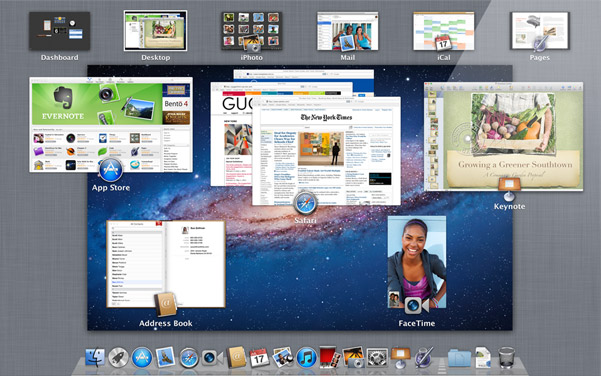
On the top, you have your available Spaces (and remember, each full screen app you have open will show up as its own Space). You can easily add a new Space by taking your mouse to the top right corner and clicking. The center is taken by Exposé-like app switcher which groups all your open windows togehter by app. If you have for instance three Safari windows open, they will be grouped together. The bottom is taken by Dock, which shows you what apps you have open.
Mission Control isn't as simple as the old Exposé, and if you have absolutely no use for Spaces, then I can see why you would like to use the old Exposé instead. The old Exposé was better at switching between random windows while Mission Control does a better job of switching between apps thanks to its neater grouping.
There is one disadvantage compared with Exposé though: if you minimize a window into app icon in the Dock, that window doesn't show up in Mission Control. The only way I’ve found is to use the Application Exposé, which is still present, by right-clicking the Dock icon and selecting “Show All Windows” (or, if you have a multitouch device, doing a two-fingered double tap on the app's icon in the Dock). For me, this is a big setback as I used that feature extensively and it's now more difficult to take advantage of.
Some avid Spaces users might also prefer the old Spaces, as you could have the whole screen dedicated to switching between Spaces if you wanted. Now you only have roughly 20% of the screen for Spaces when in Mission Control. It can be hard to switch between Spaces because the thumbnails in Mission Control are so small that you can’t easily see what's in each one.
While it’s not a big surprise, the old Exposé and Spaces are dead so there is not an option to disable Mission Control and use them instead. It's possible that third party software will bring back the old Exposé and/or Spaces, but no announcements have been made so far.
I think Mission Control does great job for the people it’s aimed at: consumers. The average user most likely won’t need more than five Spaces, of which the majority will be full screen applications. For that use, Mission Control is brilliant. Personally, I never used Spaces with Leopard or Snow Leopard but I find myself using Spaces daily in Lion. In earlier versions of OS X, Spaces was a feature that was a bit hidden - there was no dedicated button for it and it didn’t feel as integrated as it does with Lion, and Spaces simply didn’t feel as easy to use. Mission Control integrates Spaces into OS X in a much more convenient way.
Originally published at https://www.anandtech.com/show/4485/back-to-the-mac-os-x-107-lion-review (Wayback Machine).