
Back to the Mac: OS X 10.7 Lion Review
Lion introduces some new multi-touch gestures for the owners of a MacBook with a multi-touch trackpad, Magic Trackpad or Magic Mouse.
Trackpad
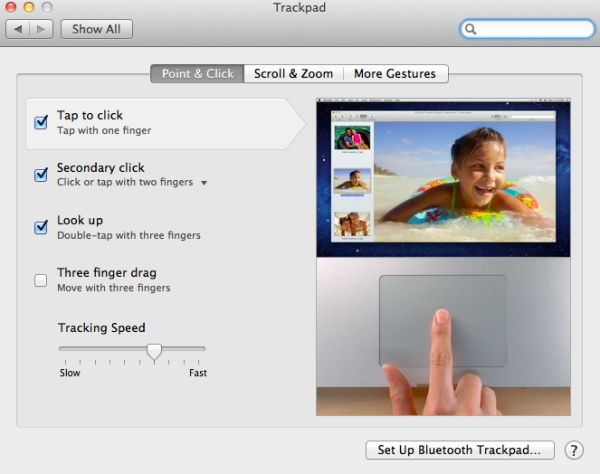
There are 14 gestures, divided into three categories: Point & Click, Scroll & Zoom and More Gestures. The first two new ones are under the Point & Click tab and they are called Look Up and Three finger dragging. The former is triggered by double-tapping with three fingers and it allows you to look up a word in the dictionary. Thee finger drag is fairly obvious and enabling it lets you drag windows with three fingers.
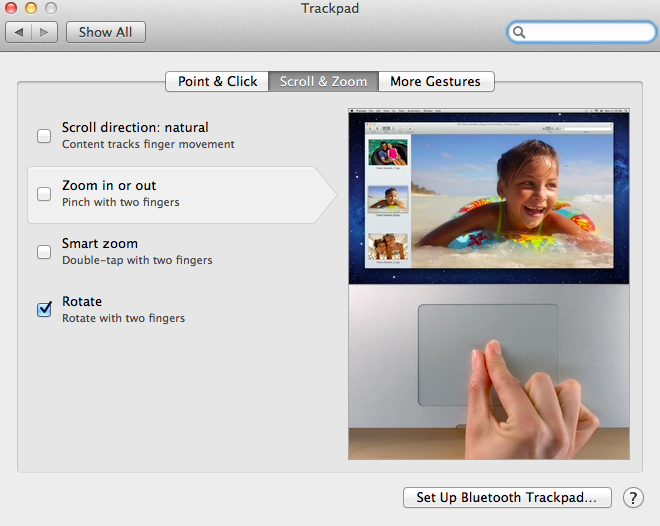
In Scroll & Zoom, you are provided four options of which two are new. The first option is Scroll direction and enabling it will make scrolling “natural.” Natural means the content follows your finger movement, so if you scroll down, the content will move up, just like In iOS. Natural scrolling is enabled by default but you can disable it to get back the old normal scrolling (finger moves down, content moves down). The next new option under Scroll & Zoom tab is Smart zoom. It's triggered by double-tapping with two fingers and as a result, the window will be zoomed to focus on the content you just double-tapped (e.g. Picture).
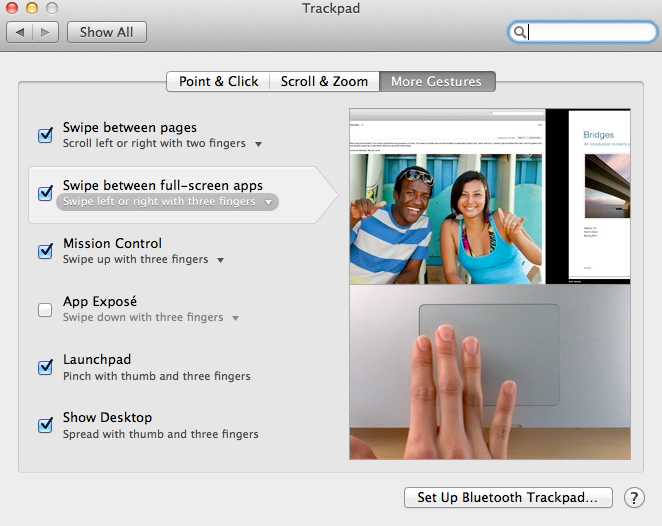
The final tab is More Gestures. The first gesture is Swiping between pages, which isn’t actually a new gesture but the animation is different. When you perform this gesture, it looks like the page is vanishing to either right or left, which is pretty cool. In Snow Leopard, this gesture was limited to three fingers but Lion allows you to set it for two or three fingers. Next up is Swipe between full-screen apps. By default, this is done with three fingers but you can also set it to be done with four. This is a great feature for users of full-screen apps or Spaces because now you can easily scroll between your Spaces. Below full-screen app swiping is a gesture for Mission Control. In Snow Leopard, Exposé was triggered by swiping up or down with four fingers but in Lion Mission Control is limited to swiping up but with three to four fingers depending on what you choose. Swiping down with three or four fingers will enable App Exposé, which shows the open windows for certain application. Last but not least, you have two gestures that are done by pinching or spreading with your thumb and three fingers. Pinching triggers Launchpad, while spreading shows your desktop.
Magic Mouse
With the Magic Mouse, the number of gestures is limited to six. The gestures are divided into two categories: Point & Click and More Gestures.
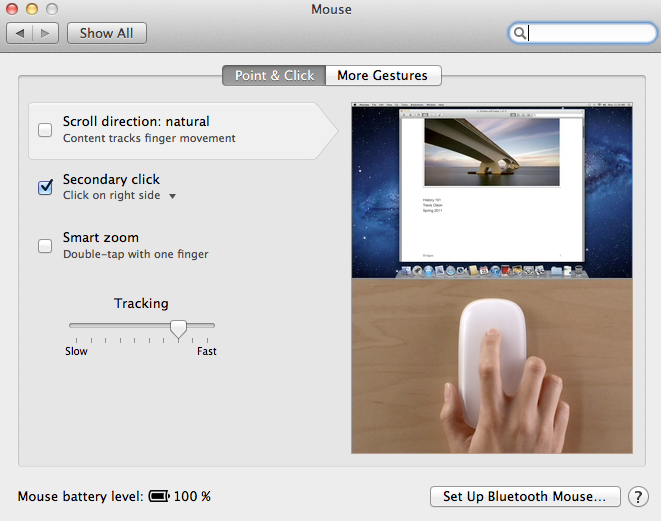
Point & Click offers three gestures in addition to tracking speed bar. The first one is Scroll direction which behaves exactly the same with the Magic Mouse as it does with the trackpad. The second one is secondary click, which is present in Snow Leopard as well. The third one is Smart zoom, which again is the same as the trackpad and can be enabled by double-tapping with one finger.
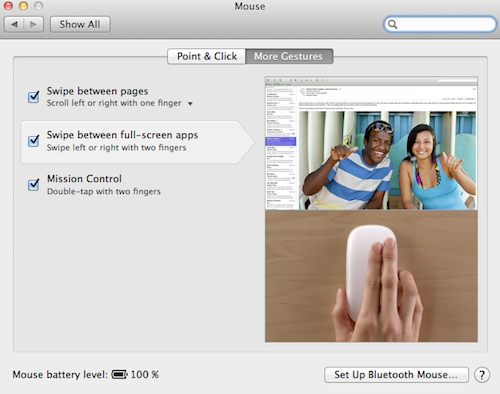
The More Gestures tab provides three more gestures: Swipe between pages, Swipe between full-screen apps and Mission Control. These are yet again similar to the gestures with trackpad, the only difference is the actual gesture. Swiping between pages can be done by scrolling left or right with one or two fingers. Swiping between full-screen apps is performed by swiping left of right with two fingers, there are no other options. Mission Control is triggered by double-tapping with two fingers.
Originally published at https://www.anandtech.com/show/4485/back-to-the-mac-os-x-107-lion-review (Wayback Machine).