
Alienware Area-51 m9750: Power Gaming on the Go
- Posted in
- Laptops
Design and Appearance
Alienware isn't just about performance; they're about making a statement as a computer owner. Walk into a room with an Alienware PC, and you will be hard-pressed not to notice it. The same can be said of the Alienware Area-51 m9750. If you're looking for a laptop that stands out from the crowd, in performance as well as appearance, there's no question that this laptop is eye-catching.
The exterior of the m9750 is a matte black finish - don't mind the picture, as the flash makes it look lighter in appearance; this is a dark black laptop that almost seems like it absorbs light. If the Men in Black carried around notebooks, they would probably look something like this. You also get Alienware's signature gray headed alien face centered in the top panel, and for added flair the eyes glow blue when the system is powered on. As a business notebook, this is almost certainly too over-the-top for most companies - unless of course you work for some gaming company in which case it would likely fit right in the surroundings. About the only complaint we have with the top of the notebook is that it's not perfectly flat, and you wouldn't want to set anything on top of the top panel - not that you really should do that anyway.
Because of the way the notebook is put together and the extra features on tap, the location of various features is somewhat different than what we're used to seeing on notebooks. The optical drive is located in the front center portion of the notebook. Speakers are located to the left and right, and they actually provide pretty good audio quality. In fact, these are probably the best sounding notebook speakers we've ever used - not that that's really saying a whole lot.
The back of the notebook has a variety of external connections as well, some typical and others less so. Alienware provides a full complement of video connections: DVI, VGA, S-Video, and component outputs are all present. On the left you also get the optional TV input, a modem jack, and an audio in port. In the center of the rear side is the power input along with a USB port. Two large exhaust ports take up the remainder of the rear side.
The left side has a couple USB ports, a mini FireWire port, the Ethernet jack, an ExpressCard/54 expansion slot, and a 4-in-1 flash memory reader (SD/MS/MSPRO/MMC). Towards the back of the notebook are a Kensington lock and a few air intake slots. The left side also houses the two 2.5" hard drive bays.
The right side of the notebook is primarily dedicated to audio functions, although there's also a USB port at the back. Alienware includes an S/PDIF optical out jack, along with five analog audio jacks (plus the one on the rear), enabling full surround sound. They also include a volume control that's an analog style "wheel", although the actual volume adjustment is still digital in nature. For quick adjustment of application volumes, we found this approach to be far more useful than some of the other volume controls we've seen on laptops. However, there were a few occasions (certain games) where the volume knob wouldn't work until we exited to the desktop. We've seen that with other laptops, and it appears to be an issue with certain games taking control of the Windows audio stack.
Alienware isn't just about performance; they're about making a statement as a computer owner. Walk into a room with an Alienware PC, and you will be hard-pressed not to notice it. The same can be said of the Alienware Area-51 m9750. If you're looking for a laptop that stands out from the crowd, in performance as well as appearance, there's no question that this laptop is eye-catching.
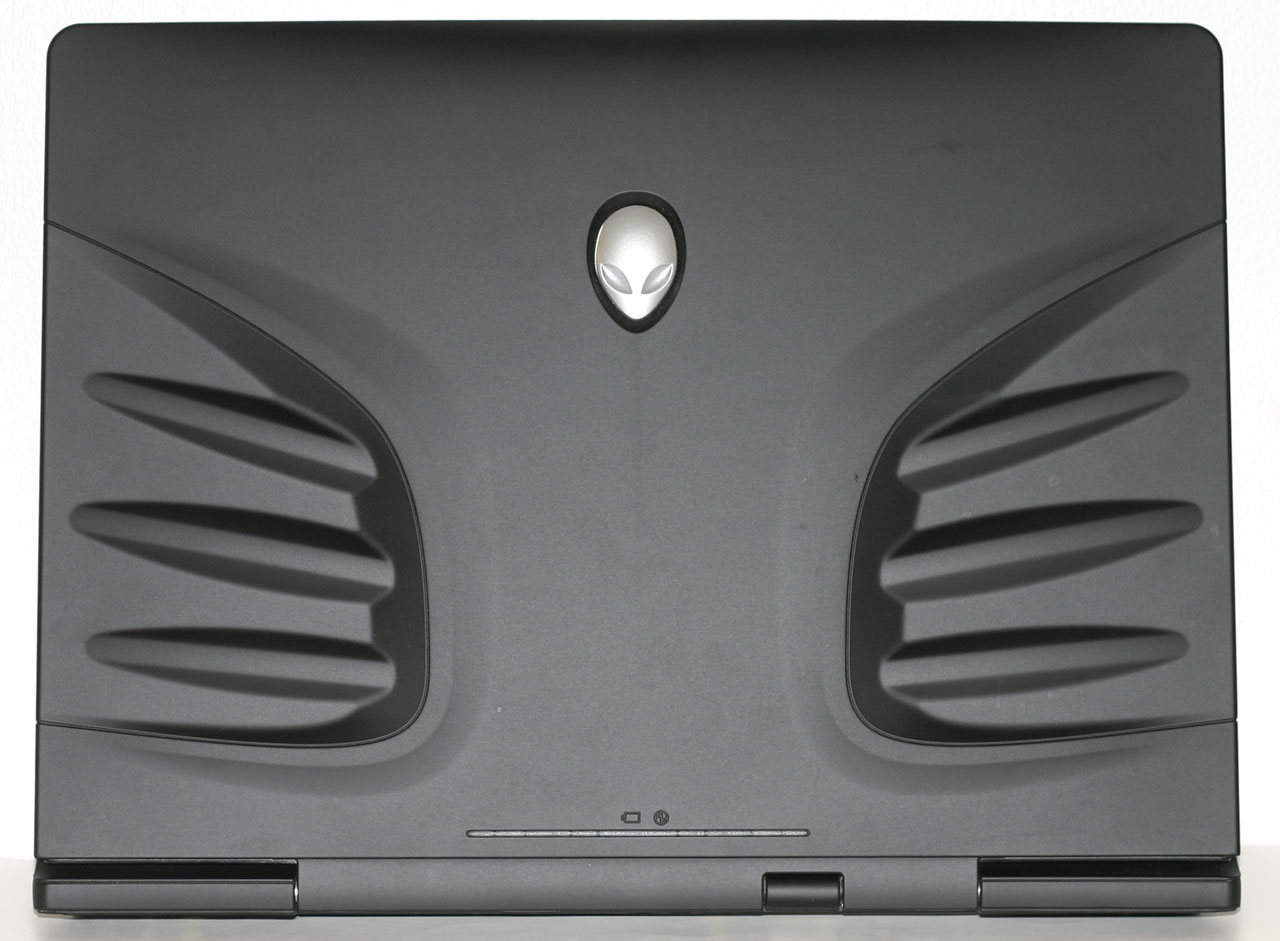 |
The exterior of the m9750 is a matte black finish - don't mind the picture, as the flash makes it look lighter in appearance; this is a dark black laptop that almost seems like it absorbs light. If the Men in Black carried around notebooks, they would probably look something like this. You also get Alienware's signature gray headed alien face centered in the top panel, and for added flair the eyes glow blue when the system is powered on. As a business notebook, this is almost certainly too over-the-top for most companies - unless of course you work for some gaming company in which case it would likely fit right in the surroundings. About the only complaint we have with the top of the notebook is that it's not perfectly flat, and you wouldn't want to set anything on top of the top panel - not that you really should do that anyway.
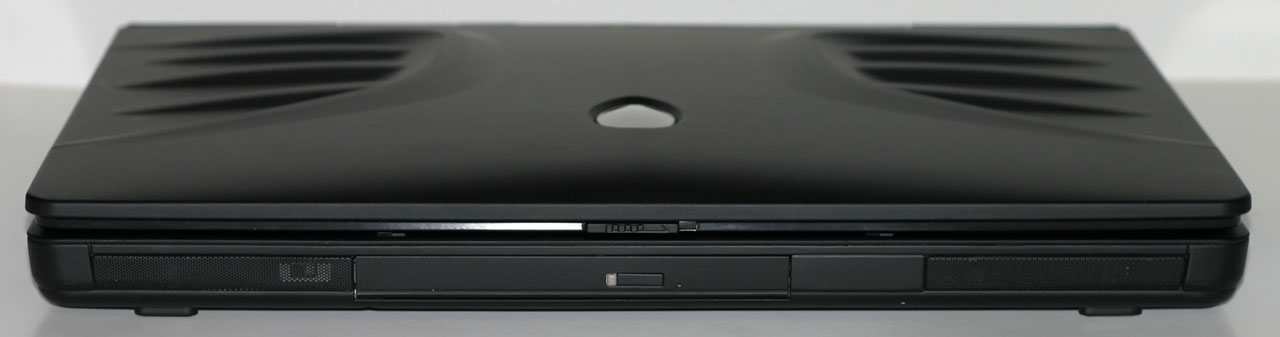 |
Because of the way the notebook is put together and the extra features on tap, the location of various features is somewhat different than what we're used to seeing on notebooks. The optical drive is located in the front center portion of the notebook. Speakers are located to the left and right, and they actually provide pretty good audio quality. In fact, these are probably the best sounding notebook speakers we've ever used - not that that's really saying a whole lot.
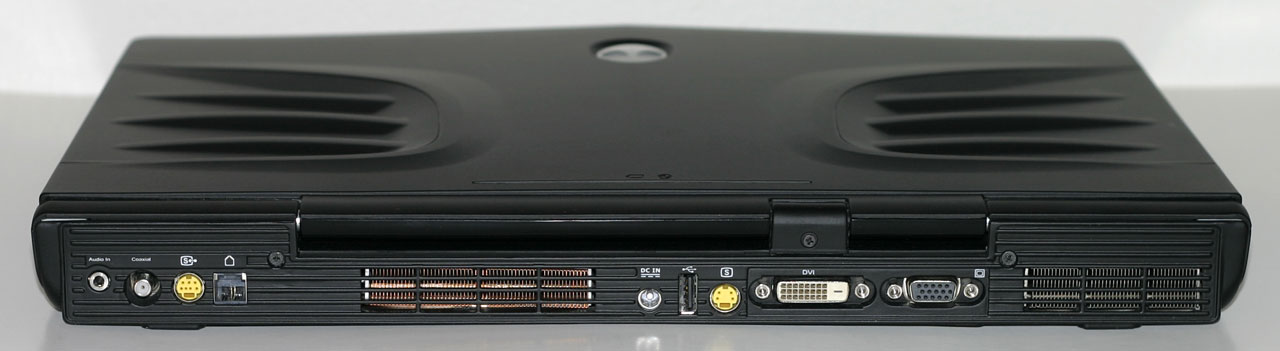 |
The back of the notebook has a variety of external connections as well, some typical and others less so. Alienware provides a full complement of video connections: DVI, VGA, S-Video, and component outputs are all present. On the left you also get the optional TV input, a modem jack, and an audio in port. In the center of the rear side is the power input along with a USB port. Two large exhaust ports take up the remainder of the rear side.
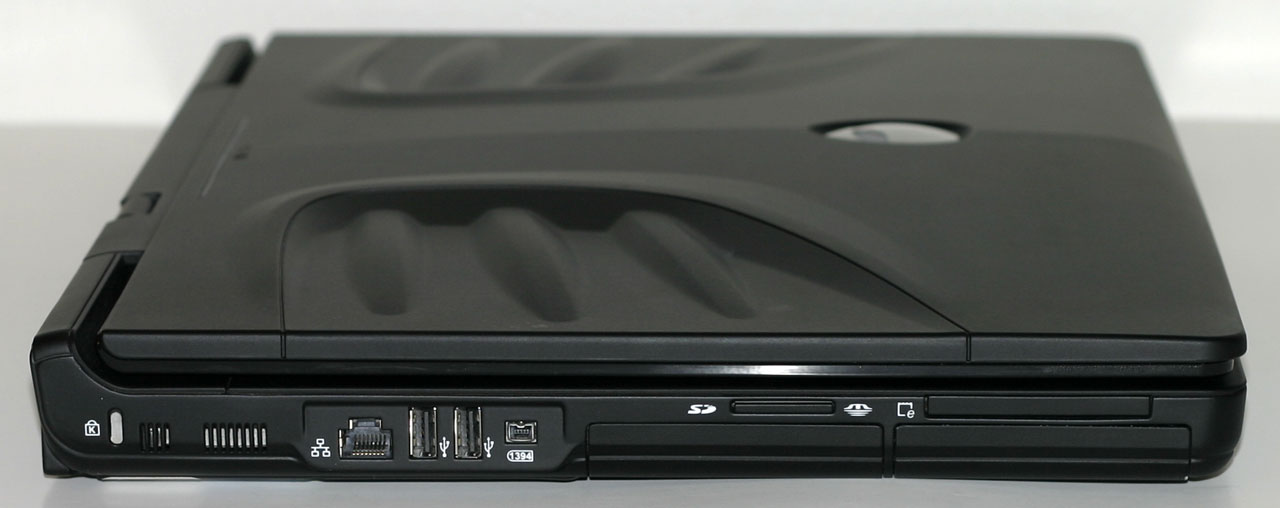 |
The left side has a couple USB ports, a mini FireWire port, the Ethernet jack, an ExpressCard/54 expansion slot, and a 4-in-1 flash memory reader (SD/MS/MSPRO/MMC). Towards the back of the notebook are a Kensington lock and a few air intake slots. The left side also houses the two 2.5" hard drive bays.
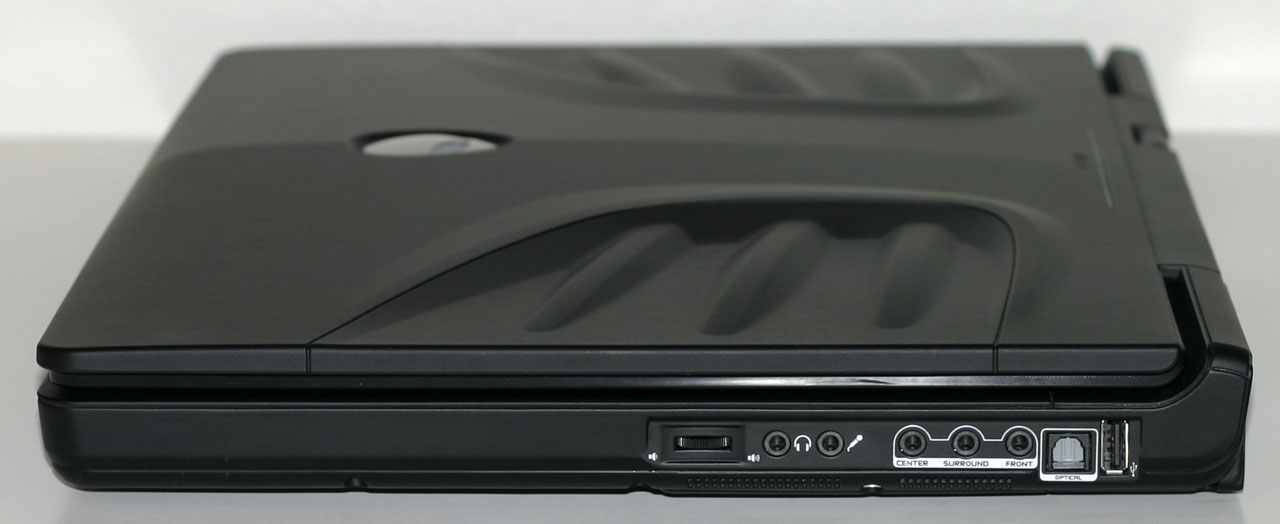 |
The right side of the notebook is primarily dedicated to audio functions, although there's also a USB port at the back. Alienware includes an S/PDIF optical out jack, along with five analog audio jacks (plus the one on the rear), enabling full surround sound. They also include a volume control that's an analog style "wheel", although the actual volume adjustment is still digital in nature. For quick adjustment of application volumes, we found this approach to be far more useful than some of the other volume controls we've seen on laptops. However, there were a few occasions (certain games) where the volume knob wouldn't work until we exited to the desktop. We've seen that with other laptops, and it appears to be an issue with certain games taking control of the Windows audio stack.
Originally published at https://www.anandtech.com/show/2307 (Wayback Machine).