
Mac OS X 10.4 Tiger Review
- Posted in
- Mac
Dashboard
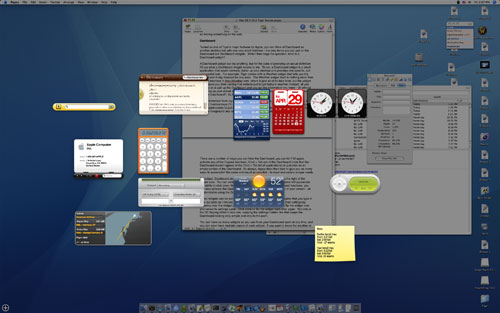
A Dashboard widget can be anything, but for the sake of providing an actual definition, I'll say what a Dashboard widget means to me. To me, a Dashboard widget is a small application that would normally clutter up your desktop, yet provides one specific, but very useful task. For example, Tiger comes with a Weather widget that tells you the current and 6-day forecast for any area. The Weather widget itself is nothing more than a client interface to AccuWeather.com, where it gets all of its data, but the widget itself saves you from visiting that website just to get today's weather. Instead, all you have to do is pull up the Dashboard and you get the information that you need - all without cluttering up your actual desktop. This brings up yet another question, how do you pull up your Dashboard? By hitting F12, of course.
You'll remember from my previous articles (or by simply being an OS X user) that, by default, function keys F9 - F11 are mapped to Exposé. Thus, using F12 to bring up Dashboard seems to just fit. Hitting F12 will slightly dim your actual desktop and bring into the foreground any and all active Dashboard widgets.
There are a number of ways that you can hide the Dashboard; you can hit F12 again, activate any of the Exposé functions, Cmd + Tab out of the Dashboard (note that the Dashboard doesn't appear in the Cmd + Tab list of applications), or just click on an empty portion of the Dashboard. As always, Apple does their best to give you as many ways to accomplish the same end result as possible - to meet everyone's unique needs.
By default, Dashboard sits as an active icon in the Dock directly to the right of the Finder icon. You can remove the Dashboard from the Dock, but some will appreciate the ability to click down there to activate it. As with any of the Exposé functions, you can also activate the Dashboard using a mouse button or a corner of your screen - all customizable using the Dashboard & Exposé preferences pane.
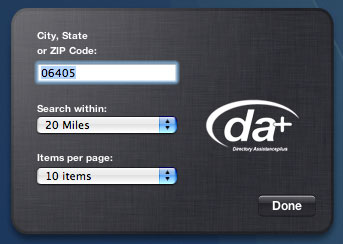
Some widgets can be configured (e.g. the Phone Book widget requires that you type in your zip code so that it knows the area in which to search) and you access their settings by hovering over the widget until a little "i" appears. Clicking the "i" will flip the widget over and reveal its settings pane. Click "done" to flip the widget back over again. Not only is the 3D flipping effect a nice one, keeping the settings hidden like that keeps the Dashboard looking very simple and very to the point.

Most importantly, the last Dashboard widget that you used still remains the active one for the next time when you activate the Dashboard. So, if I'm crunching away using the Calculator widget and switch back to my desktop to remind myself of a percentage I wanted to calculate, I just hit F12 again and start typing away in the Calculator once more.
It is worth noting that a nearly identical offering has been out for OS X and Windows for quite some time now called Konfabulator. The free utility offers functionality identical to Dashboard, and a very wide selection of widgets - although, they don't all have the polish of those that are shipped with Tiger.
Originally published at https://www.anandtech.com/show/1671 (Wayback Machine).