
Microsoft's Portable Media Center Devices: Exposed
- Posted in
- Smartphones
- Mobile
Playing Music
While the Personal Media Center was never intended to compete with the likes of Apple's iPod, at $500, you'd definitely rather not have to spend another $250 on an MP3 player in addition to the device.The biggest problem with the PMC as a basic MP3 player is its size and weight; the Creative Labs Zen PMC is significantly larger than a regular iPod and weighs much more. The size and weight, as well as the lack of a scroll wheel, are enough to guarantee that you'll be using the PMC with two hands, making it difficult to use while jogging or performing any activity where you need one hand free.
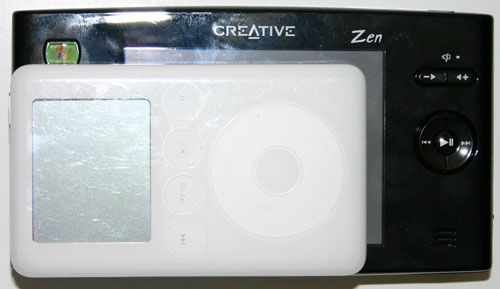
That being said, the PMC does work very well if you happen to be working out in a stationary fashion (for example, on a treadmill or an elliptical machine) where there is a place to rest the device. In those cases, the music playback functionality of the device is handy, but the ability to play video really shines there.
You can probably guess that the unit is a little too bulky to feel comfortable with it in your pocket all day. It is possible to do, but in our opinion, it's just a little too large for that. The portability is there, but this is more of a device that you throw in your bag rather than something that you can pocket around throughout the day.
As far as the actual interface is concerned, drawing direct comparisons between how you play and navigate through music on the PMC vs. on an iPod are pretty much useless. The reason why is that the iPod (and most MP3 players) and a PMC device are on completely opposite ends of the spectrum when it comes to UI.
Most MP3 players are completely text-driven, meaning you have to rely on the name of the artist, song, album, genre that you're looking for to navigate your music collection. With its color screen and prettier UI, a PMC device relies much less on text, but rather a combination of text and the visual identification of album art.
For music that it recognizes (through properly made ID3 tags), Windows Media Player 10 will download automatically the appropriate album art for music in your Library. Then upon synching the PMC, both the music and its associated album art are transferred. Songs that have no album art associated with them are given a standard icon - a blue background with a pair of headphones.
In actually using the device, even with quite a few songs with no associated album art by which to search, we found that being able to associate the music in the library with the colors and design of the album art as well as the text of the songs themselves made browsing for what we wanted to play fairly simple. It's a completely different approach to how something like the iPod works, but it actually works fairly well. Initially, we were hesitant that we would find the PMC's music navigation to be easy at all, but we were pleasantly surprised.
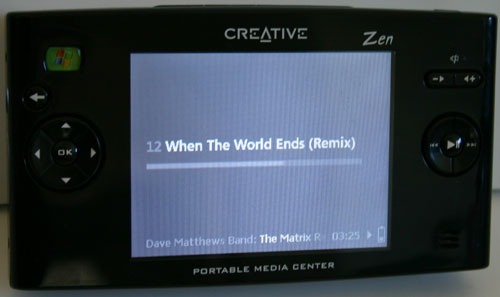
There are many ways to display what's currently playing.
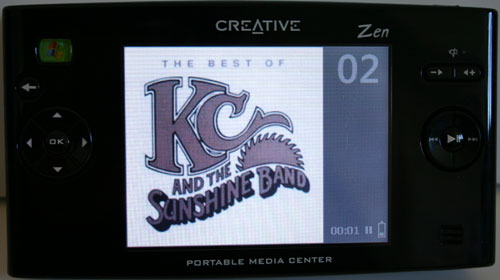
You can have album art being displayed
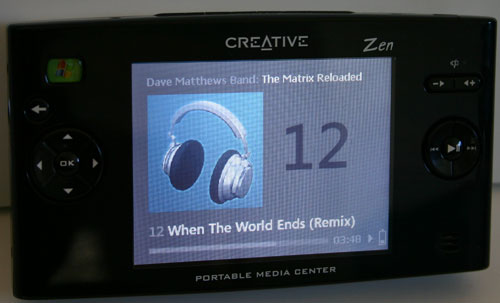
You can also have a combination of things on the screen.
Although the current PMCs lack any type of scroll wheel, Microsoft has done their best to minimize the need for a scroll wheel. Holding the down arrow will scroll through any list (in alphabetical order) fairly quickly. And, to help you stop where you want to, the first letter of the title is displayed in large print to the left of the list as you're scrolling through. While it's not very useful for collections where you only have a few songs that start with each letter of the alphabet, it does work very well for large collections. In the end, the absence of a scroll wheel may be missed by iPod owners, but it is at least compensated for by other navigation features.
Reorganizing how your music collection is displayed on the PMC is a matter of using the left and right arrow keys to flip through the different methods that are available. You can sort by newly added music, by album, by artists, by playlists, by songs and by genres. Switching between the various ways of sorting your collection is pretty painless, although the Zen's arrow keys were a bit stiffer than we would have liked, as your fingers do get tired after using them for a while.
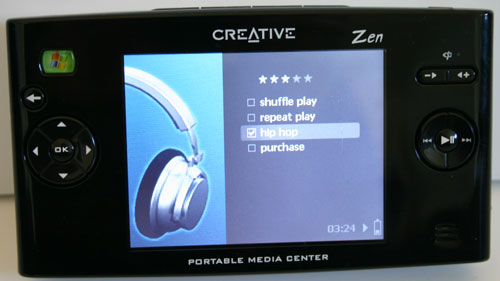
Adjusting equalizer settings on a song-by-song basis is very easy.
You can sync playlists to the PMC using Windows Media Player, or you can also construct a playlist while you're on the go by adding songs to your portable playlist. To do so, you simply hit the OK button on the song or songs that you'd like to add and then select "add to portable playlist". You can add entire albums, everything by a single artist, genre or just a single song to the portable playlist, which is very useful.
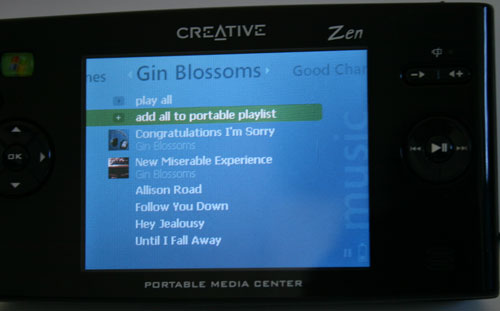
Adding items to a portable playlist is easy.
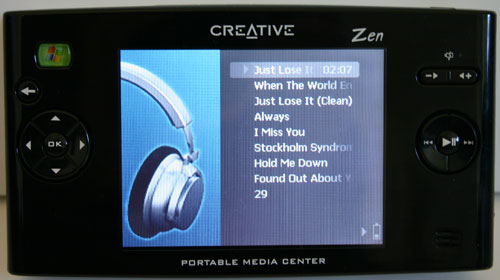
Playing through a playlist.
Although it wasn't designed to replace the iPod, the PMC actually does a very good job in holding its own against quite possibly one of the best portable media player interfaces of all time when it comes to playing music. Because the device is so large, it can have a pretty bulky battery, which means that battery life significantly outperforms smaller MP3 players like the iPod. The Creative Labs unit had no trouble meeting its 20+ hour battery life when playing music. The only negatives here are: 1) you have to keep your music collection organized via Windows Media Player 10 (which may only be an issue for some), and 2) the PMC's size. The size issue can be resolved if you are going to be using the PMC as a video player as well as a just an MP3 player, but by no means should you buy a PMC looking for only an MP3 player - unless, of course, you're just a gadget freak.
Originally published at https://www.anandtech.com/show/1489 (Wayback Machine).