
Acer TravelMate C110: Centrino infused Tablet PC
- Posted in
- Laptops
Features — Hardware and Software
It would prove inconvenient to use the C110 as a notebook without a drive to load CDs. Though, a built-in drive in a tablet PC isn’t that practical because it would draw additional power and adds unnecessarily weight for an on-the-go purpose. This is why the standard C110 comes with a slim external firewire optical drive. Of the two models for the C110 (C110TCi and the C110Ti), we have the C110TCi, which comes with a combo CD-RW/DVD drive. It is interesting to note that the drive housing is made by AOpen, an Acer subsidiary. The drive itself is made by Sony and is swappable. In theory, it is possible to get a swappable hard drive or another device and swap back and forth between them. The external drive still draws power, but an AC power adapter is included.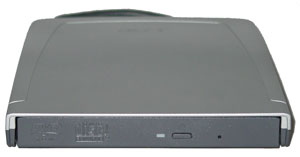
As expected for a tablet PC, the C110 comes with Microsoft Windows XP tablet PC Edition preloaded. We cannot reiterate how much better this is over a regular copy of Windows XP with a 3rd party handwriting recognition program.
Acer preloads a few general applications. The C110 is apparently supposed to ship with Office XP, CyberLink PowerDVD, NTI CD-Maker, Norton AntiVirus 2003, and hotkey and management software. PowerDVD will serve its purpose just fine, but NTI CD-Maker will take a bit of time to get used to, compared to Easy CD Creator. Our sample came with everything minus Office XP. While Office XP was lacking, we instead had a beta sample of Office 2003 pre-loaded for us. This seemed to be more aesthetically appealing and seemed to have a few quality improvements over Office XP when we were using it in tablet PC mode.
The hotkey utility controls the five hotkeys situated above the keyboard. The wireless button toggles 802.11 WiFi and/or Bluetooth connectivity. Our sample didn’t come with Bluetooth, and so naturally that option was not available for us. The default is not to have 802.11 WiFi active when booted up, but this can be changed within the hotkey utility.
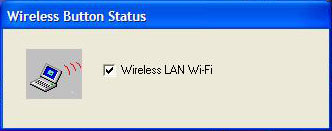
As noted before, there are two unprogrammed hotkeys, which can be assigned to a specific program in the utility. While the wireless button can’t be reassigned, the email and internet hotkeys can.
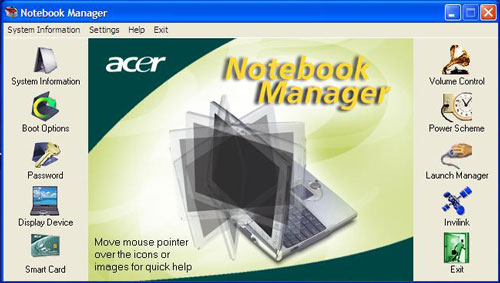
There is only one significant program that lets you get a grapple on the C110’s various settings. Of the several options in the Notebook Manager, boot sequence and the BIOS password can be set without the hassle of actually entering the BIOS.
The power scheme settings for the C110 are only those basic built-in schemes for Windows XP. This was as expected, but it would be nice to see specific schemes like that of IBM mobile systems. It would be further recommended that one of the hotkeys be default to access the Notebook Manager, as this utility will likely come into frequent use and is an official configuration utility.
The Invilink icon is visible in the Notebook Manager and on the top of the system’s casing, and is mentioned several times in the product manual. Simply put, this dubbing is nothing more than Acer’s name for wireless connectivity.
As it goes for all tablet PCs, there are buttons near the screen. These buttons can be reassigned to other actions, and the addition of a function button allows for more actions to be assigned, since each button can now have two purposes. This is definitely welcomed, since it only helped us perform common actions while being away from the keyboard.

Click to enlarge.
Originally published at https://www.anandtech.com/show/1158 (Wayback Machine).