
Acer TravelMate C110: Centrino infused Tablet PC
- Posted in
- Laptops
Construction — Build, Appearance, Size
In terms of convertible tablet PCs, the Toshiba Protégé 3500 tablet PC is actually more popular in the North American market, while overall, Acer has had some trouble in North America due to market strategy. This is apparent at most shopping outlets, including our own Price Check Engine. Though, we should note that the Acer TravelMate C100 was and still is the #1 tablet PC in EMEA (Europe, Middle East, and Africa).|
|
|
| Click to enlarge. |
Click to enlarge. |


In all respects, the TravelMate C110 looks very much like the C100, and follows the same general design. It is opened via a single sliding clip in the center of the system’s front. Just slide the clip to the left, open, and it appears in its notebook’s function.
Like most slate tablet PCs, the C110 line uses the standard 10.4" XGA LCD display, which can run at a maximum resolution of 1024x768x16. Considering that an ultraportable notebook uses a screen size of 12.1", the C110 is a bit physically challenged when it comes to performing as a notebook. It is suited fine as a tablet PC because most people will be holding it at a 1' distance from their face, which is about the optimal size to keep everything within eye range. When using a notebook, most people sit at about a 2' from their notebook display, and this may mean the C110’s 10.4" XGA LCD display is going to take some time to get use to.
When converting to tablet PC mode, you just need to unclip the two clips on the bottom far left and right of the LCD display. Then you just twist clockwise and fold the display back. After that, you just need to re-secure the clips and you find it in tablet PC mode. Acer recommends that you make sure the display is within 85° to 95° of the base of the unit before you make the transition to tablet PC mode. But this is just to avoid scraping the top of the keyboard. To get back to notebook mode, you go backwards, which is easy enough.
You may have already noticed that the clip to open the C110 is two-sided. By this, we mean that when you unclip the C110 in notebook mode, an identical secure hook appears on the top side of the display. This serves the purpose for automated orientation. When you switch to tablet PC mode and fold back the display, the hook on the top side of the display secures into the slot, which also closes in the notebook mode. There is a pressure point that detects when the hook secures, and this changes the display orientation from landscape to portrait. There is an immediate problem one notices: the stereo is covered by the tablet PC, and any sound is directed to the back of the display, which makes the sound muffled.

Click to enlarge.
The C110’s keyboard design has some give and take issues, as a result of the screen size. Overall, Acer has done a good job with the form of this convertible tablet PC. Given that the screen size is 10.4", the keyboard couldn’t be the size of what even ultraportable notebooks are touting. There are two factors that seem to make you sense that the keyboard is spaced too closely: key size and key font. Keys on the C110 are about one millimeter smaller, when compared to other similar keyboard layouts. As a spacing comparison, the IBM ThinkPad X31 has alphanumeric keys spaced 18.5mm (vertically) and 18.2mm (horizontally), and technically considered to be under a full sized keyboard’s specifications. Meanwhile, the C110 is spaced 17.5mm (vertically and horizontally). In addition, the low profile design of the keyboard reduces height/sloping and curvature of keys, even more so than on other similar notebooks designs. With the smaller keys, we found the markings use about the same size font, but don’t seem to use the bold type effect that we have seen on other similar keyboards. While the font issue plays more on the eyes, the low profile keyboard design C110 had very little tactile feedback. However, it seems Acer manages to still feature arrow keys. Though, they are multifunctional as controls for volume and brightness.
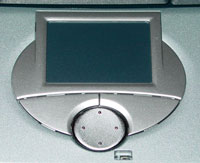
The touchpad, left and right mouse buttons, and a four-way internet scroll key are directly below the spacebar and to the right of the C110’s only speaker. The mouse buttons and the internet scroll key are made of a similar material as the casing, which leaves a bit to be desired in tactile feel. The four-way internet scroll key could specifically use some work by indenting the center/increasing curvature to get a more natural feel, which would be more preferable to four raised points.
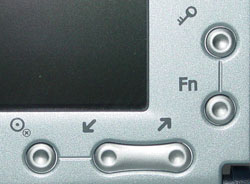
When in either notebook or tablet PC mode, the C110’s display features buttons that enable certain functions outside of a keyboard. This is mandated by Microsoft, who certifies tablet PCs for use with their Windows XP tablet PC Edition. For purposes of explanation, we will stick with landscape orientation to describe the layout of the button locations. To the bottom and the right of the display, there are three buttons (starting from the right): round, down/left, and up/right. Their associated actions are Enter, Down, and Up, respectfully. On the right side near the bottom of the display, there are two buttons (from the top down), the Ctrl-Alt-Delete button and the Function button. Acer seems to have understood that too many additional buttons doing dedicated functions can create a layout problem where the user may mistakenly keep hitting buttons. In order to drain the most out of the few buttons, the Fn button, like on the keyboard, allows for other buttons to perform other actions: change orientation (Fn + up/right), escape (Fn + round), and tab (Fn + down/left). While these are the defaults, they can be changed to do a range of many actions.

Indicator lights on the C110 are located in two spots: one array of LED lights is on the front and the other on the back. The front LED status lights (from the top) reveals: number lock (green when on), caps lock (green when on), battery charge (orange when charging), media activity (green when accessing floppy, hard drive, or optical drive), sleep mode (orange in sleep mode), power (green while system is active), and Bluetooth/WLAN (red when either are active).
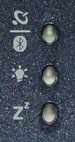
On the front, the color scheme is the same, but there are only three LED status lights (from the top): sleep mode, power, and Bluetooth/WLAN.
The long string of LEDs and buttons surround the 10.4" XGA LCD, which is electro magnetic according to the Microsoft Tablet PC specification. Again, we don’t know for certain if this is the same 10.4" display that was used in the previous tablet PCs we have seen, but we do know that the digitizer unit is. Like the Electrovaya Scribbler SC500 and the FIC SlateVision tablet PC, the C110 uses the Wacom 10.4" digitizer with a W8001 controller board, which we previously mentioned is capable of reporting 133 times per second with 256 levels of pressure resolution. For the C110, it is situated behind the left side of the 10.4" XGA LCD. This has basically become the standard for tablet PCs with electrostatic digitizers (for more information on the digitizer technology, read here). Briefly, digitizer technology just means that the screen is not touch sensitive, and the included stylus doesn’t have to touch the screen to move the cursor.
Since the C110 is a tablet PC, the screen is covered by a protective sheet of glass, which resists damage (cracking, scratching, etc.) and the generation of false colors due to acute pressure. The protective glass that covers the screen seems closer to that of the Electrovaya Scribbler SC500, because of its overall smoothness. The stylus didn’t glide aimlessly, but it could use some more texture to the screen surface; we should note that it would not reduce visibility.
The buttons and LEDs surround a 10.4" XGA LCD display that runs at 16-bit color. The screen, which is electro-magnetic according to the Microsoft Tablet PC specification, appears to be the same screen used in the FIC SlateVision. The screens have similar appearances, although the Scribbler SC500's screen did appear brighter than that of the pre-production SlateVision we looked at previously. Although we cannot know for certain that the 10.4" display in the Scribbler SC500 is the same as that used in the SlateVision, we do know that the digitizer units used in both are the same; something we will examine more once we take the unit apart. For now, just keep in mind that the screen is not touch sensitive. The included pen does not actually have to make contact with the screen to move the cursor (for more information on the digitizer technology, read here).
Originally published at https://www.anandtech.com/show/1158 (Wayback Machine).