
Windows XP Media Center Edition: Exposed
- Posted in
- Systems
Watching TV - Recording using the Guide
Recording a show is very easy and can be done manually or using the Program guide. In order to record using the Guide you find the show you want to record using the Guide then select it using the "OK" button on the remote; this will leave you at the screen below:

From here you can choose to record the single instance of that show or you can attempt to record every time the show comes on. The record series option is useful for catching every episode of a show and MCE is intelligent enough to not record duplicates such as reruns or the same episode appearing at two separate times.
Selecting advanced record will bring up a number of options for the recording:
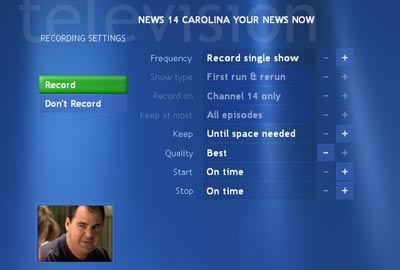
Here you can specify more details such as how long to keep the recording and what quality to record it at. The quality options are fair, good, better and best, with best being the highest quality possible. The benefit of using a lower quality setting is that you can record more shows on your drive (they take up less space as they use more lossy compression) but obviously you lose some image quality. The best option looks just as good as the original TV stream (which isn't saying much for Raleigh cable) and although you can tell there's a small drop in quality when recording using the better setting, it's nothing too major.
One useful feature is the ability to customize when you want the recording to start/stop; this is especially handy when a particular show doesn't come on at its scheduled time, because something before it ran long or because of a unique lineup on that channel for that day. There are other shows that almost never start on time, in which case the advanced controls help tremendously.
Originally published at https://www.anandtech.com/show/1051 (Wayback Machine).