
GIGABYTE Server MD60-SC0 Motherboard Review: Haswell-EP with QSFP
GIGABYTE Server MD60-SC0 BIOS
In most server environments, the look of the BIOS is superfluous to the actual functionality, although any attempt by the manufacturer to improve the look and make it easier to use is welcome. Our recent GIGABYTE Server based reviews have looked at the base UEFI mode, similar to what used to be normal and still is when you strip away the graphical interfaces of mainstream motherboards, except there is one difference with the MD60-SC0: we have a screenshot option! Luckily I found this by accident, as it is not mentioned in the list of options on the right hand side:

Despite being an 800x600 resolution list of options, they are easier to read than some of the more consumer oriented motherboard options (!). Here on this first page we get the motherboard model, BIOS version, processors installed, CPU speed, memory installed, the memory frequency and MAC addresses of the LAN ports. While this is perhaps expecting a lot from a server grade BIOS, perhaps some CPU temperatures might be handy here as well.

The bulk of the options are in the Advanced menu, involving PCIe control, LAN control, COM configuration, fast boot/CSM and USB configuration. Users looking for Above 4G Decoding can find it in the PC Subsystem menu where it is set to disabled by default:

CSM is enabled by default, but the fan controls are a little obfuscated and hidden inside the Chipset Configuration option:

Here we get several modes for all the fan headers, including Performance, Silent, Turbo and Full Speed. On a normal consumer motherboard, we would expect a per-header breakdown with an interface to determine the fan gradients, however as this motherboard is headed for servers, ‘Performance’ fan speed will most likely be the scenario. We left our fans on performance during testing.
For a bigger breakdown of CPU configurations, the IntelRCSetup tab has the following options:

Users wanting to adjust core counts, HyperThreading and C-states can find options here, involving the Processor Configuration menu:

As well as the Power Management Configuration menu:
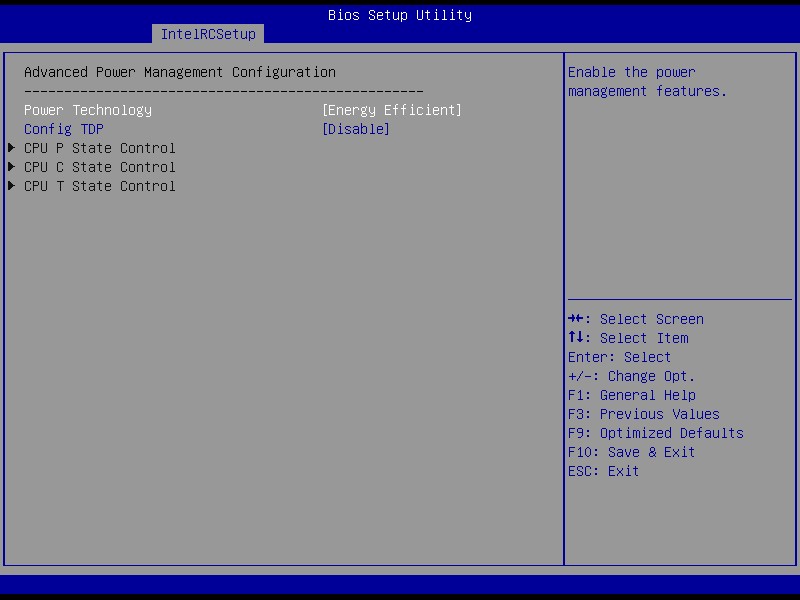
Here we have the BIOS by default in Energy Efficient mode, with options for Performance mode as well. This adjusts the power states in the other menus below.

For DRAM options, the Integrated Memory Controller offers users to enforce ECC, select the memory frequency or adjust the RAS Configuration:

VT-d options are via the IIO Configuration option in IntelRCSetup:


Here VT-d is enabled by default.
Error logging also has its own sub-menu:

The Server Management menu contains information regarding the Aspeed chip on board, as well as options to fix the IP address and configuration:

Secure Boot mode has options for Key Management:

Boot options are standard, with the final Save and Exit menu allowing for Boot Override.

One request to the GIGABYTE Server team would be to give the user an indication of what menu they are in. If a user ends up going through six menus to find an option, in order to help other users find the same option, by having the screenshot say where they are it might help. MSI did this on their consumer range recently at my request, and it went down well. Apart from this, some finer control over the fans would be good.


GIGABYTE Server MD60-SC0 Software
As with GIGABYTE Server’s other motherboards, OS software is non-existent. The only software to mention is that provided by the Aspeed management chip, accessed through the web interface on another machine. This software is based on the MergePoint Management interface, integrated with GIGABYTE’s logos, and offers the typical server management options we have seen previously.

The latest firmware was pre-installed on our sample, dated for August. The Aspeed 2400 is recognized here as well to differentiate itself from the Aspeed 2300 setups we have encountered previously.
Nothing in the MergePoint system is new from our perspective, and starting from the top we have the Network and Network Security:

The management system allows a maximum of 16 named users. The default user is ‘admin’.

Web server details can also be defined:

An administrator can update the BIOS/ME of the motherboard through this interface as well with a pre-downloaded file from GIGABYTE’s website. This is particularly helpful to update the system without entering the BIOS or updating through the OS. It will however terminate all other sessions.

As with other server motherboards, there are sensors all over the place. The management interface has an adequate list of everything a user might need:

One missing feature is the ability to set the non-critical and critical boundaries for each of the sensors separately.

Power control is an important part of server management, and here is our list of options.

The System Event Log captures all boots, reboots or sensor trips. I have used this several times in previous reviews when unable to get an image to display on a monitor.

The management software also allows direct Java-based KVM control of the system as well.


Originally published at https://www.anandtech.com/show/8761/gigabyte-server-md60-sc0-motherboard-review-haswell-ep-with-qsfp (Wayback Machine).