
GIGABYTE F2A88X-UP4 Review
- Posted in
- Motherboards
- AMD
- Gigabyte
- FM2
GIGABYTE F2A88X-UP4 BIOS
When I received the motherboard, it contained the F2 BIOS, which was based on Richland APUs and my Kaveri APUs would not work. In order to update the BIOS, I installed an A10-6800K and attempted to updated the BIOS through Q-Flash in the BIOS itself. This did not work (the BIOS file was not recognized), which in the past usually means installing an OS and updating via @BIOS. I did this, updated to BIOS F5b and reinstalled the OS under Kaveri to keep our testing consistent. With this scenario in place, it worries me slightly that resellers of this motherboard, who have excess stock, might not update the motherboards for Kaveri APUs. Users should be aware of this (not just with GIGABYTE but with everyone) and ask that the BIOS be updated before they take receipt of their product. I know of a few retailers in the UK that would do this on request, and I hope others like Newegg are on the ball.
The GIGABYTE FM2+ BIOS mirrors the classic mode we see from the Z77 and Z87 models, featuring a graphical system but a text-based layout with images. On the front screen we get the BIOS version, CPU frequency, memory frequency, CPU temperature, voltages and memory size installed. Perhaps two of the biggest omissions in this list is the name of the motherboard being used and the CPU installed, both bits of information that system builders might find useful if they work with many systems or are unable to actually access the inside of the PC case.
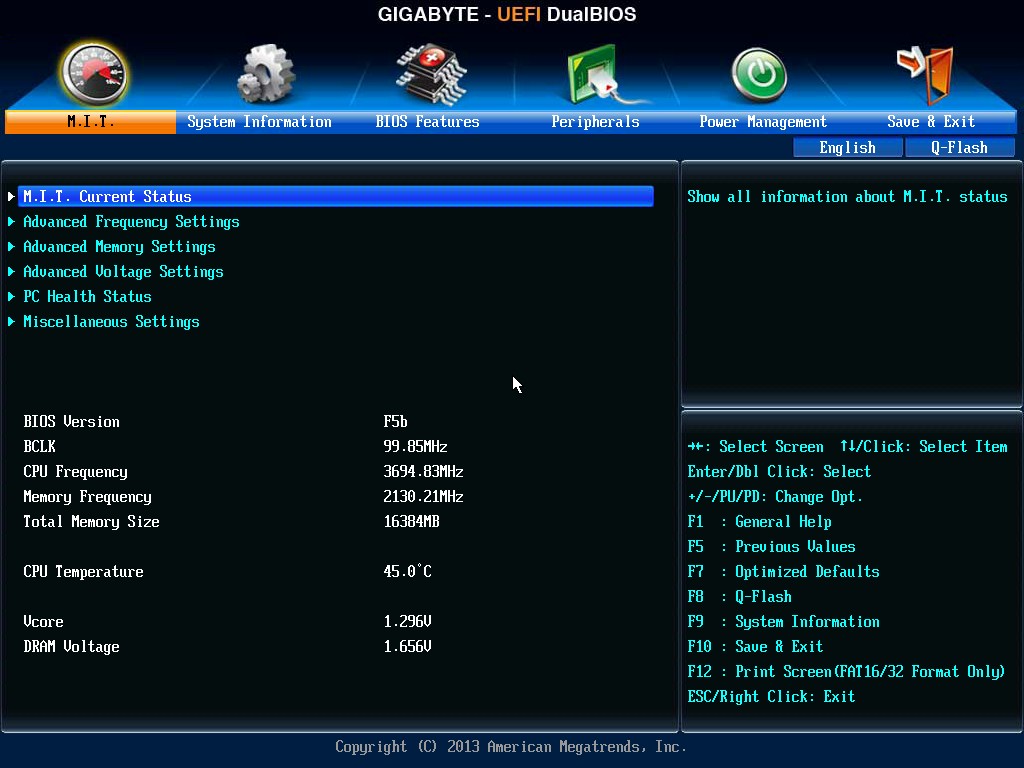
The MIT Current Status screen shows the CPU name along with memory subtimings and exact information about memory module installation. The overclocking options are in the next few menus, and GIGABYTE is maintaining consistency by separating the frequency, memory and voltage settings into their own menus.

Frequency settings include the CPU and the DRAM options, as well as advanced CPU Core settings (Turbo, cTDP and another ratio setting). One thing that GIGABYTE has lacked in this area with this type of BIOS is automatic overclock settings for the user, although with their new Z87 BIOS topology they do have options there. Although I wonder if that will be ported to AMD – if this were a performance platform then it would have happened by launch.
Fan controls are in the PC Health Status menu option under the MIT tab:
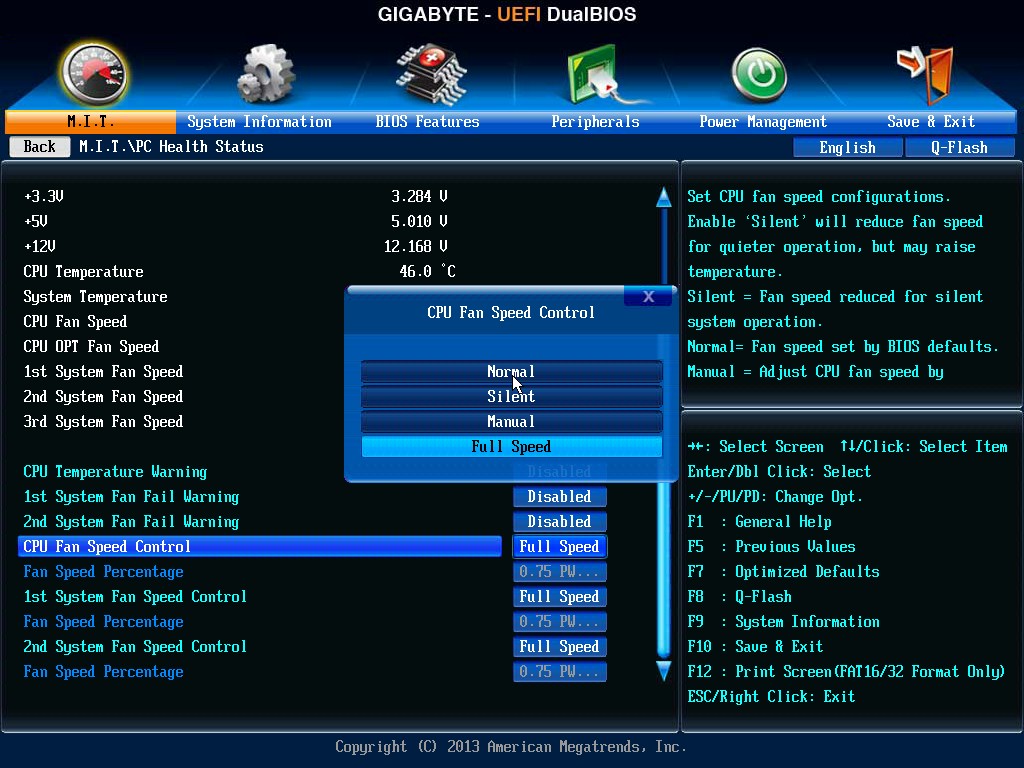
The preset options include Normal, Silent and Full Speed, whereas the manual option allows users to define the fan gradient in terms of PWM/degrees Celsius. This is an annoying scale to work in. Users must recognize that the PWM value (power applied to the fan) is on the scale of 0 to 255, with higher being more power. Then there is the issue that fan speed is not directly proportional to the power applied – some fans do not engage until 10% power is applied or a fan will run at 30% RPM when the power is less than 20%. Other motherboard manufacturers are on their way to producing a solution, but GIGABYTE are still on this older method.
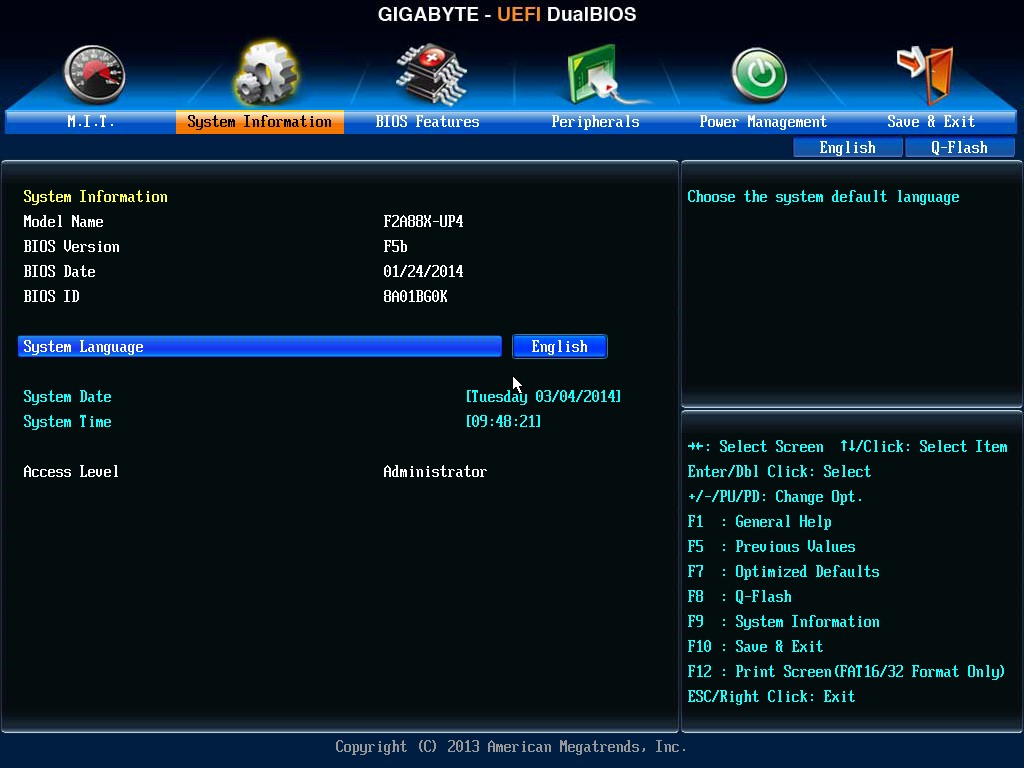
The System Information tab contains details about the motherboard model name. I feel it would take a BIOS engineer less than five minutes to add the code to display this data on the MIT tab when a user enters the BIOS.
In the BIOS Features tab, users select their boot priority as well as Fast Boot options for Windows 8. The Peripherals tab includes options for onboard controllers and onboard graphics selection. Finally of note is the Boot Override option in the Save and Exit menu, allowing users to select a single device for a one-off boot.


GIGABYTE F2A88X-UP4 Software
The FM2+ software from GIGABYTE is also a step back in time if you have been following our Z87 coverage. We only have two user interactive utilities, @BIOS and EasyTune6. EasyTune6 had a rough ride, as we had to request a special version from GIGABYTE in order to get it to work. There is some issue with the EasyTune coding and the integrated graphics on Kaveri such that GIGABYTE had to disable IGP overclocking on EasyTune6 to get it to work. GIGABYTE should be providing an updated version on their website in order for users to be able to get to grips with the ET6 software.
@BIOS
Almost all motherboard manufacturers offer various ways of updating a BIOS. The two main ways are through the BIOS itself, or through software in Windows. @BIOS is GIGABYTE’s software implementation, and offers to download an update the BIOS for the user or update via a file.

EasyTune6
Before Z87, EasyTune6 was GIGABYTE’s main software platform for combining all the operating system features. The first screen when opened in the Tuner menu, offering three overclocks:

Users can delve into the ‘Easy’ and ‘Advance’ options at the top to access ratios and voltages:


The other tabs on the interface include CPU information, DRAM information, fan controls and a basic ‘hardware’ monitor. The fan controls are similar to that seen in the BIOS, although the user has larger control of the gradient of fan power to temperature.


Originally published at https://www.anandtech.com/show/7876/gigabyte-f2a88xup4-review (Wayback Machine).