
Intel Z87 Motherboard Review with Haswell: Gigabyte, MSI, ASRock and ASUS
ASRock Z87 Extreme6/AC BIOS
Over the last few ASRock motherboards I have reviewed, the BIOS has been steadily improving into something aesthetically pleasing as well as easy to use with a lot of additional extra features. ASRock’s mentality over the past couple of years has been to attempt lots of little minor adjustments and see which ones pique the interest of its consumers, with a few major additions here and there. In the BIOS itself, we have an almost high-contrast setup (which I prefer) which makes it easy to read, along with high definition images where necessary. The only thing really missing is perhaps a persistent ribbon of information regarding the motherboard name, CPU used and memory installed, with speeds of each.
The entry screen to the BIOS is initially our Main screen, which gives some basic info on the system at hand: motherboard name and BIOS version; CPU name and current speed; total memory installed along with DRAM slot detection and current speeds. I would prefer some additional information here as well such as CPU temperatures and voltages, perhaps fan speeds, in a visually pleasing representation.
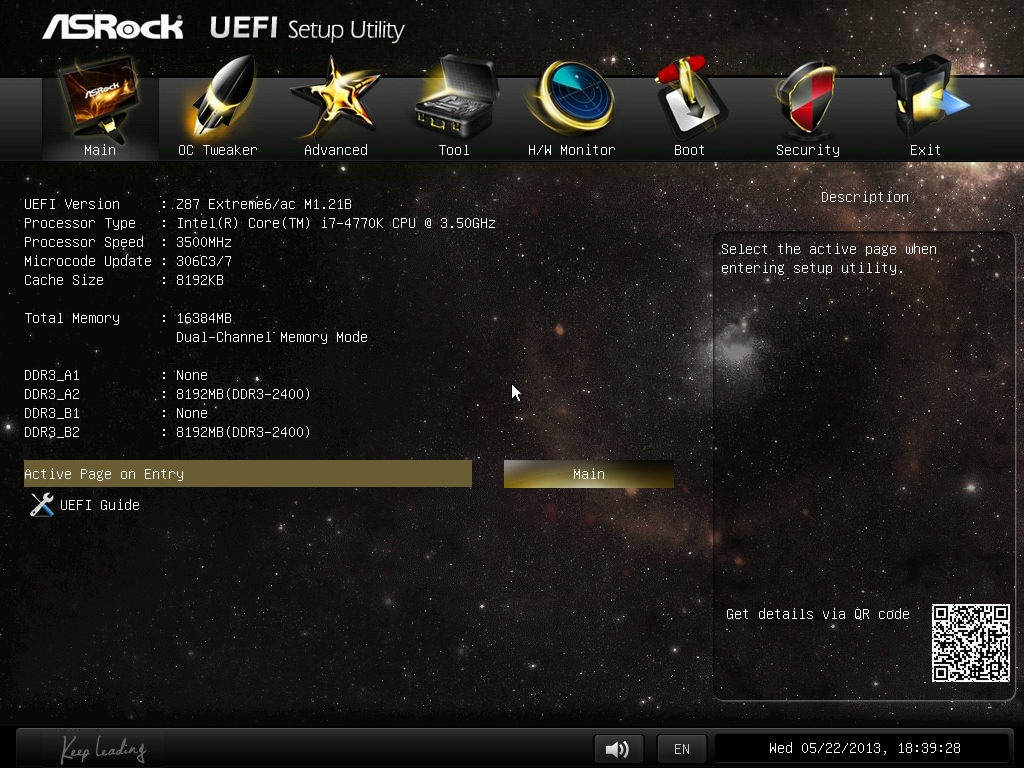
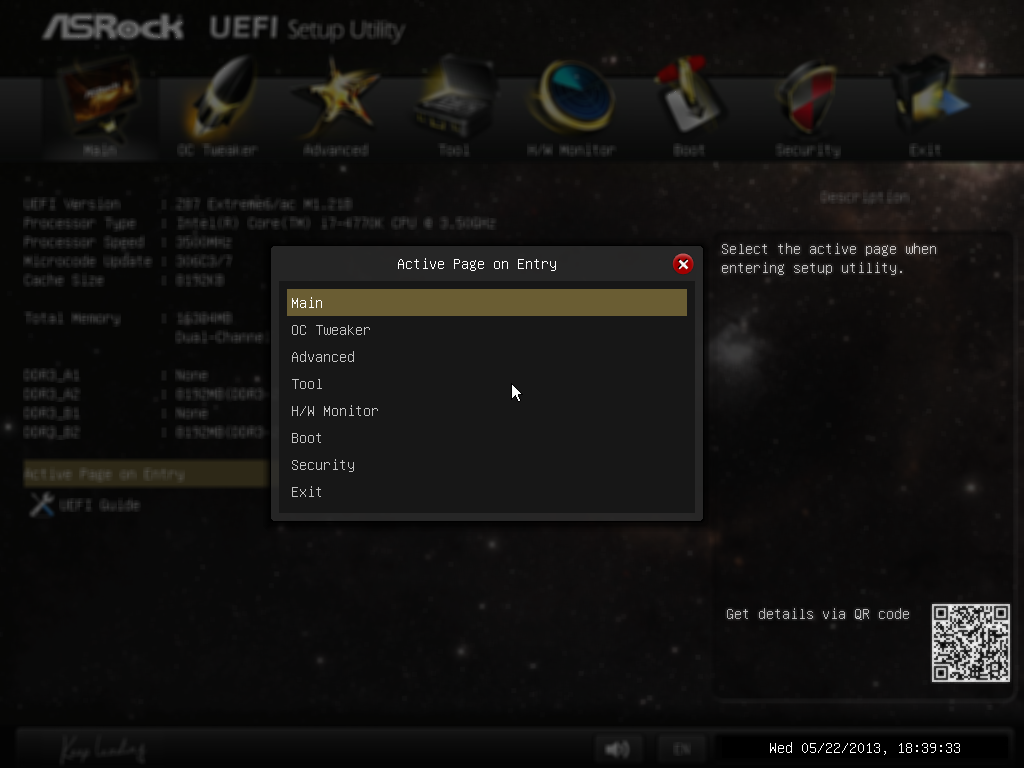
The couple of features at the bottom are worth noting. The first is an option to adjust the page on entry, meaning that overclockers can go straight into the overclocking options menu when entering the BIOS rather than have to navigate through the Main menu. The final option is a UEFI Guide option, which when selected will go through a quite slow text guide of the different features of the BIOS. This is in part a nice idea for new users, though I believe the guide has to be more refined than this initial version.
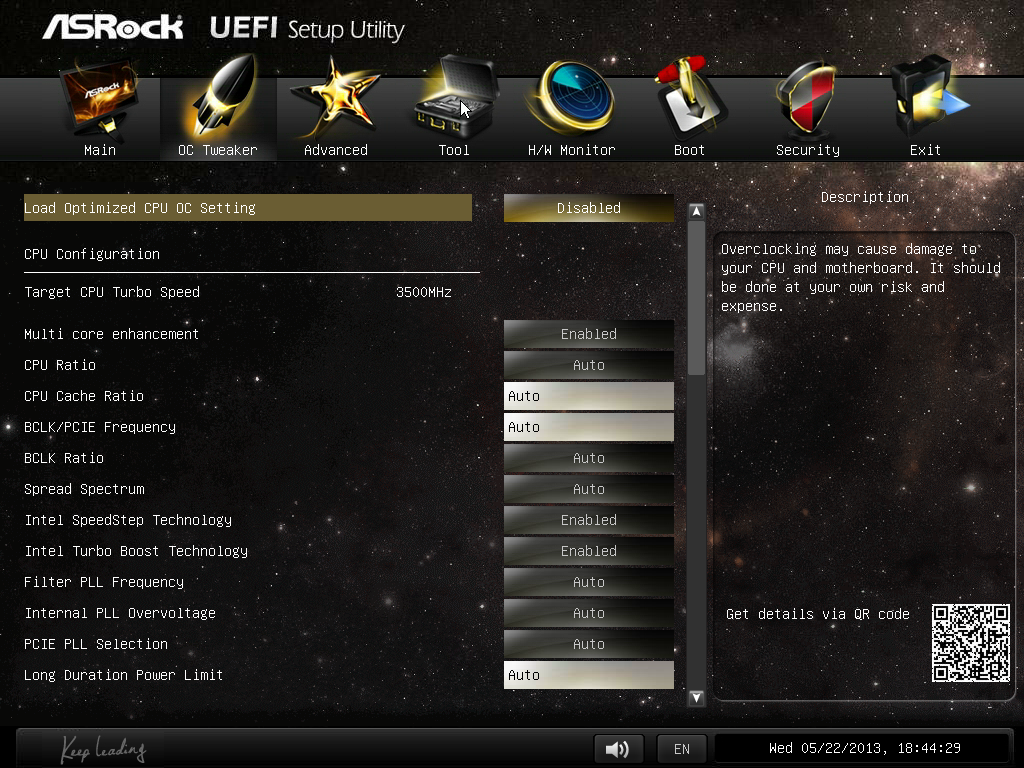
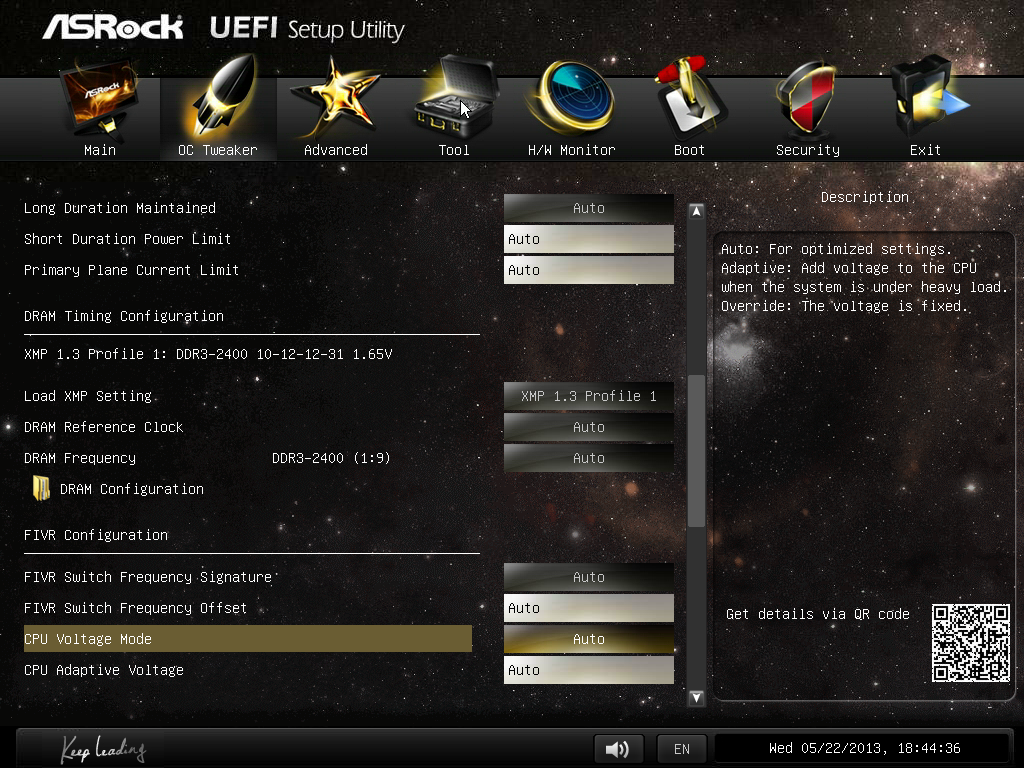
Most enthusiasts are going to head on over to the OC Tweaker menu to adjust overclocking options. ASRock have separated the overclock options under headings for a single menu, starting with automatic overclock options (4.0 GHz to 4.8 GHz in 200 MHz jumps), then CPU, DRAM, FIVR (Fully Integrated Voltage Regulator), and finally voltages. We get separate menus for DRAM timings, which also comes with a memory tweaker for XMP settings.
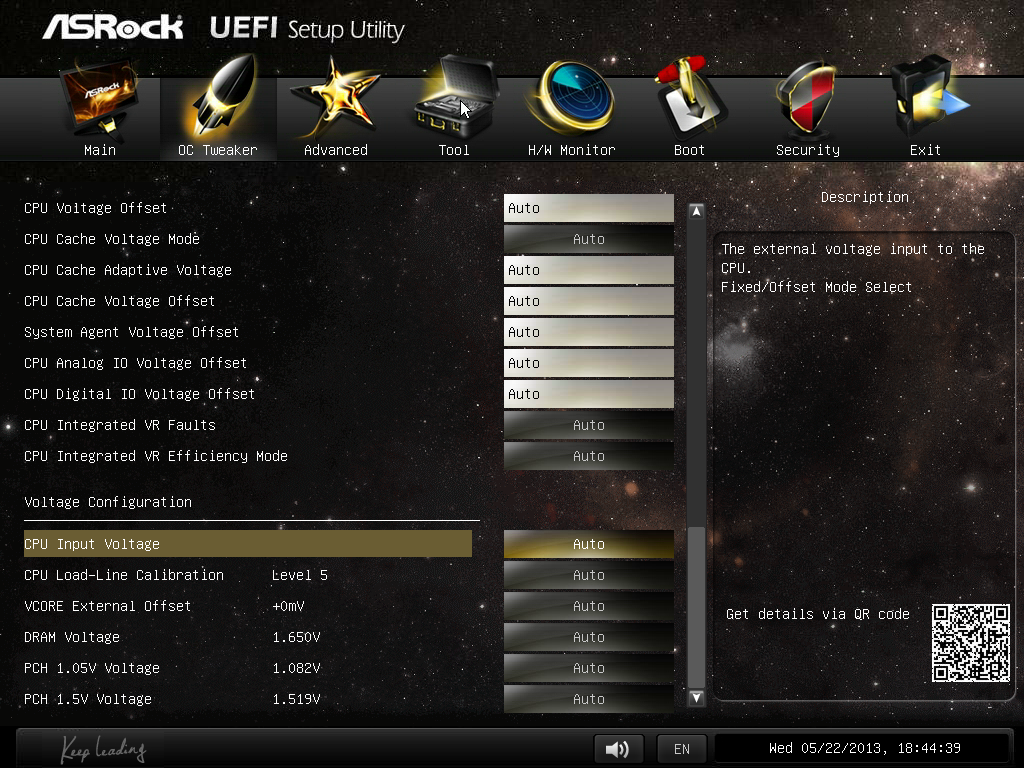
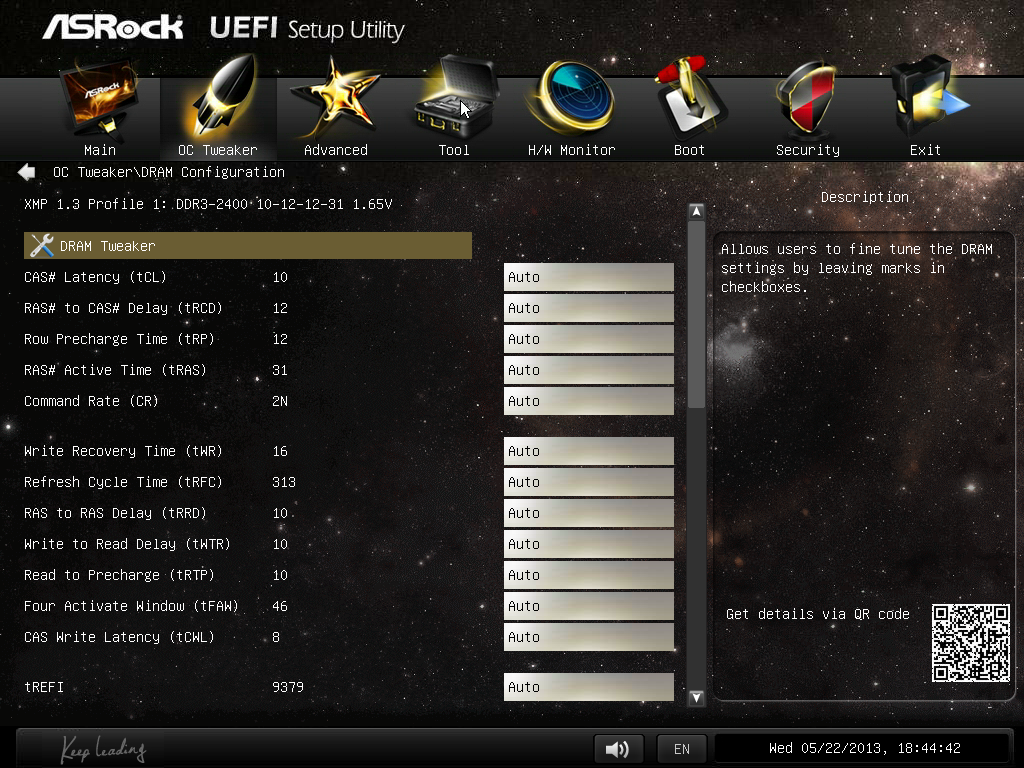
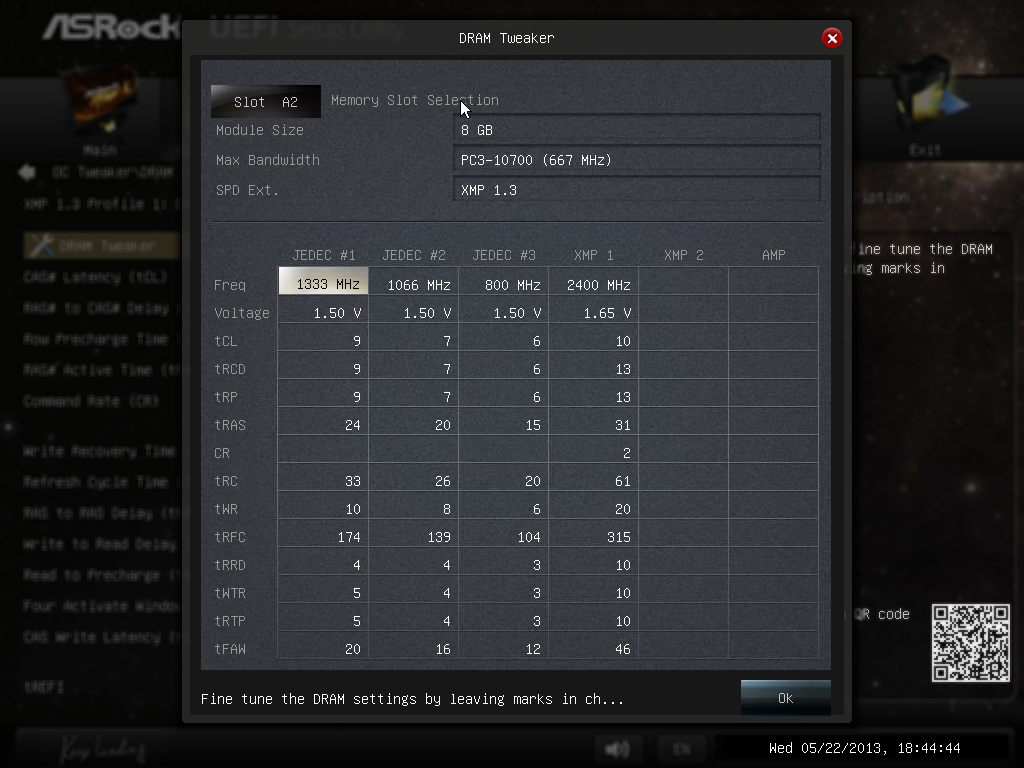
In the Advanced Menu is where we get our enable/disable controller options, along with adjusting the SATA configuration for RAID setups.
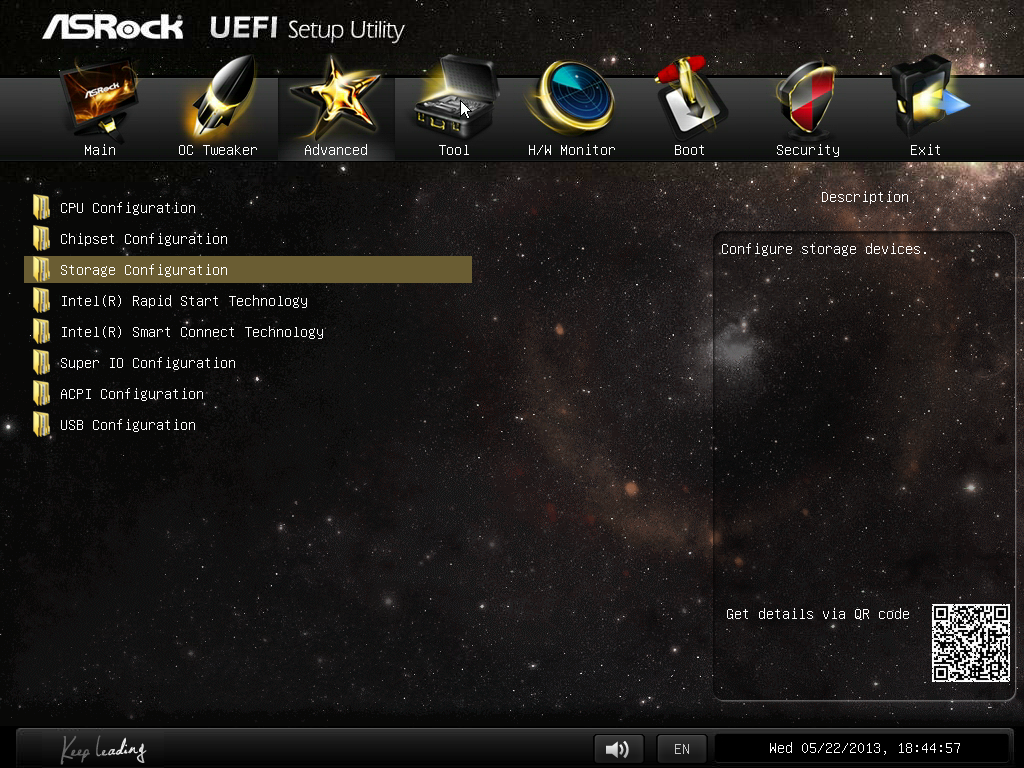
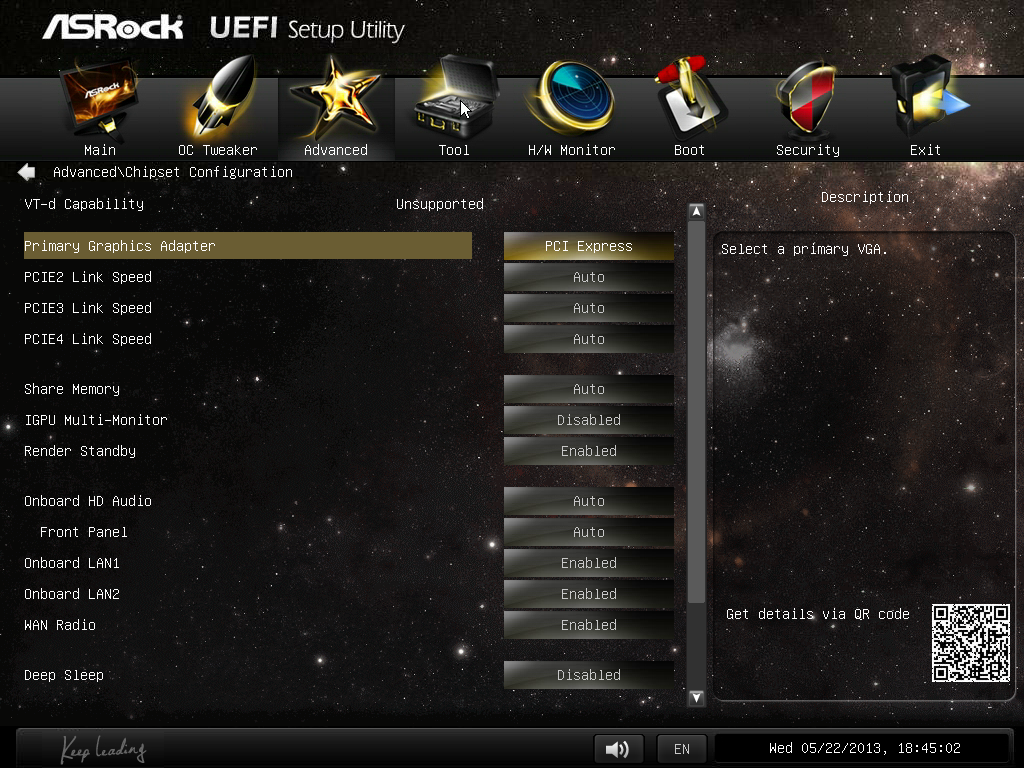
The ASRock Tools menu is where we often find ASRock’s newest additions to the BIOS. Every generation we seem to get something new – from the past we get the System Browser, the Online Management Guard, Dehumidifier function and Internet Flash. New for this generation is the ‘UEFI Tech Service’, ‘EASY RAID Installer’ and ‘Easy Driver Installer’ options.

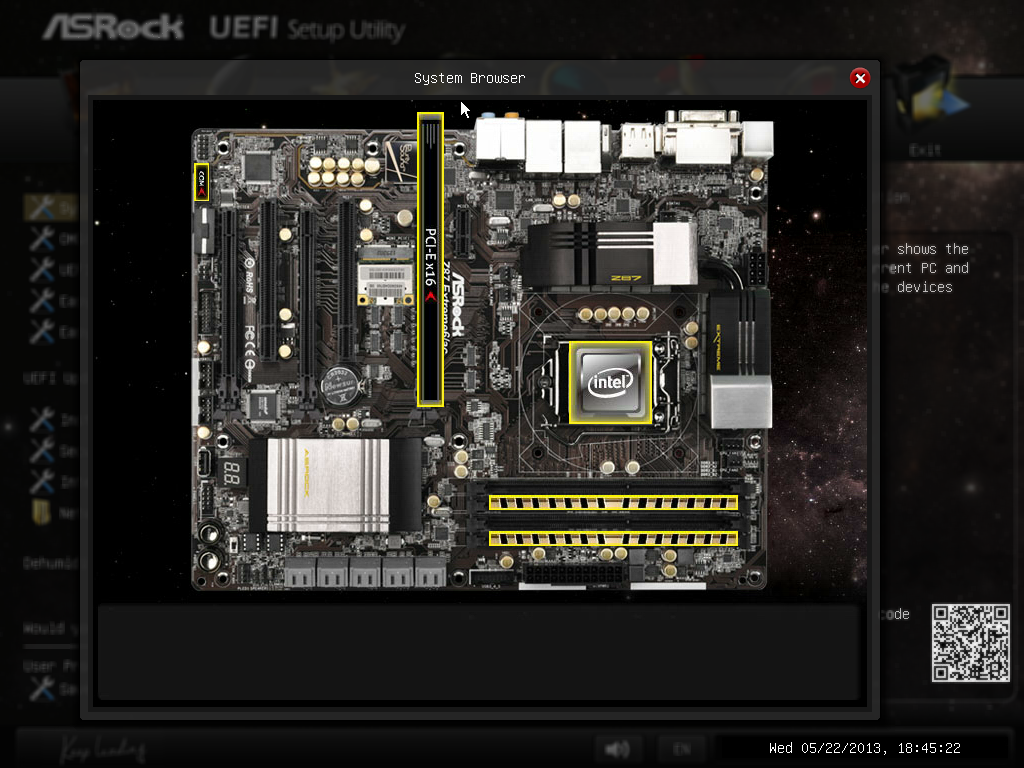
Starting with the System Browser, this is a top down pictorial representation of the motherboard, and the different items that are inserted into the motherboard before POST are shown here, such as the memory, what is detected in the PCIe slots, as well as SATA and Rear IO configurations. This is particularly helpful if a user suddenly loses access to a GPU, memory stick or hard drive – if it is not detected in the System Browser, it will not be detected in the operating system.
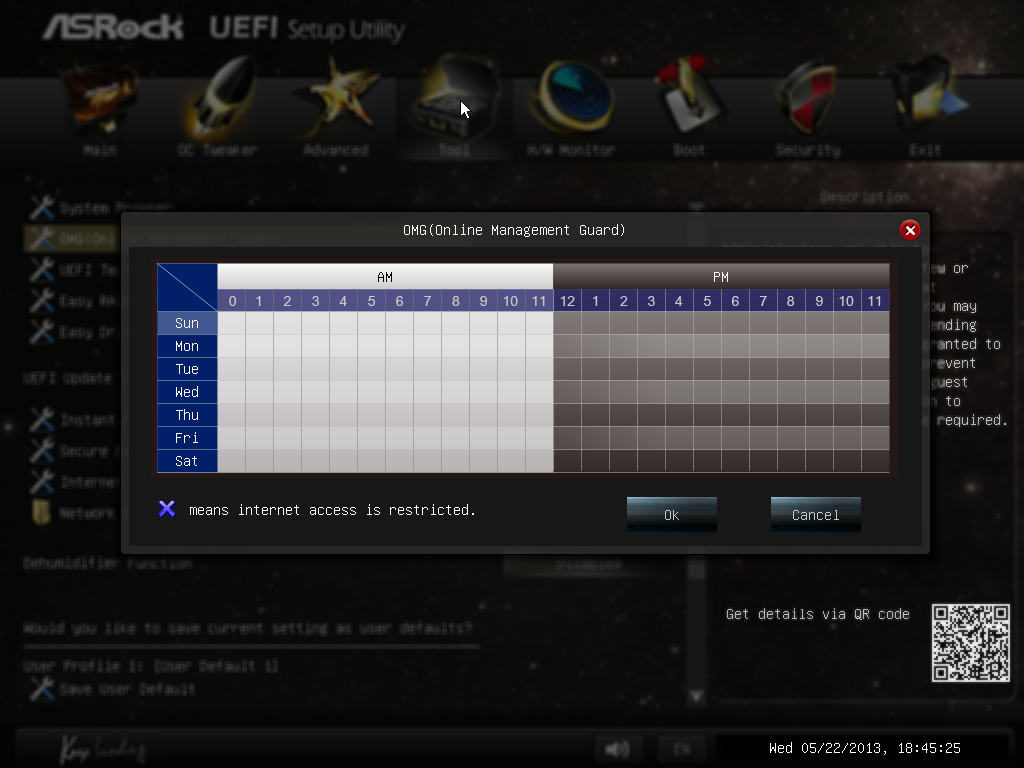
Online Management Guard (OMG) is a simple attempt to disable network ports at various times of the day. While easily circumnavigated by adjusting the BIOS time or manually disabling the option in the BIOS, the purpose behind this feature is to adjust when children are allowed to use the internet, or for businesses to disallow ‘casual browsing’ after hours.
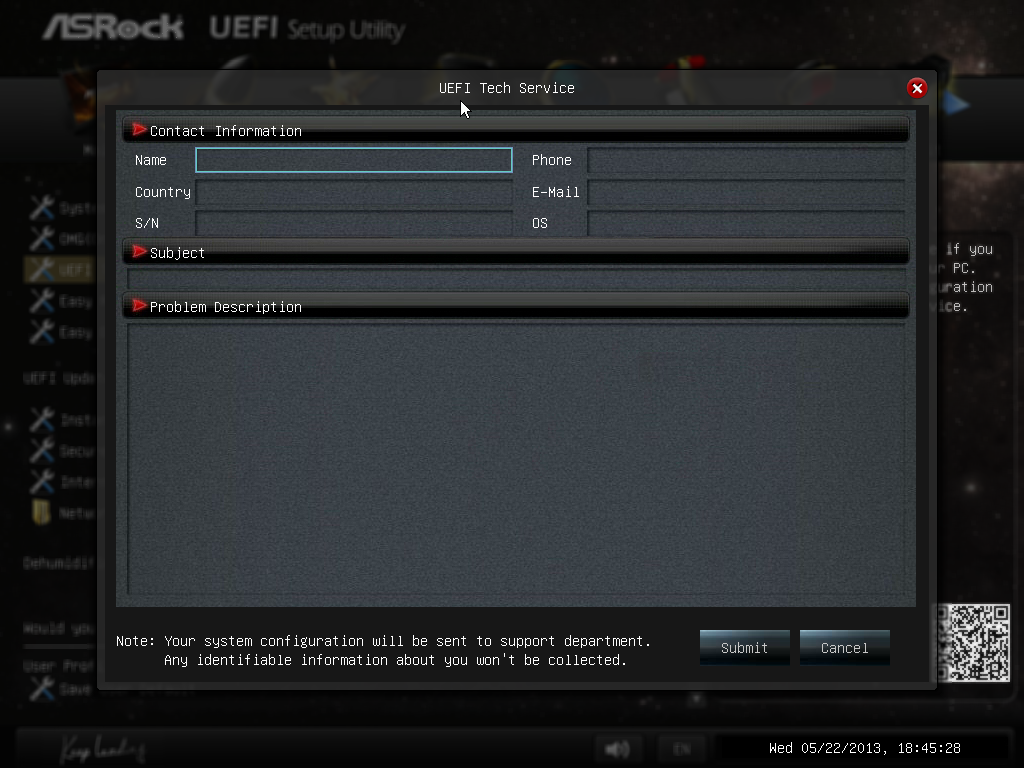
The UEFI Tech Service option is designed to send problem reports to ASRock directly from the BIOS. This feature only works if you have a wired Ethernet connection to the internet, and sends ASRock an email with the BIOS information used as well as a description provided by the user. There is a similar feature in the OS software.
The Easy RAID installer helps users take the RAID driver off the driver disk and place it onto a USB stick for installation of a Windows OS onto a RAID array, and Internet Flash allows users to update the BIOS with the latest version from ASRock’s online servers without jumping into an OS.
Due to the 3-pin fan headers on board the fan controls are basic at best, found under the H/W Monitor section. ASRock allows users to provide basic control or a series of pre-defined settings: Silent, Standard, Performance and Full Speed.
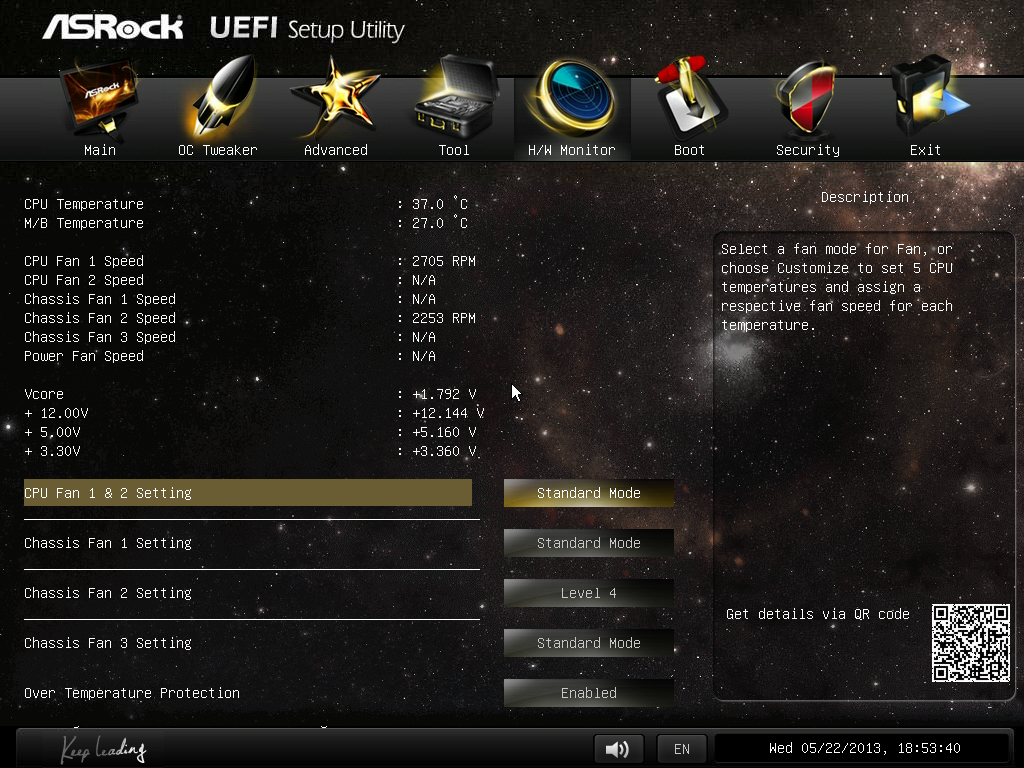
Elsewhere in the BIOS are Boot options and Windows 8 Fast Boot options.


Originally published at https://www.anandtech.com/show/6989/intel-z87-motherboard-review-with-haswell-gigabyte-msi-asrock-and-asus-at-200 (Wayback Machine).