
Z77 mITX Round-Up: Five of the Best – MSI, Zotac, ASRock, EVGA and ASUS
ASRock Z77E-ITX BIOS
As already mentioned in the overview to the Z77E-ITX, its BIOS is a step back from the most recent implementations of the BIOS we have seen on the X79 Extreme11 and FM2A85X Extreme6 – instead of that starry background we get the older blue on white indicative of the earlier Z77 products. This is mostly likely due to the mid-2012 release of this motherboard, but going through the history of the ASRock BIOS, there is an evolution taking place:
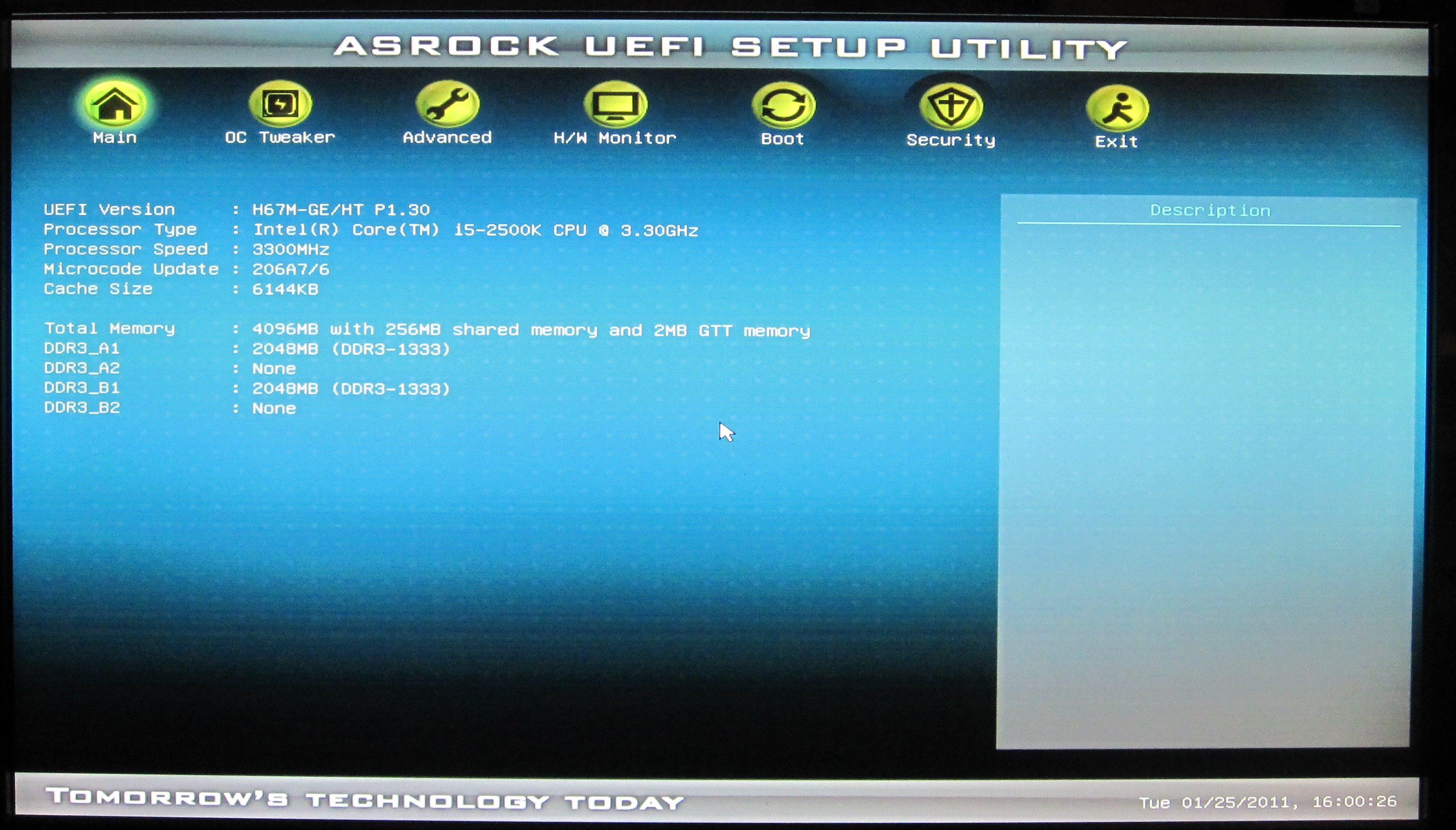
ASRock H67M-GE/HT

ASRock Z77E-ITX

ASRock X79 Extreme11
Despite the evolution, ASRock have kept the general design constant. This means information like the motherboard model, BIOS version, processor installed, processor speed, memory installed and memory speed are right there on the front menu – useful for anyone wanting this information without loading an OS or opening up the case. All that is missing is perhaps the CPU temperature and CPU fan speeds. If this was all wrapped up in an aesthetic and interactive scenario we would be on to a winner.
With the Z77E-ITX BIOS, the Main screen has access to two functions – the System Browser and the Online Management Guard.

The System Browser shows the motherboard with all the changeable ports highlighted. By rolling the mouse over each of them, it will tell the user what it detects in that port. Thus if a SATA device suddenly stops working, users can check this to make sure the BIOS still recognizes it.

The Online Management Guard is an interesting way to get around the ‘how to keep the kids off the internet when they should be doing schoolwork’ issue – users can select hours of the day at which the network controller will be disabled. Unfortunately the system is easily disabled by going back into the BIOS and either changing the BIOS clock or changing the OMG setup itself. Yes, OMG is an odd name for this feature – “OMG, it’s so easy to disable!”
The main bulk of the options are found in the OC Tweaker menu:

The OC Tweaker menu is arranged into lists of features relating to separate parts of the system. First is the CPU configuration, relating to CPU ratio, BCLK and power limitations. We also have overclocking support for the integrated graphics. Underneath this is the DRAM timing options, which give XMP support or a manual adjustment of the timing ratios. The voltages are further down, and we are given Load Line Calibration options as well with diagrams to show how LLC varies with ‘Level’. Finally there are options to save the current settings for future usage.

The Advanced menu deals with the non-overclocking options: we have access to our SATA/USB configurations, as well as the extra controllers on board and the NB/SB options. In order to flash the BIOS via USB or the Internet, the options are in this menu.

The fan settings are found in the H/W Monitor option along the top, and in keeping with previous ASRock motherboards, the fans are set to 100% by default. This is by no means the best way of presenting the motherboard out of the box, resulting in high noise levels unless the options are changed. The fan options on the Z77E-ITX allow for both fans to have a ‘maximum’ temperature after which the fans are on full, and a target fan speed which sets the fans to that speed below the target temperature.

Elsewhere in the BIOS are boot options and security options. Annoyingly missing is a boot override function, useful for those one-off USB installation scenarios.


Originally published at https://www.anandtech.com/show/6516/z77-mitx-roundup-five-of-the-best-msi-zotac-asrock-evga-and-asus (Wayback Machine).