
In-Depth with the Windows 8 Consumer Preview
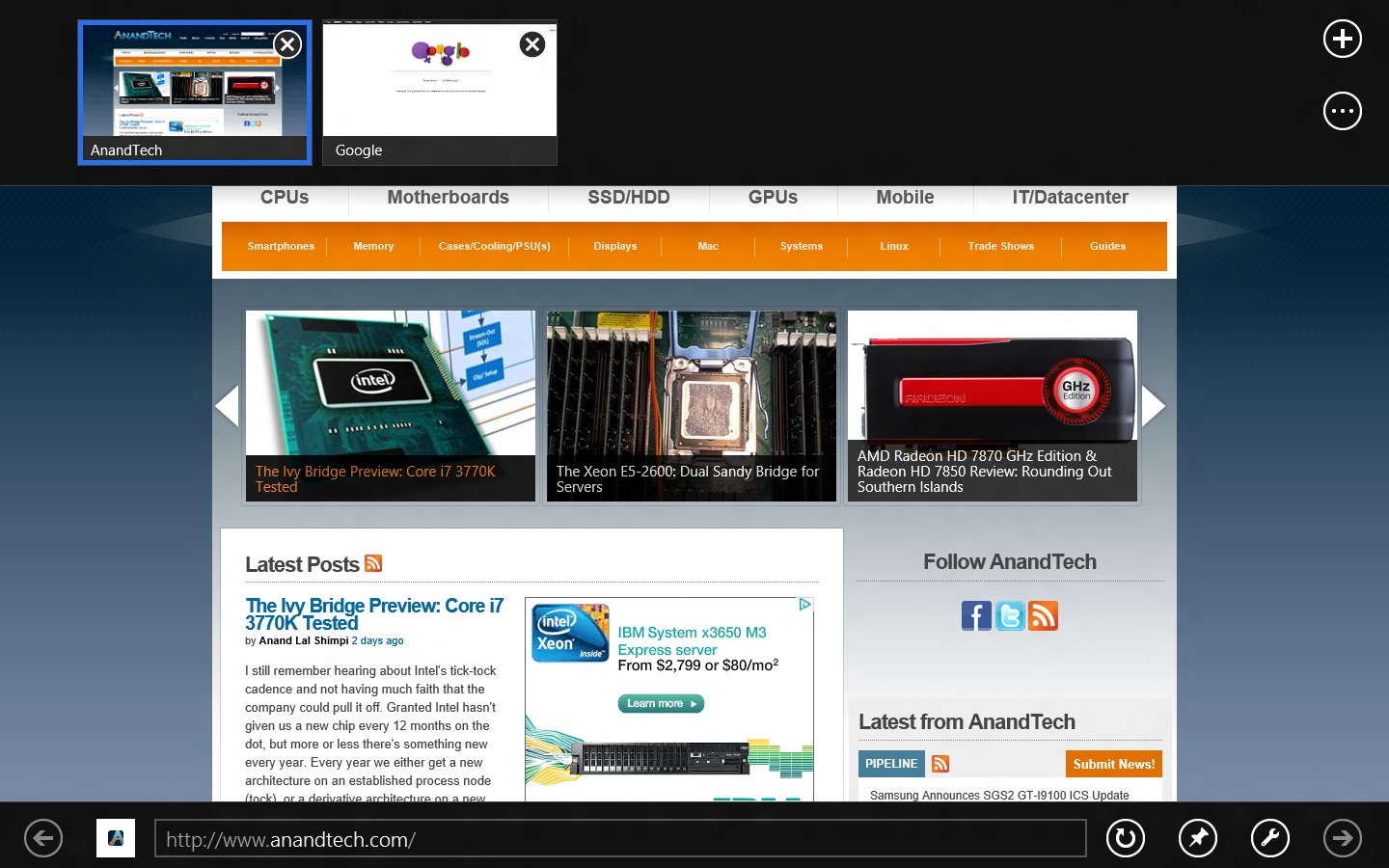
There are two versions of Internet Explorer 10 in Windows 8—a Metro app and a desktop app. Both share the same rendering engine and, unsurprisingly, perform identically on the same hardware. The only difference is UI, and the fact that Metro’s IE will not run plug-ins like Adobe Flash or Microsoft’s own Silverlight.
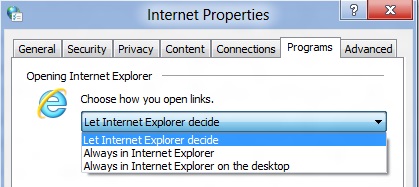
To reflect the distinction between the Metro version of IE and the desktop version, both Metro and the desktop retain separate default browser settings—you can run Firefox or Chrome as your default browser on the desktop and stick with IE in Metro, but you can also specify desktop browsers as the default Metro browser, meaning that links clicked in Metro apps like Mail will dump you to the desktop to open rather than stay in the Metro interface. Oddly, if you decide not to use IE as your default Metro browser, the IE completely disappears from Metro, and it takes a trip into the desktop Internet Settings control panel to re-enable it.
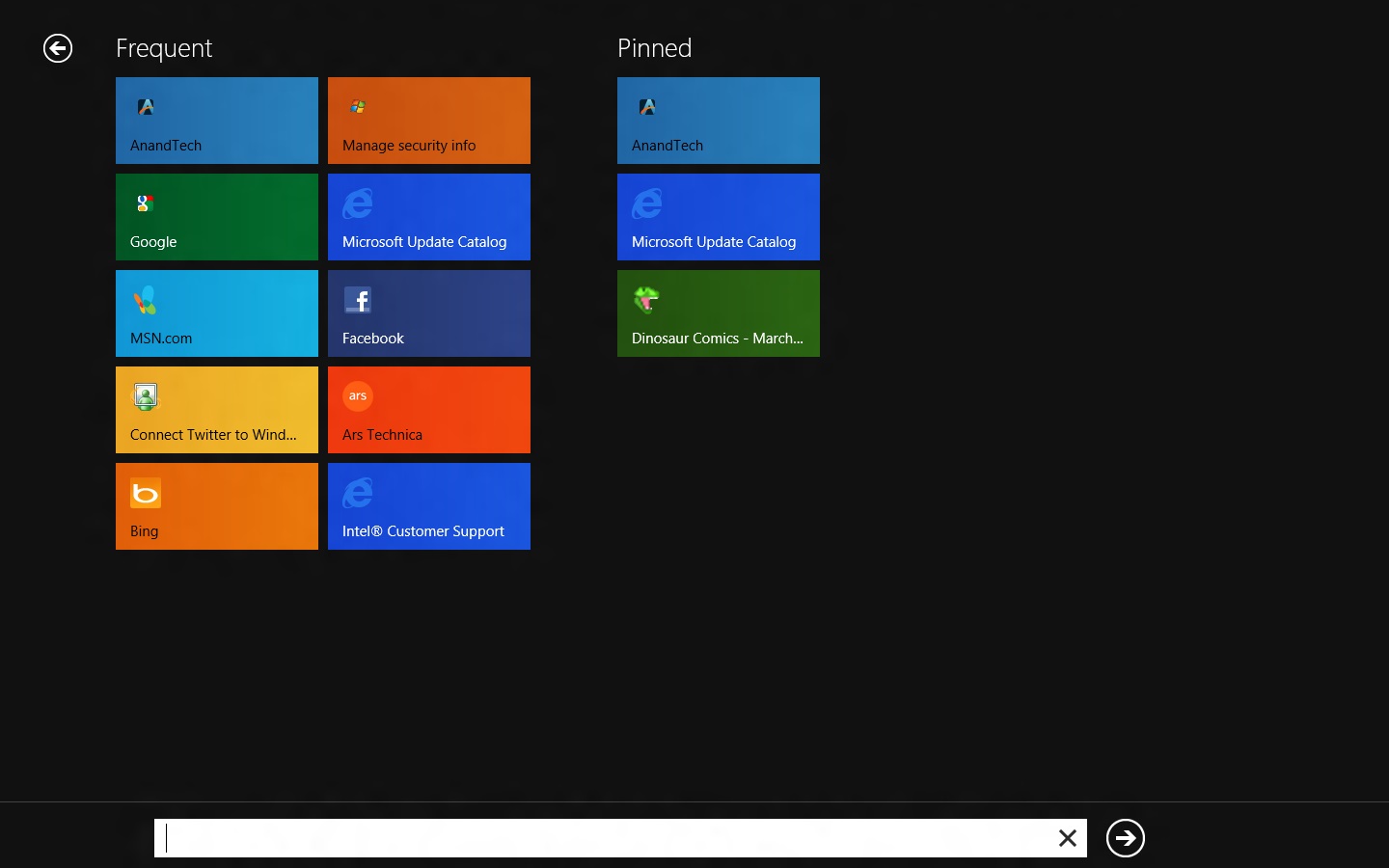
The Metro version of IE is a minimalist, touch-centric affair—the address bar is located at the bottom of the screen, and will disappear from view when it’s not being used. While typing in the address bar, IE will display a tiled list of your most frequently visited sites, as well as sites that you have “pinned” using the address bar’s pin button—these pinned sites will also show up on the Start screen. The address bar also has the requisite Back, Forward, and Refresh buttons, as well as a Tools button that will let you search the current page or open the page in the desktop version of IE (the desktop version contains no such button to open pages in Metro mode, at least for now).
The most consistent way to bring up the address bar on a PC is by using the Windows + Z keyboard shortcut that we discussed earlier, which will also bring up Metro IE’s tab interface, which displays big, clickable thumbnails of all your open tabs. You can also open new tabs, clean up your tabs (which closes all but the active tab), or open a new InPrivate browsing tab, which is clearly marked with a blue “InPrivate” icon.
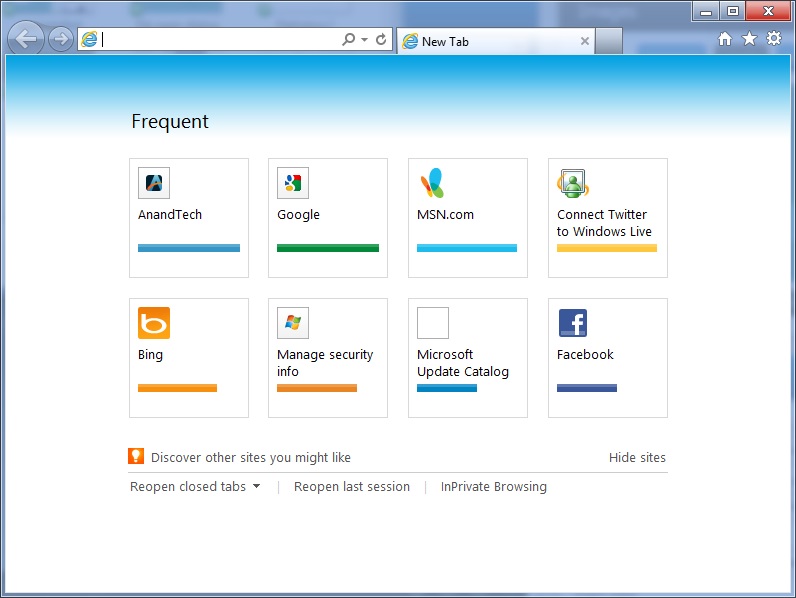
The desktop version of IE looks more or less like IE9, though of course the UI hasn’t necessarily been finalized at this point. One of the only noticeable differences is the presence of a Metro-style scrollbar on pages that require one. Also new is an “Install new versions automatically” checkbox in the About Internet Explorer page, reinforcing Microsoft’s desire to get and keep Windows users on the most current IE version their operating system supports. There’s no evidence that Microsoft plans to move to the rapid-release cycle that Google and Mozilla have both adopted (such a decision would give enterprise IT managers apoplexy), but this sort of functionality would theoretically make it possible.
Benchmarks
Now, let’s peek under the hood and get a few performance numbers. According to these basic tests, IE10 is faster than IE9 by a noticeable margin, but it can’t quite catch up to the current versions of Firefox or Chrome. These benchmarks were all run on the Dell Latitude E6410 that served as my main Windows 8 machine for this review.
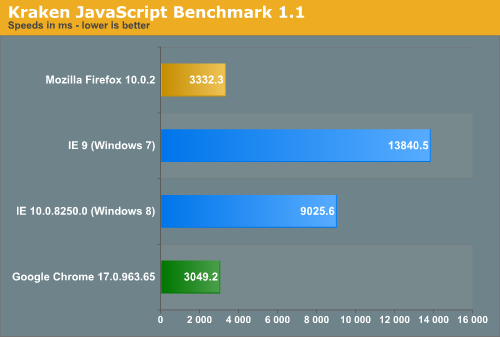
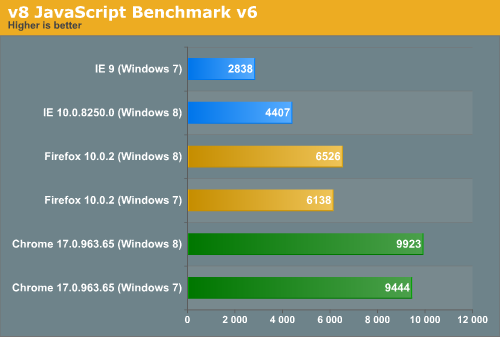
Interestingly, all browsers performed the v8 benchmark slightly faster in Windows 8. The difference isn’t huge—just a few hundred points in both cases—but it is both consistent and measureable, and I thought it interesting that the OS update slightly improved the performance of these third-party programs. Kraken scores were consistent across Windows 7 and Windows 8.
Originally published at https://www.anandtech.com/show/5630/indepth-with-the-windows-8-consumer-preview (Wayback Machine).