
In-Depth with the Windows 8 Consumer Preview
Bitlocker drive encryption

The new Bitlocker is largely similar to the version included in Windows 7—it can be used to encrypt both internal hard drives and removable storage.The main difference is that Bitlocker will now offer to encrypt only the used portion of your hard disk, rather than the entire voume—as in Windows Vista and Windows 7, encrypting your laptop’s hard drive doesn’t require a TPM module, but it does work best with one. Bitlocker will also offer to save your hard drive’s recovery key to SkyDrive.
I'm really hoping that Windows 8's emphasis on security and mobile computing devices means that Bitlocker is extended to more Windows editions—in both Vista and 7, it was available only in the top-tier Ultimate edition and the volume licensed Enterprise edition. We don't know anything about Windows 8 editions yet, but the responsible thing for Microsoft to do would be to make drive encryption available for more of its users.
File History

Windows Backup as it existed in Windows 7 is now called “Windows 7 File Transfer,” and is used to restore backups and files created with the Windows 7 Backup control panel. You can still create backups of Windows 8 with this tool if you want, including file backups and full system images, but the new Windows 8 tool designed to keep your data safe is called File History (and, if you needed more proof that File History is intended to replace Windows Backup, the feature won’t work if you have Windows Backup configured).
File History combines the old Windows Backup functionality with the Time Machine-like ability to keep and easily restore multiple versions of old files. Using either an external hard drive or a network share (at least, in the Consumer Preview—home versions of Windows 7 were unable to use network shares for Windows Backup, and a similar limitation may apply here depending on how the Windows 8 product editions shake out), you can backup copies of files in your document, picture, music, and video libraries, as well as your favorites, contacts, and items on your desktop.
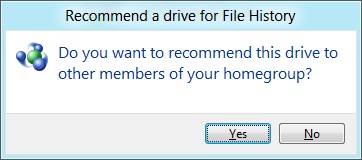
If you save your files to a network drive, you can also “recommend” that drive for use to other members of any homegroup that your computer belongs to.
Remote Desktop

There are actually two versions of the Remote Desktop client in Windows 8—the first is a new Metro-style app, pictured above, that can connect to any Remote Desktop host but is optimized especially for Windows 8 and Metro. The second is the classic Remote Desktop client, which despite being updated to version 6.2 is hidden away in a system folder (the exact path is C:\Windows\System32\mstsc.exe) and is not present either on the Start screen or in any of the Windows Search sections—its operation is basically the same as in previous Windows versions, and it doesn't include the special Metro-centric controls of the Metro-style Remote Desktop app. Take note of this if you need (or prefer) to use the older client.
Windows Defender

Windows Defender, a lightweight anti-malware product first integrated into Windows Vista, has also been given an upgrade. Older versions of the program scanned only for spyware, but the Windows 8 revision picks up the anti-virus engine from the Microsoft Security Essentials product that XP, Vista, and 7 users must download and install separately. Microsoft Security Essentials is my anti-virus product of choice for my computers at home, and it's nice to see this basic level of protection (finally) make it into a default Windows install. Anti-virus companies like Symantec and McAfee may cry foul, but this is a net gain for users and for the state of security in Windows.
Originally published at https://www.anandtech.com/show/5630/indepth-with-the-windows-8-consumer-preview (Wayback Machine).