
Amazon Kindle (4th Gen) Review
Day-to-day Use
Once you finally get down to the business of reading, though, the Kindle’s traditional strengths shine through: the easy-on-the-eyes e-ink screen, the exceptional battery life, the small size and light weight. The latter two benefit from the subtraction of the keyboard, as its removal enabled Amazon to sell the same size screen in a smaller form factor for a lower price.
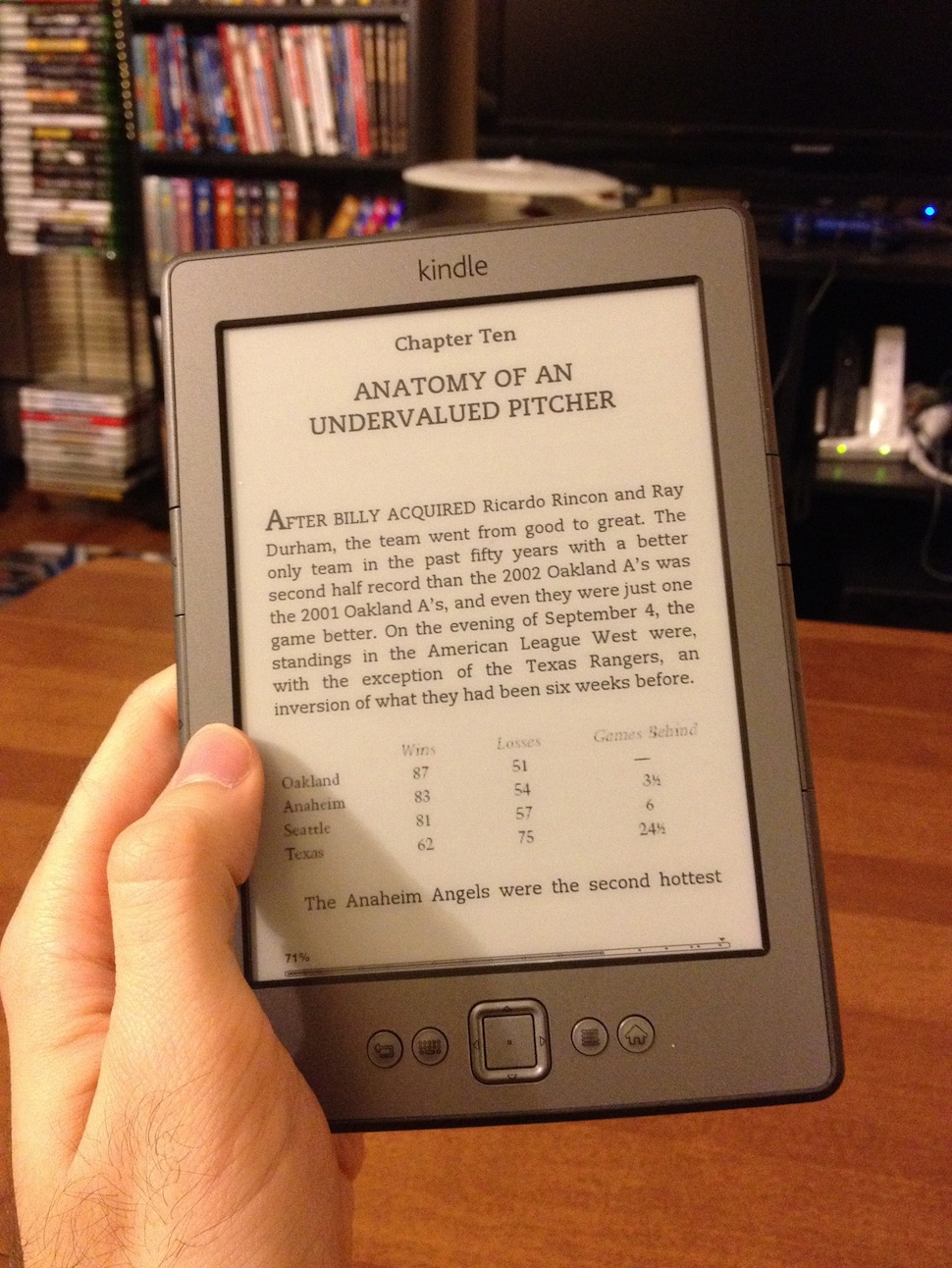
It’s easy to hold the device in one hand, and the page turning buttons (a larger one on the bottom for going forward and a smaller one on top to go backward) are easily accessible - there are identical buttons on both the right and left sides of the device to account for both the right- and left-handed folks out there, and the buttons are responsive to input but stiff enough that you usually can’t trigger a page turn by accident.
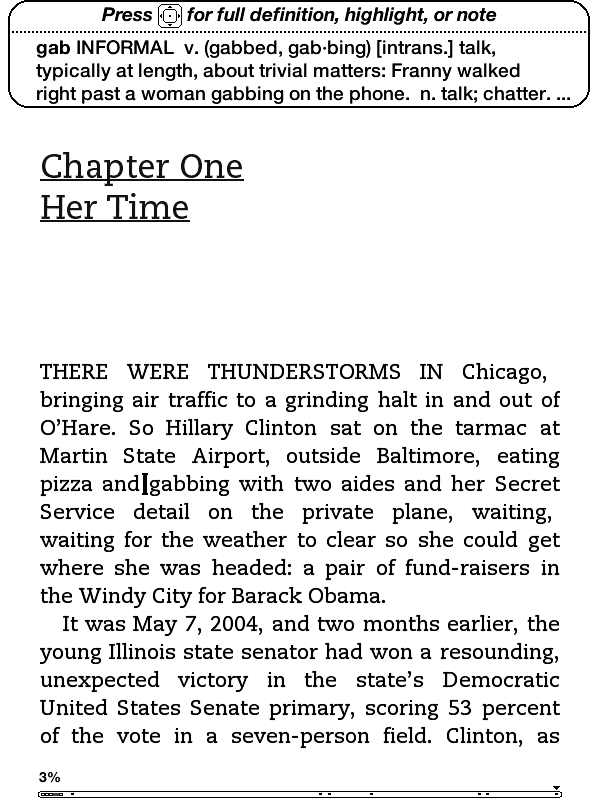
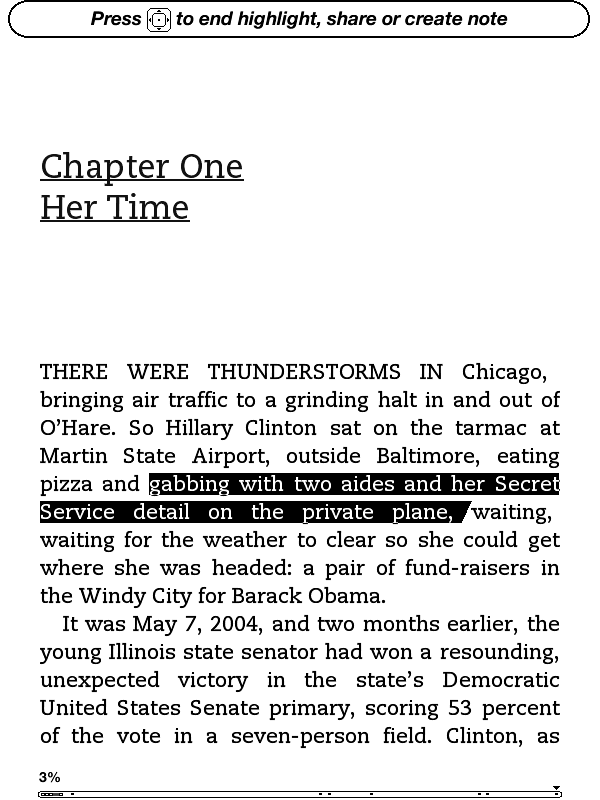
Pushing up and down on the five-way controller turns on a cursor with which you can jump from word to word, automatically bringing up the built-in dictionary’s definition for the selected word. Pressing the center button will bring up a menu that allows you to see a word’s full definition, start and finish highlighting passages, and create notes (though, again, text entry is unpleasant).
When looking at solid text, the screen only actually “refreshes” every six page turns or so (to fully refresh, the whole screen briefly flashes black) - the result is that at times you can see faint ghosting from previous pages, though it’s usually not enough to be distracting. If you want a full page refresh to happen with every page turn, you can enable this in the Settings menu after applying the Kindle 4.0.1 software update. Pages with images embedded automatically trigger a full refresh when they come up.
Page turns don’t happen as instantaneously as they do on iDevices or other devices with more traditional screens, though they’re certainly not slow enough to pose a problem in practice. I also found the Kindle to be easier on the eyes over hours-long reading sessions than my iPad or iPhone. Since this is my first Kindle-enabled device that’s actually a Kindle, I can’t personally say whether this is true, but some Amazon reviews note that the contrast of the E-ink display is a bit less pronounced than in the previous generation devices - if you’ve got a third-gen Kindle that you’re happy with, this year’s model may not necessarily be an upgrade.
It should also be said that while there’s generally no problem with screen glare on the new Kindle, you can see light reflected off of the screen at certain angles under certain types of light. I found that I could usually only make this happen when I was actually trying to make it happen, but it’s something to keep in mind.

Since this is a Special Offers Kindle, there’s an ad banner on the bottom of the home screen, and the device also displays ads instead of turning off when you press the sleep button (though it does turn the wireless off to conserve power). I’m numb enough to ad banners that I didn’t find these irritating, but if that’s the sort of thing that bothers you you’ll want to consider spending the extra $30 to get the ad-free version (for the same amount of money, you can also get rid of the ads on any Special Offers Kindle at any time after purchase).
Wireless syncing worked just about as advertised - once or twice in my week of testing, the Kindle didn’t properly detect progress that I had made on my iPhone, but since my iPhone always detected the progress I made on the Kindle I’d be more inclined to blame Apple’s device than Amazon’s. The second time I went to use the Kindle, it had lost my wireless network settings and needed me to put them in again, but that hasn’t happened again since so I assume it’s not a chronic problem.
Updating process
Our Kindle shipped with version 4.0 of the built-in software, but Amazon has made version 4.01 available for download. To update your Kindle, first download the update from Amazon’s web site (it will be in .bin format). Next, connect the Kindle to your computer, and using the file explorer place the update at the root of your Kindle’s drive.

Disconnect the Kindle from the computer, press the Menu button, select Settings, and press the Menu button again, and select Update Your Kindle from the system menu (incidentally, this menu will also let you restart your Kindle, and restore it to the factory defaults). After a minute or two, the Kindle will restart and all will be well with the world.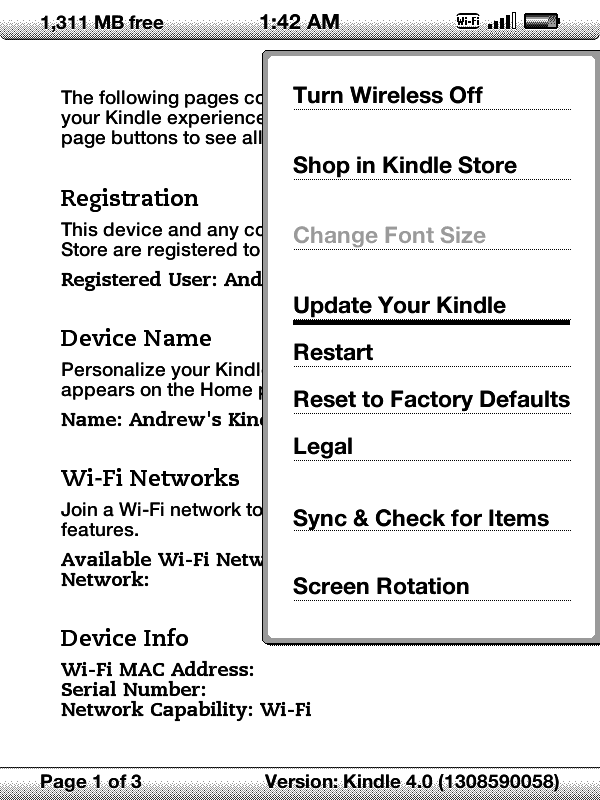
Originally published at https://www.anandtech.com/show/4988/amazon-fourthgeneration-kindle-review (Wayback Machine).