
Fusion E-350 Review: ASUS E35M1-I Deluxe, ECS HDC-I and Zotac FUSION350-A-E
BIOS
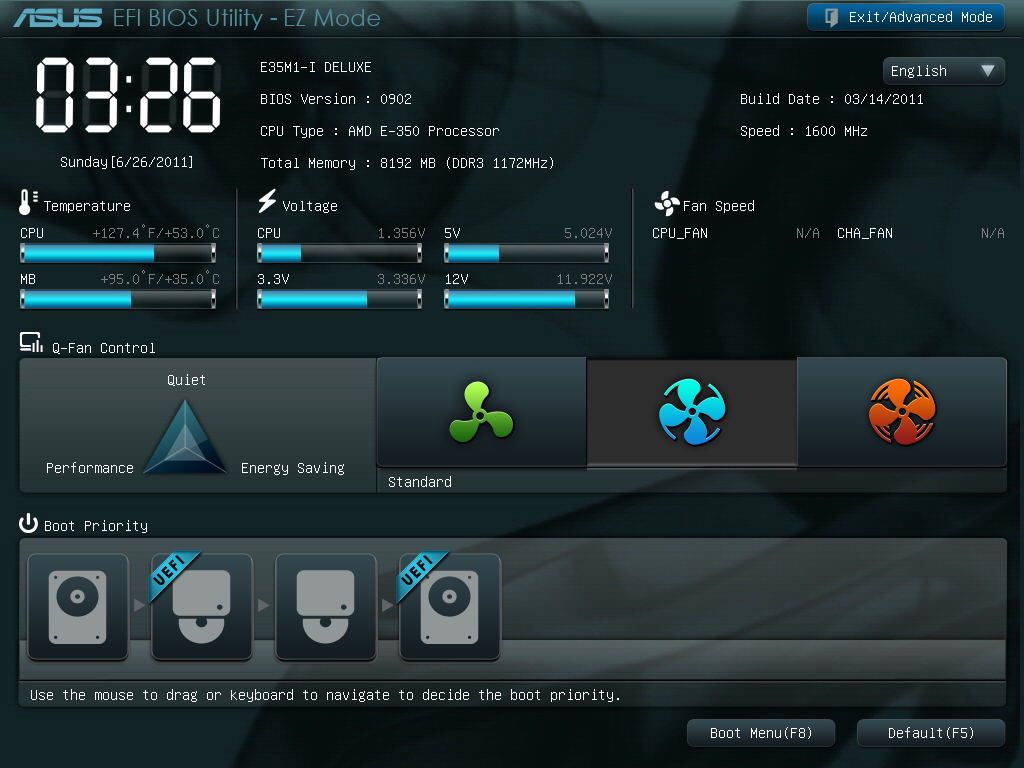
The ASUS BIOS solution for Fusion is essentially identical to what we've seen with the Sandy Bridge boards this year - the graphical UEFI implementation, but tailored to the Fusion interface. The front 'EZ mode' (easy, for Brits like me who say 'zed', not 'zee') contains the basic data we want to see - the BIOS version, the CPU, temperatures, voltages, fan speeds, three choices for performance and a quick boot management. This is the cream of UEFI front page implementations, for which ASUS should be applauded. Pressing F12 takes a nice screenshot too.
In advanced mode, 'Ai Tweaker' is where the important action is. First two options are the APU Frequency and Memory Frequency options, followed by OC Tuner (which acts exactly like the Turbo Key switch on the motherboard itself, by applying a default 5% overclock on the next boot) and the memory timing screen.
I actually found a small error in the BIOS here - if you select a manual bus speed overclock, say to 110 MHz, the Memory frequency options change to reflect this 10%, to 880 Mhz and so on. However, if you then decide not to apply the overclock and select 'Auto' on the Ai Overclock Tuner, the Memory Frequency values are stuck at the 10% overclocked values, even if on the next boot they will actually be based off the 100 MHz clock. It's just a small coding error, but odd it wasn't picked up during testing.

Also of interest is the 'NB Configuration' menu. Judging by these options, if you want to run a multi-monitor setup from the integrated GPU (so a HDMI 1.3b and DVI), this option will need to be enabled. However, the help menu mentions VGA devices - whether that explicitly means analog devices or in general video outputs, I'm not sure, but there's no VGA output on this board. So whether it's left over from other boards (the E35M1-M Pro does have a VGA) when they were making this BIOS, again, I'm not sure.

The monitor screen shows us just how hot the CPU is at idle under the passive heatsink - at the time I took this screenshot, we have a CPU running at 52ºC at 1.326 V. In the boot menu, we have the option for a one-off boot device selection, which I think should be a requirement on all future BIOS versions from every vendor.


Just a small after note - the shipping BIOS on the ASUS board is a little unstable. If left alone for a short while, the BIOS will freeze and the only way to fix it is to perform a soft reset. This issue is supposedly fixed with the 0902 BIOS though.
Overclocking
For the ASUS board in this roundup, overclocking was a fraction harder than the ECS. There are two ways to initiate an overclock - from the BIOS/UEFI, or via the Turbo Key II button on the motherboard itself. With the Turbo Key II, we get an instant 5% overclock to take the base speed from 100 MHz to 105 Mhz, and with a 16x multiplier, from 1600 MHz to 1680 MHz. The OC Tuner option in the BIOS has this effect too.
The other alternative is manually adjusting the bus speed from the BIOS. Now as these boards already come with CPUs, the results between boards will be different because of the silicon. With the BIOS, I left the voltage on auto and pushed the bus speed to 110 MHz without issue. At 114 MHz, the board successfully booted but failed the array of 3D iGPU tests in our bench suite. I adjusted it down by 1 MHz until our tests were stable - in the end, only 111 MHz (1776 MHz) was stable enough.
At this level of overclock, the 3D Movement benchmark results were improved by 11.7 % in single threaded mode and 11.0 % in multi threaded. GPU results were considerably different - 21% increase in Metro 2033, 17.3% in Dirt2 and 36% in Left4Dead2, confirming that the CPU or memory is quite the bottleneck in these scenarios.
Originally published at https://www.anandtech.com/show/4499/fusion-e350-review-asus-e35m1i-deluxe-ecs-hdci-and-zotac-fusion350ae (Wayback Machine).