
P67 $190 Part 2: MSI P67A-GD65, ASRock P67 Extreme6 and ECS P67H2-A2
ECS P67H2-A2: BIOS
In an era when the top motherboard manufacturers are jumping on the graphical UEFI bandwagon, there are certain manufacturers left behind with old BIOS systems which never received any polish in the first place. ECS have taken a step forward of sorts with the 04/08 BIOS, compared to the H67 version we looked at previously, as they have now enabled mouse support. But the mouse pointer is black against a dark blue background, and when going through the menus the selected option is green, where the text is yellow—it made me strain my eyes to read what was shown, and could be an issue if you are partially colorblind. Apparently, the color scheme and mouse support are the only differences between the 03/03 and 04/08 BIOS versions, thus I preferred the 03/03 BIOS which is the old color scheme.
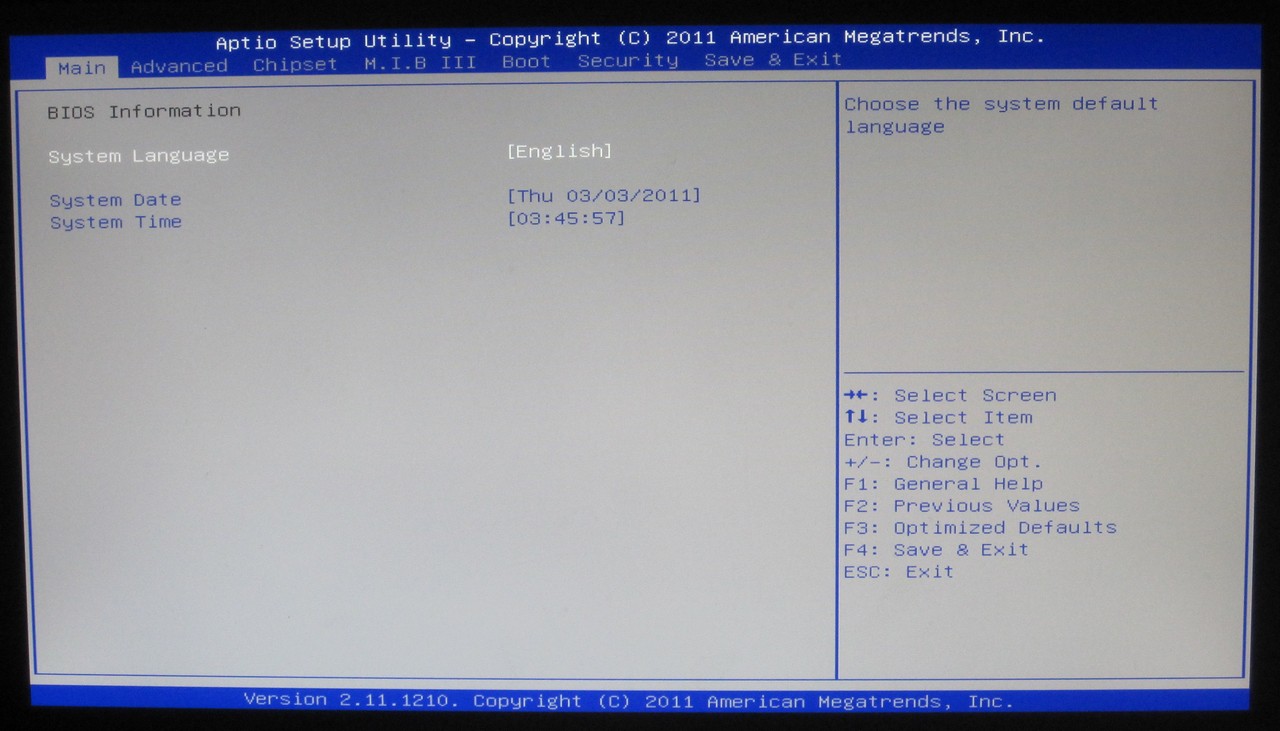
03/03 BIOS
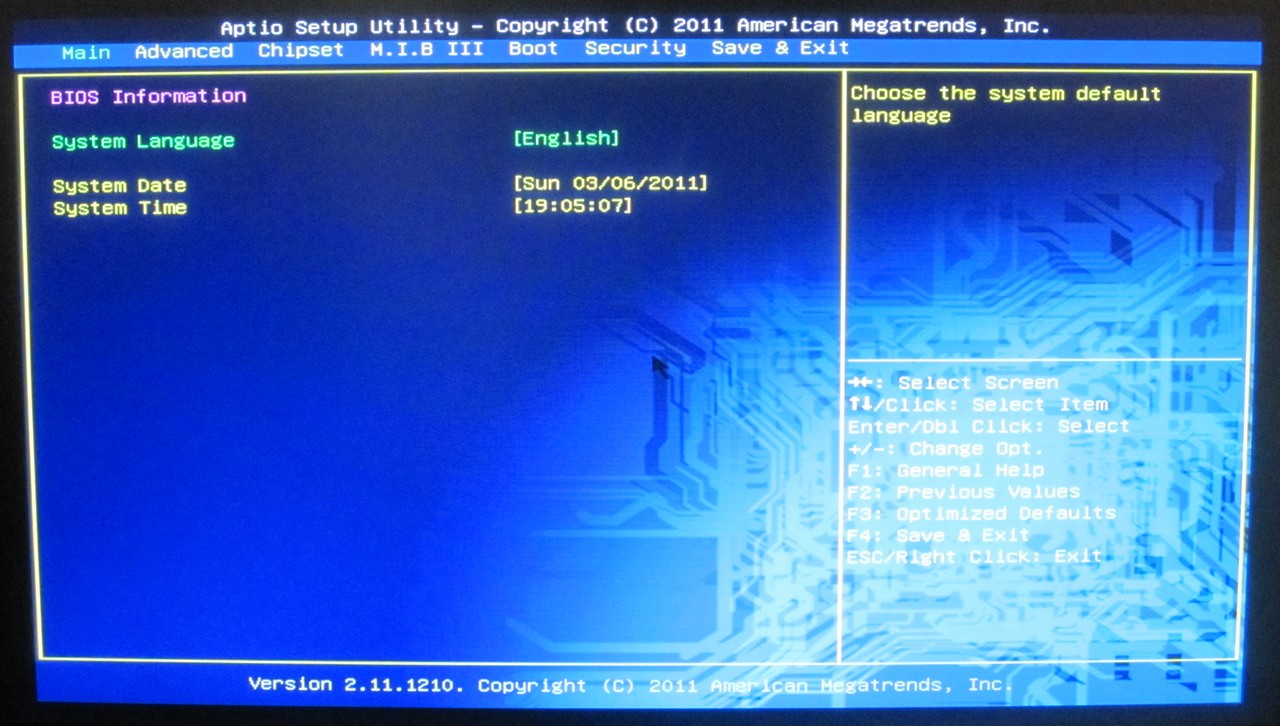
04/08 BIOS
Options are lacking—even on the front page, we’d expect some detail about the CPU or the system at hand. There’s not even an indication of what motherboard we have, or what version of the BIOS we’re using. We have to go deeper.
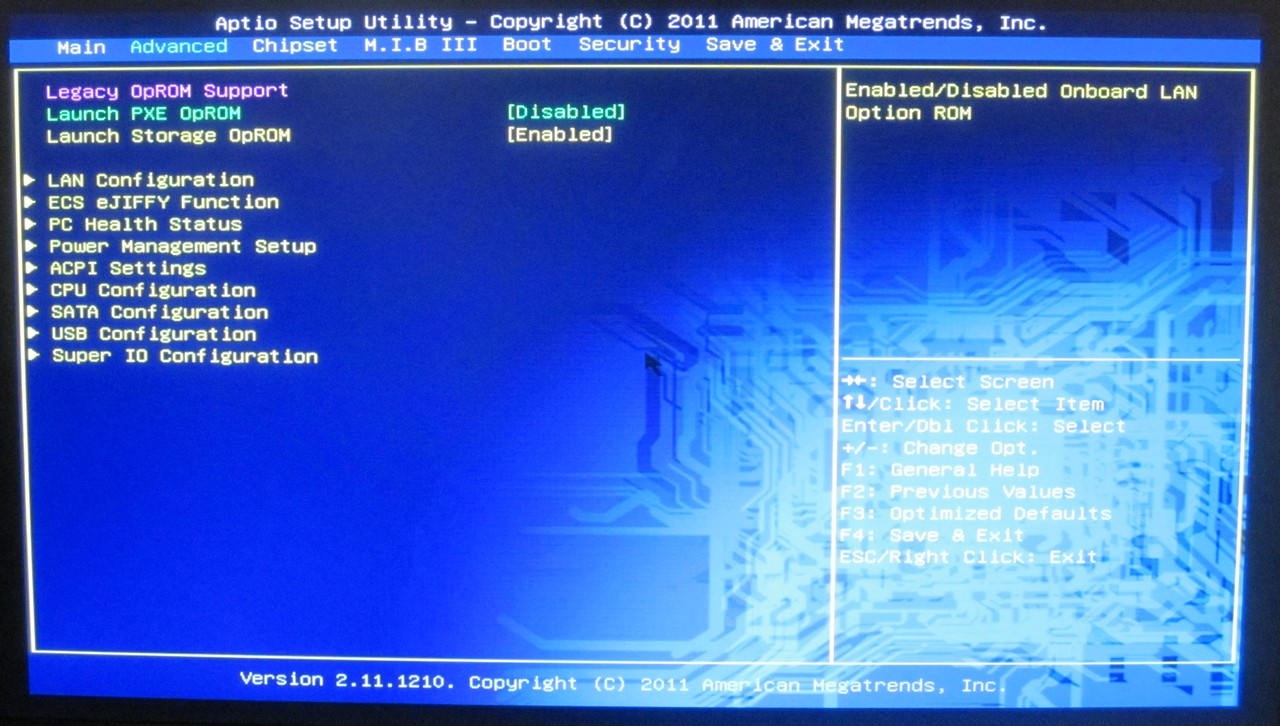
The Advanced menu gives a series of sub menus relating to PCH options, as well as a PC Health menu. This actually contains values of temperature and voltage, which we could have had on the main page, but it also has a menu option into the adjustable fan settings.
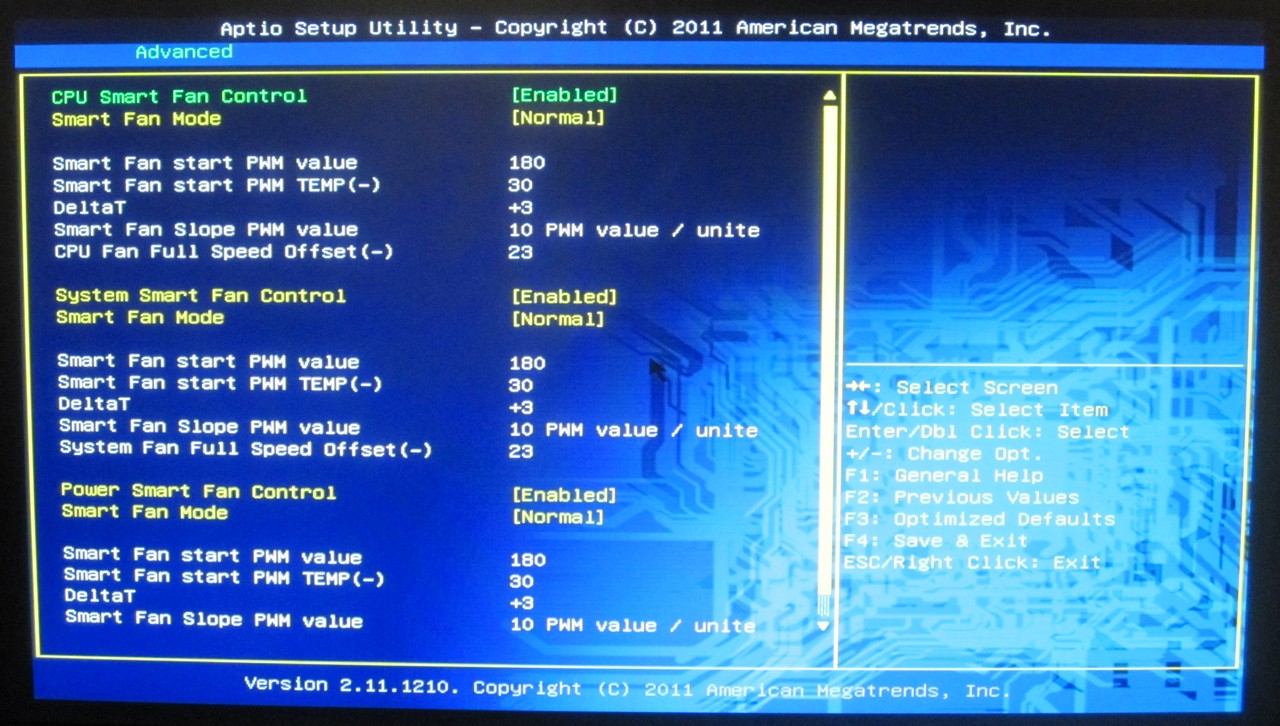
These we like—many options for each fan header, fully adjustable. But the fact that it is buried in the PC Health sub-menu baffles me—having it with the other PCH options makes ultimately more sense.
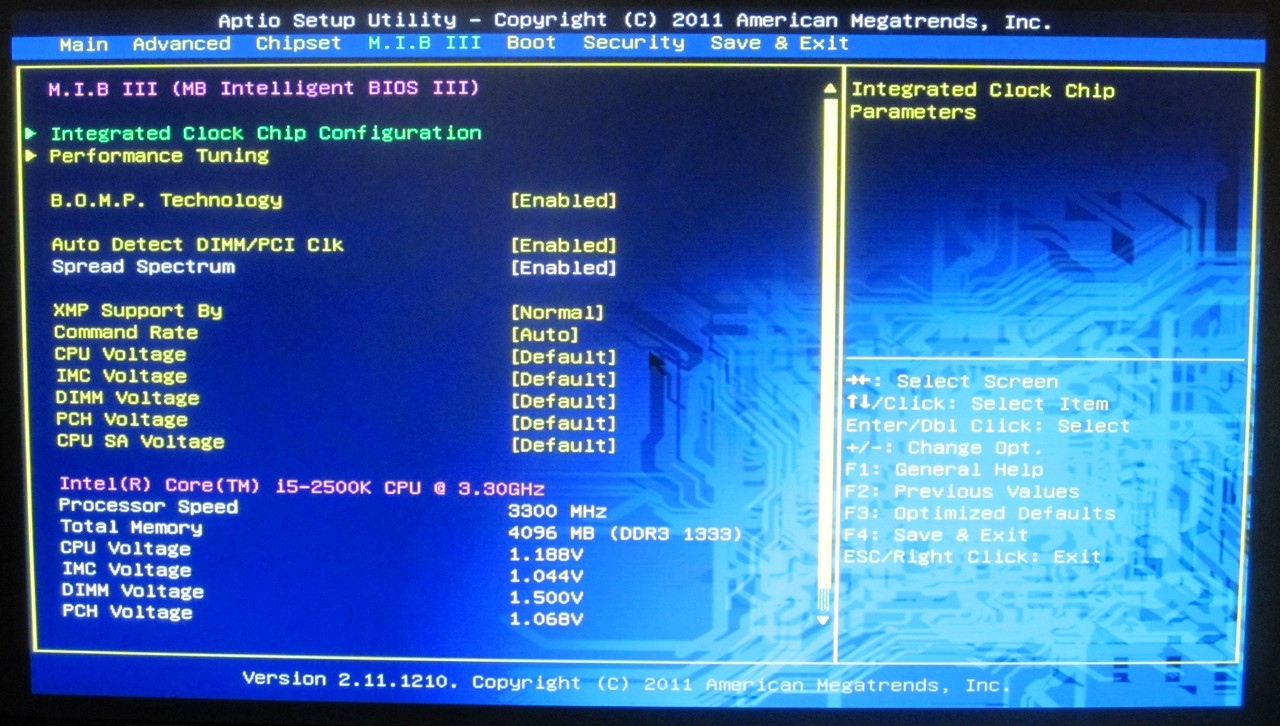
The MIB III tab brings up various options for voltage change, and even tells us which processor we have! The voltage options are not absolute values, but offsets—I’m much more in the absolute value camp, as the offset selected here applies the offset to all the CPU states available. It’s also an immediate change—as soon as you select an offset, it is written to registers applied. There is a distinct problem with this, because if you boot into the BIOS with a previous offset already applied (say, +150 mV) and then go to change that offset, the BIOS will apply a double offset. So if you go down to +140 mV, the BIOS will apply a total +290 mV immediately, which if the component cannot handle, will cause damage. If you reboot the system, only the new offset is applied, however it is a pretty serious flaw to be shipping to consumers.
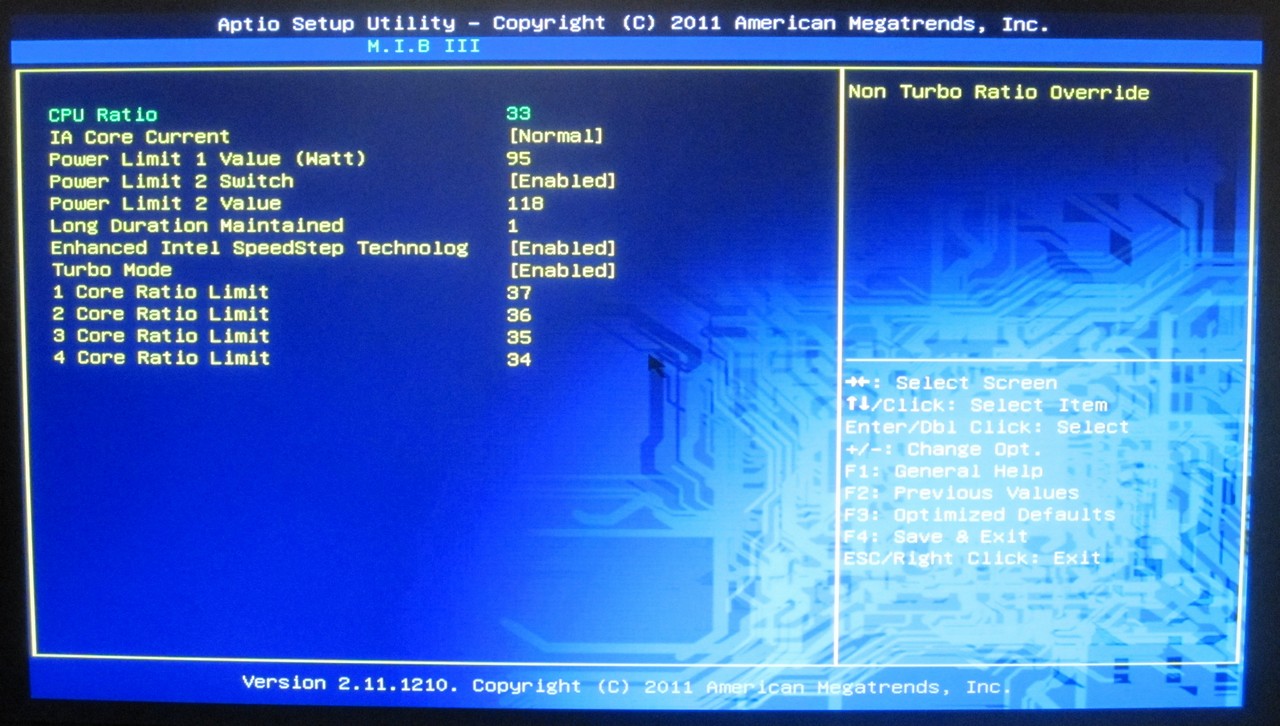
In the CPU overclocking menu, we have the option to adjust the CPU multiplier, but not the BCLK. The BCLK option is tucked away deep in a different menu, via:
-
BIOS—> MIB III
-
MIB III -> Integrated Clock Chip Configuration
- ICC Configuration -> Change ICC Enable to Enabled
-
ICC Configuration -> ICC Overclocking
-
ICC Overclocking -> DIV-2S
- DIV-2S -> New Frequency
-
ICC Overclocking -> DIV-2S
-
MIB III -> Integrated Clock Chip Configuration
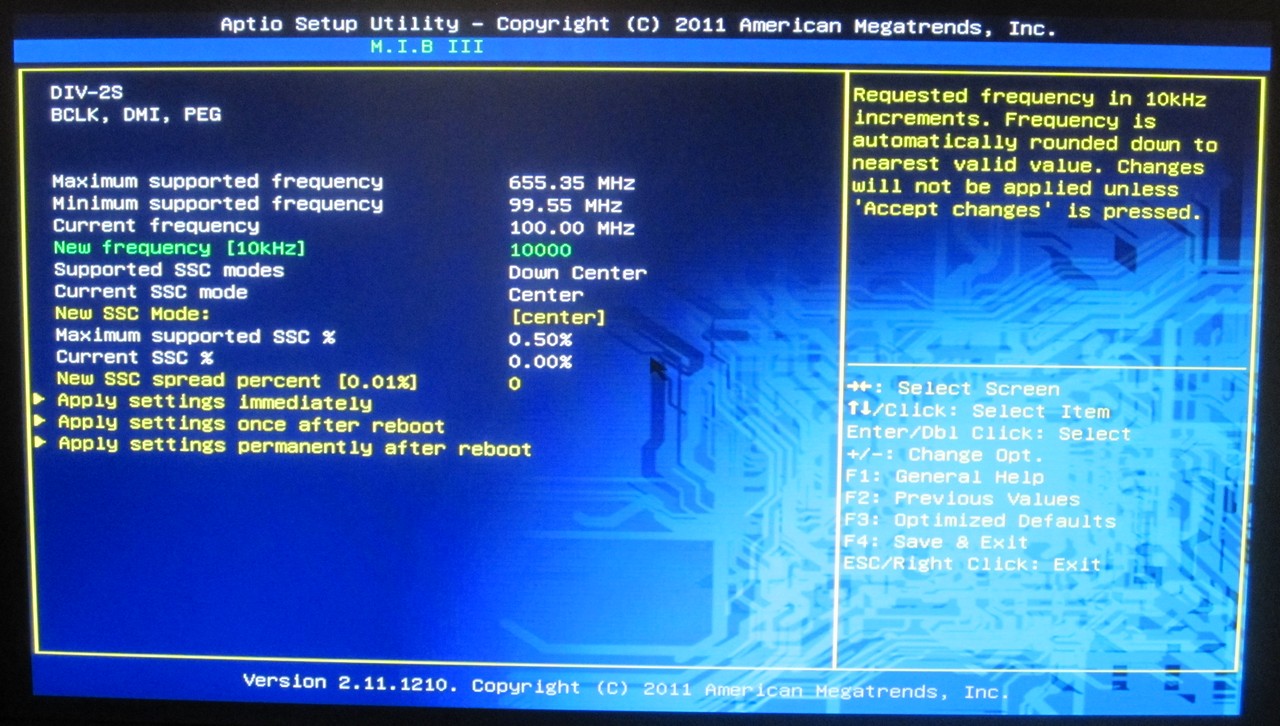
This is quite frustrating if you’re playing on the BCLK limit. In the ICC Configuration menu, you need to enable ‘ICC Set Clock Enables’ and ‘Send ICC Lock Registers’ in order to change the BCLK using the eOC software in Windows, but you can only change the BCLK by 1.0 MHz chunks.
With the memory, only a few options are available to the user, in terms of memory multiplier (1067 MHz to 2133 MHz) and CL-tRCD-tRP-tRAS. Typically we see other memory options available if the user wants to change them, but ECS have decided that too many options is obviously a bad thing.
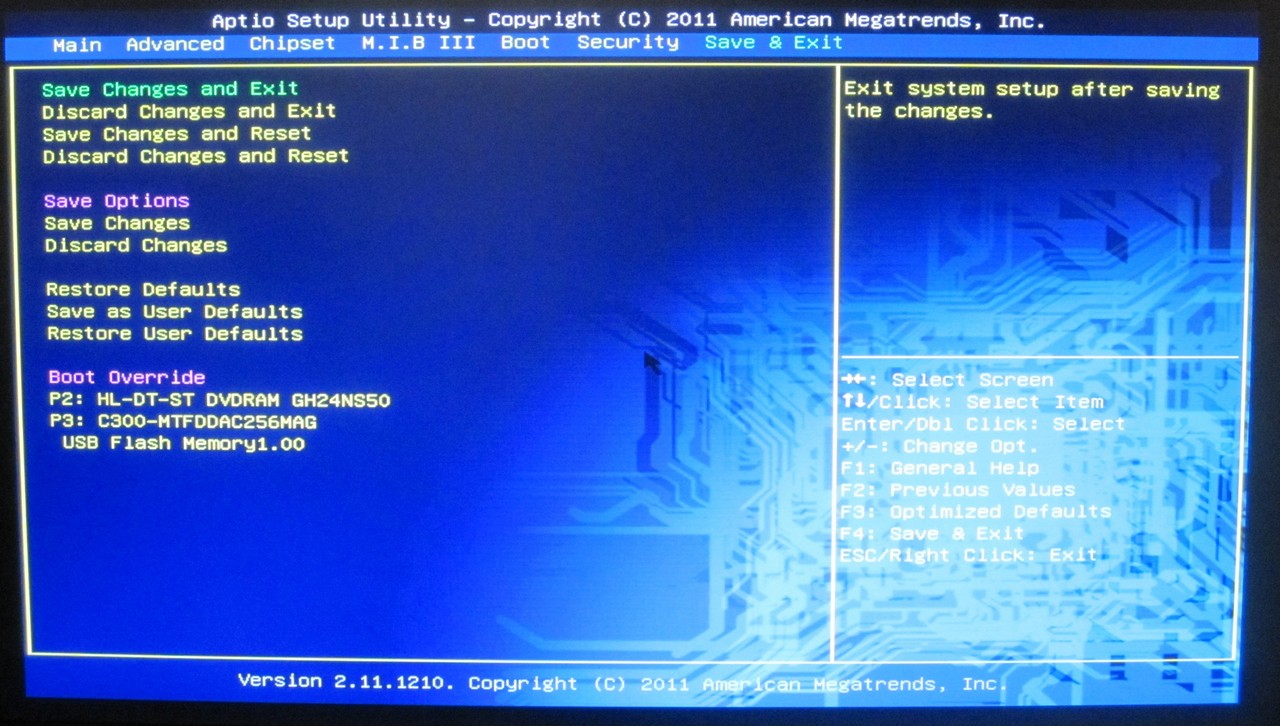
I’ll end the BIOS talk by mentioning a feature I like—the boot override. If you want to boot from DVD or USB, as long as the BIOS detects it (depending on your IDE/AHCI settings in the SATA sub menu), it’s a simple selection to boot from that device once. This way, we don’t have to change our boot order, and then change it back when we’re finished.


ECS P67H2-A2: Overclocking
There are no auto-OC options. You’re forced to navigate through several menus to get to the CPU multiplier options—here I upped the multiplier to 40, left the voltage on Auto, and rebooted into Windows. This worked without a hitch and on full load, the processor reached 1.252 V.
At 42x multiplier, 1.284 V was seen in the OS at full load. At 44x multiplier, the OS failed to load in correctly and kept restarting. We changed the voltage to a +100 mV offset, which then booted into Windows at 4400 MHz and gave 1.392 V at full load.
At 46x multiplier, the OS booted fine, but a quick look at CPU-Z showed the board giving 4400 MHz at full load. In single-threaded scenario, we saw 4600 MHz as expected. A quick look at the temperatures didn’t show anything above 60ºC, so it wasn’t thermal throttling, so I went back into the BIOS and turned off turbo mode. To my surprise, back in the OS, despite the BIOS saying a 46x multiplier, only 3300 MHz was shown, meaning no overclock had been applied.
I turned turbo back on, and started upping the voltages, but this did not change the fact that at full load, the CPU would go back down to 4400 MHz. Even upping the power limits to 150W made no difference. So we upped the CPU multiplier to 48x, and this gave 4800 MHz under single threaded load, and 4400 MHz at full load. At 49x, the board would not boot, and as full load was > 1.42 V, we didn’t push any further.
When attempting to raise the BCLK at the 48x multiplier, not even 100.5 MHz in the BIOS caused to boot, however at the default multiplier, we were able to push 105.0 MHz, so we’re either probably reaching the MHz limit of the CPU for the voltage, rather than a board limit.
For the OC results using the 3D Movement benchmark,
- In single threaded mode, for a 29.7% OC (from 3700 MHz to 4800 MHz), a 31.4% increase in the score was observed (112.46 to 147.83).
- In multi threaded mode, for a 33.3% OC (from 3300 MHz to 4400 MHz), a 29.4% increase in the score was observed (343.88 to 445.01).
Originally published at https://www.anandtech.com/show/4323/p67-190-part-2-msi-asrock-and-ecs (Wayback Machine).