
The BlackBerry PlayBook Review
A Functional Bezel
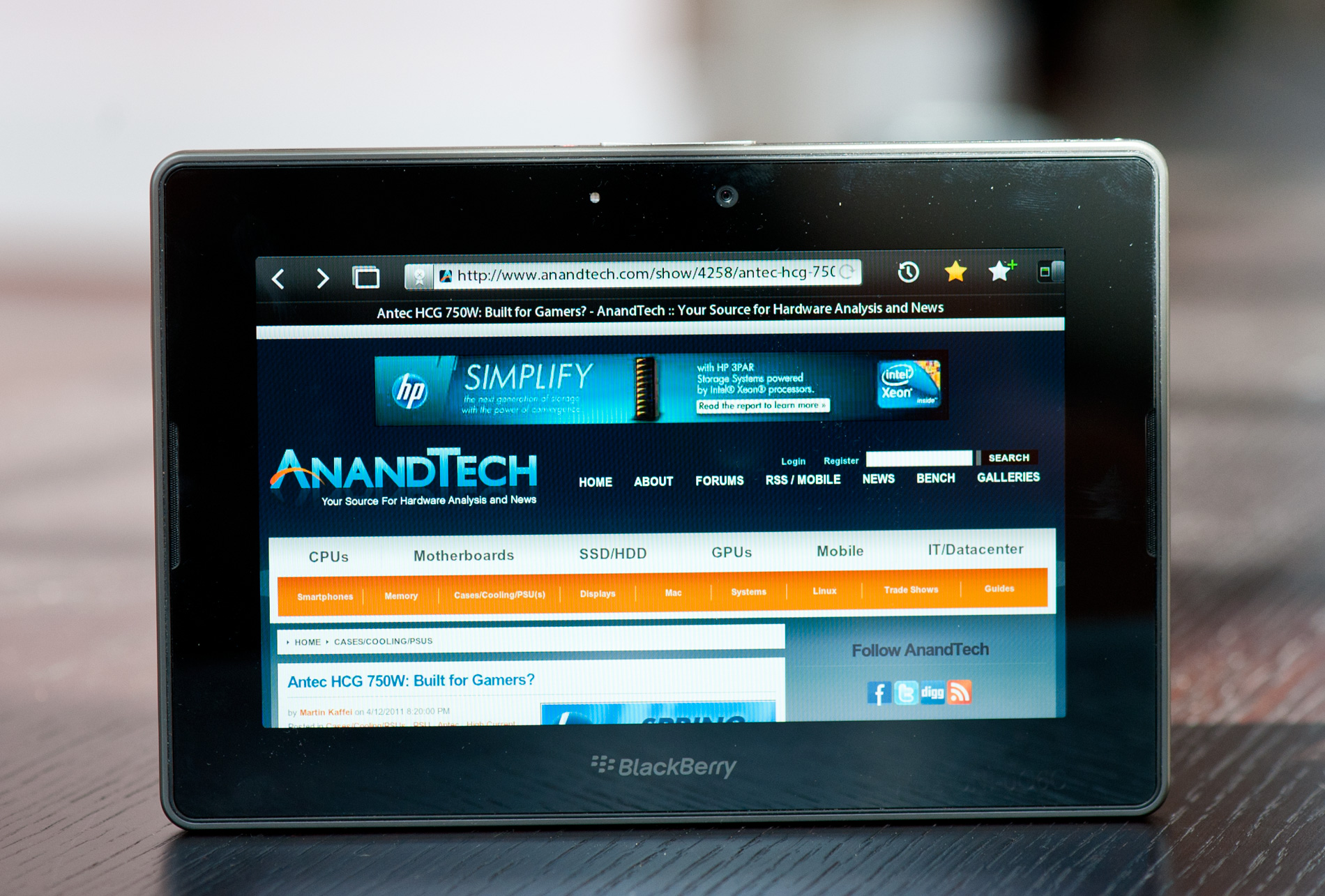
The PlayBook supports all of the basic gestures we've come to expect from mobile devices with a capacitive touchscreen. There's flick to scroll, pinch to zoom and pretty much anything else you'll encounter on an iOS or Android based device. What RIM adds with the PlayBook are gestures that originate in the bezel of the device.
Any gestures within the 7-inch LCD area control the currently running app. Any gestures that originate in the bezel around the screen however are a different story. The first is the unlock gesture. Swipe up/down, left/right or the opposite direction when the PlayBook is asleep and you'll wake it up. There's no support for passcode locking and no physical unlock switch (although the power button will work in a pinch) - all you need to do is take one finger starting from a point on the bezel and slide it up or across. I've noticed that you have to be pretty committed when unlocking, anything less than swiping up/across 50% of the screen won't register as an unlock swipe. I suspect this is to ensure that no accidental swipes unlock the PlayBook when in your pocket/purse/othercavity.
Once unlocked, a swipe up from the bottom bezel will do one of two things depending on the state of the PlayBook. If you're at the home screen, swiping up from the bottom bezel brings up the entire app launcher instead of just the top row of apps. If you're in an app, a swipe up will reduce the active app to a thumbnail, expose the webOS-style task switcher and display a part of the home screen.

Swipe from the top bezel downward within an app and you'll either reveal a contextual menu for the app or you'll pull down the system settings page.
What about the left/right bezel? That's what you use to quickly switch between apps of course. Imagine an infinitely wide desktop where your viewport is big enough to hold on full screen app. To get to any active (even paused) app to the left or right of what you're currently looking at, just swipe left (or right) beginning in the bezel and you'll swap apps. If you only have one app running the OS will try to animate your current app sliding away but it'll bounce back, as if to tell you that you've reached the end of the horizontal list.
The bezel gestures don't stop there. Swipe up from the lower left corner and you'll bring up the PlayBook's virtual keyboard, in any app. This is a particularly puzzling gesture because you can bring up the keyboard even in apps that can't use a keyboard. And no, the keyboard shortcuts from the BlackBerry OS don't work on the PlayBook.
The lower right corner doesn't do anything but swipe from either of the upper two corners and you activate what RIM calls the peek gesture. The peek gesture gives you a quick look at the top status bar - including any notifications, date/time and battery status.
The bezel based gestures work well on the PlayBook although I'm not sure how long term of a solution this will be. Users tend to prefer thinner bezels - a direction I ultimately see all tablets going.
Originally published at https://www.anandtech.com/show/4266/blackberry-playbook-review (Wayback Machine).