
Intel DP55KG and DP55SB - Two P55s Reviewed
- Posted in
- Motherboards
Board Features
The extra expansion slots and SATA/E-SATA ports of the DP55KG are very much tacked onto the same foundation of the DP55SB.
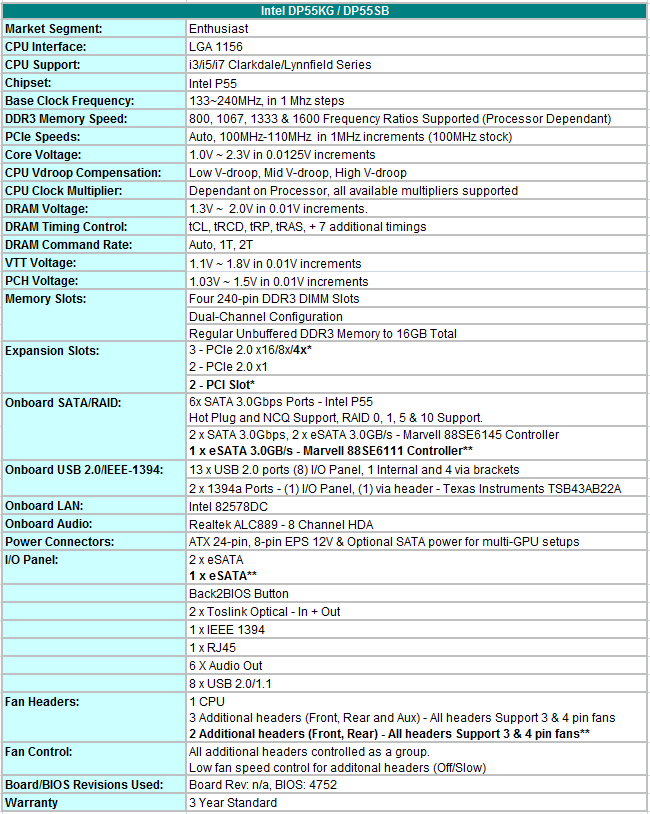
* DP55KG only.
** DP55SB specs - In place of previous specs statement
The only notable element of component choices on the two P55 boards is that you get Intel’s 82578DC NIC, other than the standard Realtek offering included by most vendors at this price point. Realtek is not absent from Intel’s choices altogether though, the ALC889 codec is used to supply 7.1 HD audio, although you don’t get any bundled Dolby upscaling software.
Included with the boards you get the following peripherals/items:
DP55KG:
4x Blue UV reactive SATA cables
2x Blue normal SATA cables
DP55SB:
4x Blue UV reactive SATA cables
Both:
- 1 X I/O backplate
- 1 x fixed 3-slot SLI bridge
- 1 x Bluetooth antenna
- 1x BIOS Post code sheet
- 1 X User manual
- 1 X Driver CD
There’s nothing exciting on the software CD either, unless free trials of DivX and Norton 360 float your boat. This disk contains system drivers and Intel’s “Silent Install” GUI which is very much along the lines of Gigabyte’s “InstallALL” for making driver installation quick and easy - you just tick the drivers you want, provide the software with your Windows login (if need be) and leave the machine alone for the rest of the installation process.
BIOS
BIOS options for overclocking are provided, but somewhat minimal. Intel have decided to group the “Overrides” by the component they affect – a logical choice, but it does mean that your access to the CPU Vcore, CPU VTT, VDIMM and PCH voltages are on three different BIOS sub-menus. We would prefer the component groups to remain, but to add a fourth option for “Voltage Overrides” so they could be grouped together.
One option that we highlighted in the DH57JG review was that in the performance section of the BIOS, Intel has put the CPU VTT and VDIMM options in the advanced menu of the DRAM timing page which means that you have to not only access, but set memory timings including a number of sub-timings without ‘auto’ options just to specify voltages. This is unfortunately the same with both P55 boards and something we hope Intel will agree needs to be changed.
The DP55KG and the DP55SB both have a number of fall-back mechanisms in order to catch an over-enthusiastic user asking for a little bit too much from their hardware.
The primary recovery option is Intel’s Failsafe Watchdog which tried to detect a failed POST, and when successful, POST’s with default settings and allows you into the BIOS to give you a chance at trying a different set of options. This feature worked pretty well in general, catching failed POST when you went slightly past what was possible – I would hazard a guess of about 8/10 times.
The other 2/10 scenarios were usually down to memory timings or large steps in bclk – in this instance, the board would get locked into a failed boot cycle. This was where the Back2BIOS switch on the IO Panel came in exceptionally useful. If you press the button, it will light up in red and the board will POST with default settings. One significant upside to this is all your BIOS changes are still remembered so you can just change the ones you need, save, power off, unpress the Back2BIOS switch and POST.
There was a one or two occasions where even the Back2BIOS switch failed to boot and we had to resort to the jumper next to the SATA ports but we don’t expect this to be a common requirement – it’s not happened since I’ve got a better idea of how the boards work.
Fan control is automatic and varies according to CPU core temperature. You get two options to control the speed ramp and damping slope which can be set to more aggressive for lower efficiency heatsinks. The system fan header speed is also controlled by a temperature setting, probably CPU, and works with 3-pin fan connectors.
BIOS flashing is made very easy by Intel, a built in flash routine is included in the BIOS that can be used with USB pen drives or HDD’s. If you head over to the Intel support site, you get no fewer than four different flashing options, ranging from burning a CD image to downloading an executable file that instigates a BIOS flash from the OS. Unlike other OS level flashing routines though, Intel’s utility reboots the motherboard and automatically flashes the BIOS outside the OS for you – it’s very slick and very simple.


Originally published at https://www.anandtech.com/show/3634/intel-dp55kg-and-dp55sb (Wayback Machine).