
Windows 7 Performance Guide
- Posted in
- Systems
Upgrade or Clean Install?
There’s probably a special place in Hell for even pondering this (Ed: Level 7 of Robot Hell, in fact), but after experimenting with Windows 7’s upgrade install feature, we’re going to seriously discuss it for a moment.
There’s no prior version of Windows we would ever seriously recommend an upgrade install for. Upgrade installs have historically offered very spotty results, in cases leaving systems or applications in malfunctioning states. The best path always has and always will continue to be a complete reinstall, so that old programs and old Windows components don’t interfere with the newest version of Windows.
But with Windows 7, we’re willing to reconsider. When it comes to the transition from Vista to Windows 7, there have been very few significant changes to the underpinnings of Windows. Certainly compared to moving from XP to Vista, there are no major changes in any aspect of the driver stack or the audio stack, nor has security, the bootloader, or any number of other subsystems been overhauled. Jokes about Windows 7 being Vista SP3 aside, the lack of significant architectural changes between the operating systems means that it’s a favorable environment for an upgrade install, one more favorable than for any other consumer version of Windows.
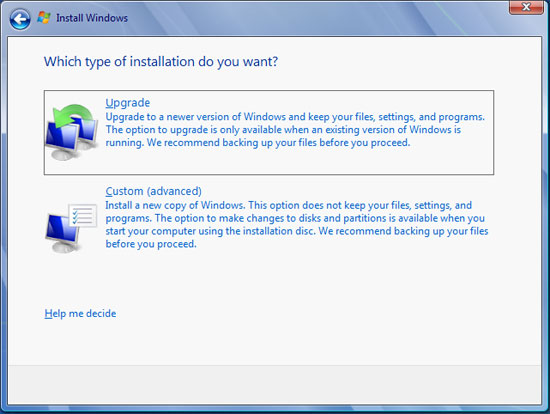
Good idea? Bad Idea?
In our own testing, we have taken two boxes from Vista to 7 using the upgrade install feature; one of these systems even did the Vista->7 RC1->7 RTM shuffle thanks to some INI hacking. Both of these systems have turned out fine, suffering no ill effects compared to any of the systems we have done clean installs on. And while the plural of “anecdote” is not “data”, we’ve seen similar reports elsewhere in places such as our forums that corroborate this.
To be clear, a clean install is always going to be the safer option. It forgoes any risk of old Windows components contaminating the new install, and hence for anyone that absolutely needs it to go right the first time, it’s still the way to go. But an upgrade install, when it works, is certainly more convenient than restoring a bunch of data and reinstalling every single program. Based on our experience, on a properly functioning machine this is something we would recommend trying so long as you have a good backup and the guts to give it a shot.
There are two things that need to be kept in mind when it comes to doing an upgrade install however. The first is that the Windows 7 Upgrade Advisor contains a list of programs that it will want uninstalled before performing an upgrade. Programs that install system components such as VMWare or iTunes are chief among these, as those components won’t properly survive the upgrade; so some program reinstallation may still be required depending on what software you have. The second thing is that the upgrade process involves scanning, categorizing, and saving a lot of data, which means it can take a while. On one computer this took a hefty 5 hours, and on another lightly-used computer this was barely an hour. The key factor here is how much user data and how many programs are installed – the more stuff you have, the longer it will take. On a heavily used computer, this is something you may want to let run overnight or at some other point where you wouldn’t normally be using your computer.
Finally, there is no XP to 7 upgrade option, which given the issues in performing this action with Vista, doesn’t surprise us in the slightest. For XP users, there only option is a clean install, which in this case involves the Windows 7 installer backing up the old installation and laying down a fresh Windows 7 install.
Originally published at https://www.anandtech.com/show/2864 (Wayback Machine).