
Exploring Input Lag Inside and Out
- Posted in
- GPUs
Combating Input Lag and Final Words
Now that we know what's going on and what the factors are, what can we do about it?
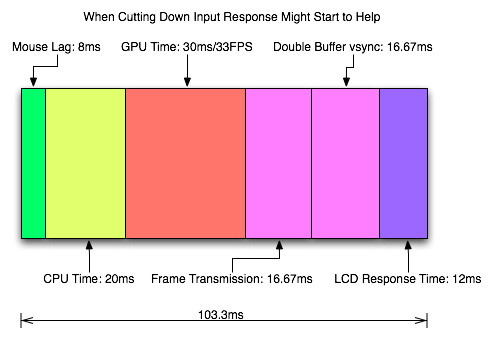
Sometimes 1ms can be the difference between your input getting to the software in time to be included in the next frame. Most of the time it won't. Of course, the difference between 8ms and 2ms could actually make a frame of difference (up to 16.67ms) in input lag. A mouse that can handle 500 reports/second is what we recommend as a good balance.
It is possible to overclock your mouse. You will still be limited by the physical capabilities of the mouse, but running the USB port for the mouse at a higher rate can help, especially if you don't want to invest in a more expensive mouse. There are tools out there to both check your mouse report rate (with Direct Input Mouse Rate) and to change the rate by replacing the usb driver. When changing the rate on Vista SP1 or Windows 7, drivers will need to be signed. This can be accomplished by using testing signatures and forcing windows to load them. NGOHQ offers a good tutorial on this here.
CPU, memory and GPU will impact the input lag between the mouse and the display. The GPU, as the main internal bottleneck in games, will likely have the largest single impact (higher framerate means less time between frames and less lag), but this is heavily dependent on game design. The basic recommendation is a modestly priced dual core CPU, inexpensive RAM, and a fast GPU. Faster CPUs and RAM could potentially benefit but will not likely provide a huge return on investment in this case.
For input lag reduction in the general case, we recommend disabling vsync. For NVIDIA card owners running OpenGL games, forcing triple buffering in the driver will provide a better visual experience with no tearing and will always start rendering the same frame that would start rendering with vsync disabled. Only input latency after the time we would see a tear in the frame would be longer, and this by less than a full frame of latency.
Unfortunately, all other implementations that call themselves triple buffering are actually one frame flip queues at this point. One frame render ahead is fine at framerates lower than the monitor refresh, but if the framerate ever goes past refresh you will experience much more input lag than with vsync alone. For everyone without multiGPU soluitons, we recommend setting flip queue or max pre-rendered frames to either 1 or 0. Set it to 1 if framerate is always less than monitor refresh and set it to 0 if framerate is always greater than or equal to monitor refresh. If it goes back and forth, only NVIDIA's OpenGL triple buffering will provide the best of both worlds without tearing and will further reduce input lag in high framerate situations.
Improperly handling vsync (enabling or disabling a 1 frame flip queue at the wrong time) can degrade performance by at least one additional whole frame. But with multiGPU options, we really don't have a choice. With more than one GPU in the system, you will want to leave maximum pre-rendered frames set to the default of 3 and allow the driver to handle everything. Input lag with multiGPU systems is something we will want to explore at a later time.
You will want a monitor that doesn't do much (if any) processing. Preferably with a "game" mode. We recently took a look at a few monitors to get a feel for the difference in input processing. While we didn't test it in this article, adding another 16ms to 33ms to input lag is just not a good idea.
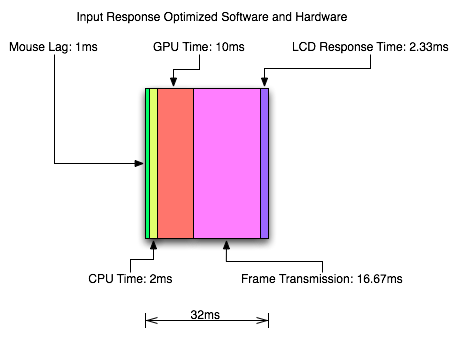
One of the largest benefits to games that don't inherently carry a lot of input lag is refresh rate. A real 120Hz refresh rate can significantly benefit input lag especially in twitch shooters. While that impact would be less in games where the framerate can't keep up, the hail of additional frames that can be incurred between the computer and the monitor will still be significantly impacted. Additionally, vsync (even in the worst case) is much cheaper on a high refresh rate monitor. Triple buffering (or even 1 frame flip queues with performance lower than refresh) and 120Hz monitors are a match made in heaven.
Final Words
What started out as a short article on the concept of input lag ended up touching on quite a few key issues in gaming. We get into a few of the concepts of game design and program flow in addition to looking at hardware impact. While we hadn't planned on it, picking up a camera that can do 1200 FPS allowed us to actually measure the input lag of a couple real games.
There are quite a few good nuggets to take away. First, input lag is hugely dependent on the game. There will be games that optimize for reducing input lag and others that do not. In some games it is more important than others. For games that incur huge amounts of input lag, there is only so much that can be done. Using the tips we provided will definitely help get people on the path to lower input lag.
Unfortunately, sometimes reducing input lag to its minimum requires spending money especially on the display side of things. Just make sure to read reviews that look at display lag as avoiding a display that adds an extra 16ms to 33ms of input lag is definitely a good start. Beyond that, a faster GPU is the next most important upgrade, and a mouse that can do at least 500 reports per second is a good idea.
Originally published at https://www.anandtech.com/show/2803 (Wayback Machine).