
Windows 7: Release Candidate 1 Preview
- Posted in
- Systems
Libraries and Homegroups: New Ways to Organize and Share
Something Microsoft has been trying to conquer for some time is home file sharing, with limited results. Vista added an easy way to turn on network sharing of the Public folder, but this was a limited utility solution that was only helpful in sharing items specifically placed there, and other users still needed to go hunt down the network share (which brought plenty of problems of its own). Network shares are inherently a client-server design, while for home file sharing you need something closer to a peer-to-peer design.
With Windows 7 Microsoft appears to have finally gotten this right with the addition of two new features; Homegroups and Libraries. Homegroups are in essence auto-configuring network shares designed to act like a peer-to-peer network. When the first Windows 7 machine is added to a network, the user can choose to create a Homegroup along with what libraries they wish to share. Any libraries they choose to share will be opened up with read-only access to everyone else in the Homegroup, with Homegroup access limited by a shared alphanumeric password created along with the Homegroup.
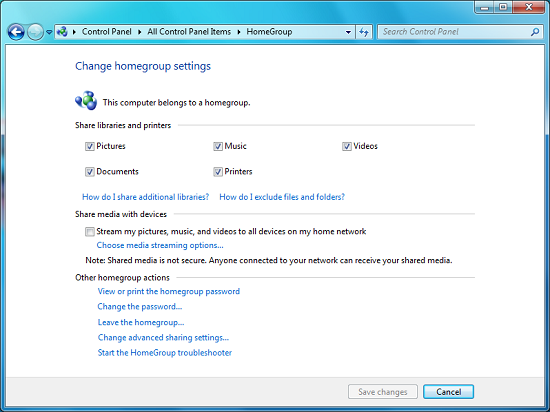
Homegroup Configuration
Sitting on top of the Homegroup is the Windows 7 Libraries feature. Libraries in this case are a kind of meta-folder for various types of files, listing the contents of several different locations as if they were all in the same local folder. In turn Windows treats a library as a local folder and includes all the contents of a library in a regular search, or when browsing through files on Windows Media Player/Center, etc. Windows 7 comes with four libraries by default: Documents, Music, Videos, and Pictures. As there’s nothing special about a library other than where they search, any number of additional libraries may be created and shared.
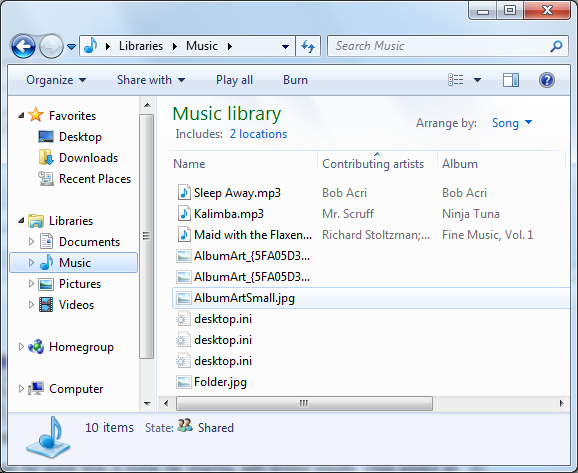
Viewing the Music Library
The ultimate purpose for libraries is that they basically allow for the transparent integration of network shares, and this in turn is what makes Homegroups work. Once a computer has joined a Homegroup, its shared libraries become available as additional libraries, making the use of shared files largely transparent. In turn these remote libraries can be added to the local libraries, making the process fully transparent. Libraries can also be manually adjusted, allowing for files in other locations (local and remote) to be added to a library, although only local material is shared with a Homegroup. For the same reasons, this also solves the integration issues of Windows Home Server – Home Server shares can be added to a library, and made equally transparent.
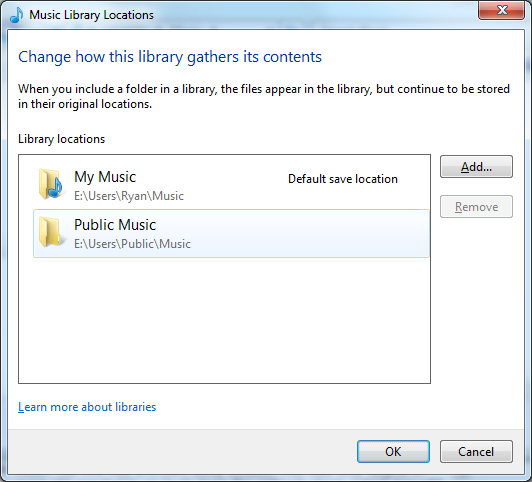
Configuring A Library
It should also be noted that the meta-folder concept of libraries works in reverse too. Besides bringing together files from multiple locations, it’s a valid (and default) place to save files. In this case every library has a single defined “default save location” where all documents saved to that library actually get written to. By default, these locations are the regular folders inside of the user’s home directory.
In households with multiple computers, we’d expect that Homegroups turn out to be one of Windows 7’s most popular features given how easily we were able to set a group up and how well it worked in our testing. Libraries may be a hard sale however for users without multiple computers due to inertia, even if they’re still extremely useful for local-only use. We’ll have to see how this plays out.
Originally published at https://www.anandtech.com/show/2760 (Wayback Machine).