
ASUS Eee PC: Laptop, UMPC, or Something Else?
- Posted in
- Laptops
Give Her the Boot
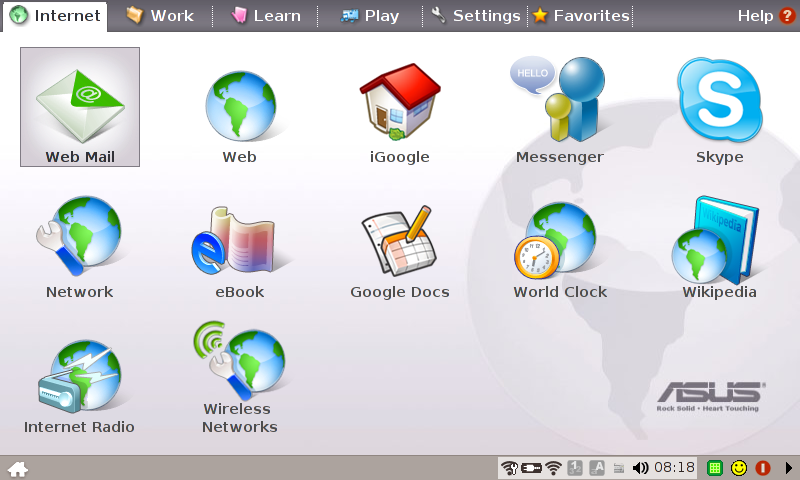
So far, we've looked at the exterior and poked around at the internal components, but we still haven't gotten around to actually using the Eee PC. It's time to turn the system on and look at what we get in terms of software. The Eee PC uses Linux - the Xandros distro - and most of the included software comes from the open source community, released under the GPL. (Or at least it should be.) Booting up the Eee PC takes less than 30 seconds, at which point the main interface appears.
 |
 |
 |
 |
 |
 |
 |
There are six tabs across the top of the screen, though where certain items are located is somewhat arbitrary. The Internet page for example contains several icons that load Firefox and open a webpage, a couple of chat clients, and network settings (wired and wireless). The work tab contains your typical office applications, courtesy of Open Office.org. Also present are a file manager, email application, and a dictionary. The dictionary definitely could use work, as much of the interface is in Chinese by default, and it takes longer to load than any of the other applications. Of course, we didn't find the dictionary to be particularly useful anyway; an Internet link to a site like Merriam-Webster might be a better choice.
The utilities and applications on the other tabs should be self-explanatory. You get games, multimedia applications, learning tools (i.e. educational games), and settings management. The Eee PC doesn't come with a ton of software, but instead focuses on the basics that most people will use. Outside of games, all most people really need is a web browser, email application, word processor, and spreadsheet.
If you would like to install additional software, this is where you encounter your first set of difficulties. ASUS includes an Add/Remove Software icon on the settings page, but it only allows users to install/remove a few programs. We expect this to change over time, but short of installing your own operating system we did not see any easy way to install any other applications. Considering the amount of open source software currently available, it's unfortunate ASUS does not include the option to install/use more of it.
Access to the command console is available, albeit hidden. (Thanks to the reader that pointed this out.) Still, our inclination after playing around with the Eee PC for a bit is to want to install a different OS. Yes, some people are perfectly happy with Linux, but with a huge portion of the computing world using Windows we are more comfortable with that environment. Even a modified Linux interface would be preferable - the ASUS Eee PC environment just feels a bit too scaled back for our tastes. However, for this review, we will evaluate the Eee PC without installing other applications and using the default OS - the way most people will use it.
Originally published at https://www.anandtech.com/show/2390 (Wayback Machine).