
Logitech G5 Laser Mouse: When an update is not worthy of a new name
- Posted in
- Peripherals
Software Features
Logitech ships version 3.3a of their SetPoint software suite in the current G5 package. Based upon our early testing in Vista, we just recommend using the CD as a platter and instead download version 4.00 before you use the mouse although the basic mouse functions work fine with the included drivers. Logitech's software installation is painless, but required about 58MBs of disk space, and also searched for other Logitech hardware for updates. The software supports Windows XP, XP-64 Edition, Vista 32 or 64-bit, and MacOS X. The basic mouse functions worked fine in SUSE Linux 10.2 but SetPoint is not compatible with Linux at this time.
The primary purpose of SetPoint is to allow complete control over the mouse's hardware capability. The interface is fairly intuitive and the programs offers a dizzying array of options to control the wheel and various buttons on the mouse. This includes an informative status display for checking the dpi and USB polling rates in the gaming section . While we could spend pages on describing and showing each setting we will simply display the configuration windows and recap any major items of interest we discovered during testing.
Once we loaded the software and rebooted, our first order of business was to understand how memory hungry the SetPoint application and associated software is in Vista Home Premium. The results were surprising when compared to our MX Revolution that consumed around 18MB of memory when active. Our two Logitech programs, Khalmnpr.exe and Setpoint.exe, consumed a total of 8.5MB of memory in idle state and 12MB of memory while active. CPU usage was nominal during all phases of testing although we have heard reports of reduced frame rates in some configurations.
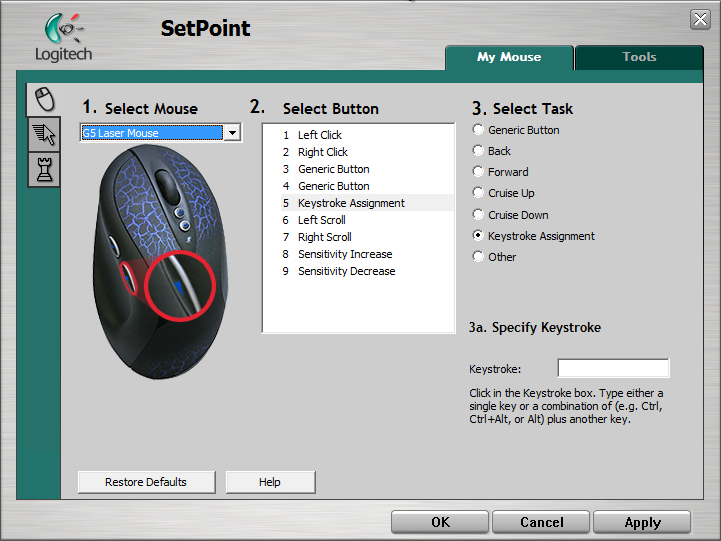
The first option screen allows the user to define the function of the scroll wheel along with each button except for the right and left click buttons. A listing of the more common commands is listed at the right of the screen with additional options available if you choose the "Other" option. Each configurable button on the mouse has its own display screen and option choices. Logitech highlights and provides a picture zoom of the button or wheel you are adjusting. If you want the mouse to follow a different set of commands in a particular program then you simply select the supported program from a drop-down list and reassign the buttons. This feature is probably one of the most widely used and if the program is not available you can manually add it.
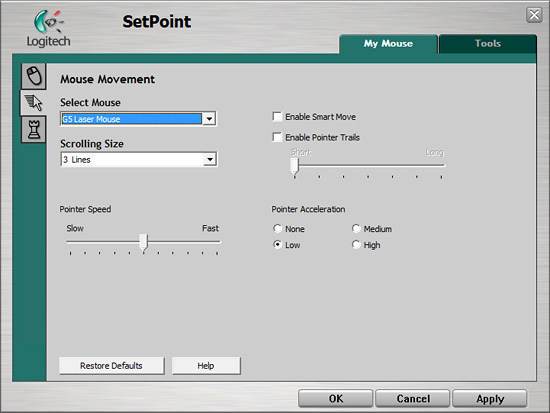
The Mouse Movement section allows for pointer adjustments and is quicker to use than the standard Windows mouse option screen.
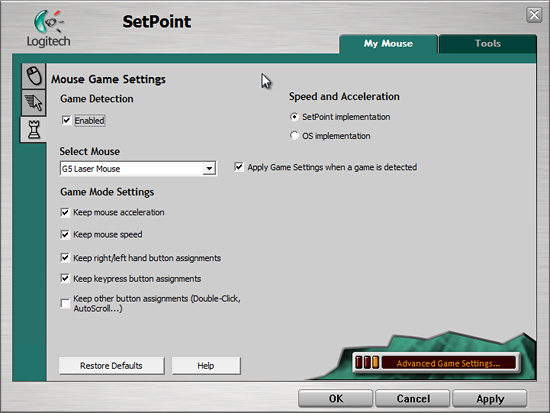
The Mouse Game Settings section allows for OS or SetPoint control of basic speed, acceleration, and button settings if a game is automatically detected.
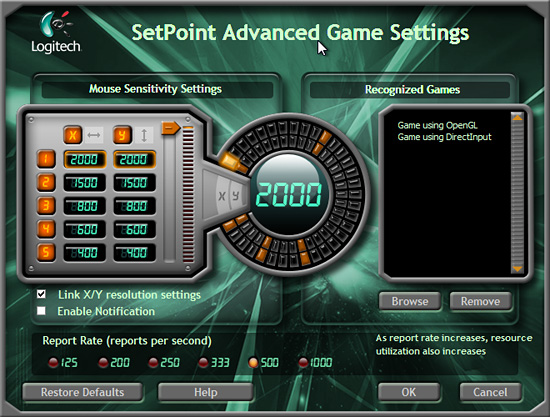
The Advanced Game Settings section allows for complete control over Mouse Sensitivity along with USB (refresh rates) reports per second settings. You can configure up to five different dpi sensitivity settings between 400 and 2000 DPI although only three are available for the button assignments. You can also set the horizontal and vertical sensitivities separately. USB reports per second settings are available from 125 up to 1000 in six different rates. The mouse defaults to 500, a number we found was just about perfect from both a performance and compatibility aspect across a wide range of systems. The SetPoint software will setup basic profiles for games that it recognizes. These profiles can then be customized or you can setup individual profiles for games that are not recognized.
 |
 |
 |
 |
 |
 |
| Click to enlarge | |
Logitech ships version 3.3a of their SetPoint software suite in the current G5 package. Based upon our early testing in Vista, we just recommend using the CD as a platter and instead download version 4.00 before you use the mouse although the basic mouse functions work fine with the included drivers. Logitech's software installation is painless, but required about 58MBs of disk space, and also searched for other Logitech hardware for updates. The software supports Windows XP, XP-64 Edition, Vista 32 or 64-bit, and MacOS X. The basic mouse functions worked fine in SUSE Linux 10.2 but SetPoint is not compatible with Linux at this time.
The primary purpose of SetPoint is to allow complete control over the mouse's hardware capability. The interface is fairly intuitive and the programs offers a dizzying array of options to control the wheel and various buttons on the mouse. This includes an informative status display for checking the dpi and USB polling rates in the gaming section . While we could spend pages on describing and showing each setting we will simply display the configuration windows and recap any major items of interest we discovered during testing.
 |
| Click to enlarge |
Once we loaded the software and rebooted, our first order of business was to understand how memory hungry the SetPoint application and associated software is in Vista Home Premium. The results were surprising when compared to our MX Revolution that consumed around 18MB of memory when active. Our two Logitech programs, Khalmnpr.exe and Setpoint.exe, consumed a total of 8.5MB of memory in idle state and 12MB of memory while active. CPU usage was nominal during all phases of testing although we have heard reports of reduced frame rates in some configurations.
 |
 |
| Click to enlarge | |
The first option screen allows the user to define the function of the scroll wheel along with each button except for the right and left click buttons. A listing of the more common commands is listed at the right of the screen with additional options available if you choose the "Other" option. Each configurable button on the mouse has its own display screen and option choices. Logitech highlights and provides a picture zoom of the button or wheel you are adjusting. If you want the mouse to follow a different set of commands in a particular program then you simply select the supported program from a drop-down list and reassign the buttons. This feature is probably one of the most widely used and if the program is not available you can manually add it.
The Mouse Movement section allows for pointer adjustments and is quicker to use than the standard Windows mouse option screen.
The Mouse Game Settings section allows for OS or SetPoint control of basic speed, acceleration, and button settings if a game is automatically detected.
The Advanced Game Settings section allows for complete control over Mouse Sensitivity along with USB (refresh rates) reports per second settings. You can configure up to five different dpi sensitivity settings between 400 and 2000 DPI although only three are available for the button assignments. You can also set the horizontal and vertical sensitivities separately. USB reports per second settings are available from 125 up to 1000 in six different rates. The mouse defaults to 500, a number we found was just about perfect from both a performance and compatibility aspect across a wide range of systems. The SetPoint software will setup basic profiles for games that it recognizes. These profiles can then be customized or you can setup individual profiles for games that are not recognized.
Originally published at https://www.anandtech.com/show/2286 (Wayback Machine).