
Apple's iPhone: The Future is Here
- Posted in
- Smartphones
- Mobile
Privacy Concerns
Update: It looks like Apple has thoughtfully included a way to disable SMS notifications on the iPhone, it's tucked away in the Passcode Lock settings page (Settings > General > Passcode Lock). First supply a passcode, then under the Passcode Lock settings you can disable SMS notifications thus solving part of the embarrassing problem illustrated below. For sake of continued hilarity, we'll leave the hypothetical below as it should serve as a reminder to keep SMS notifications in mind when you start customizing your new iPhone.
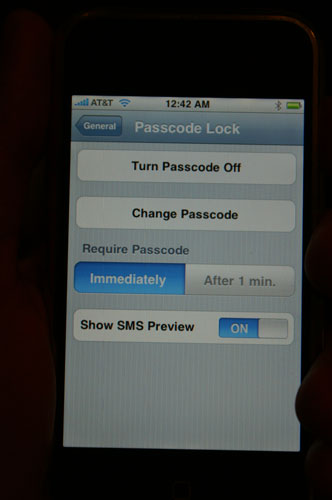
The original unedited page remains as follows:
Do not, under any circumstances, allow someone to use your iPhone without your careful supervision. Let me paint a picture:
You're using your iPhone, your boss walks by and asks to see it. While playing with it, you get a text message from one of your friends who just wants to make you laugh at work. Here's how the iPhone would display the aforementioned message:
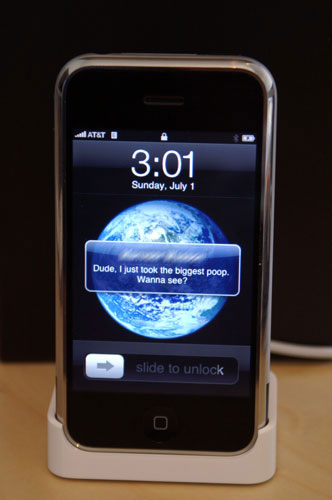
Hello embarassing! There's no way to prevent this from happening to you, other than to get new friends (Update: It turns out that you can disable this from happening, the setting is under the Passcode Lock menu)
Note that it pops up on screen, giving you a preview of the message, regardless of what application you're in. Even if the phone is locked, the message will sit there on the screen until you choose to ignore it or view it.
Now if you're the only person using the phone, then there's no problem; in fact, the iPhone handles interrupting you with phone calls and text messages quite gracefully. But you can't predict what sort of message you'll get and when, and there's no way to turn off iPhone's SMS preview notifications so be very careful before you hand your iPhone over to your mother.
Then there's the other big issue to worry about when letting someone use your iPhone: if setup properly, it has all of your emails, and pictures, stored on it. Think about that one carefully before ever letting the iPhone out of the safety of your hands.
Obviously these issues only crop up when you willingly let someone far too curious use your iPhone; preventing unwanted use of your iPhone is easy to ensure, simply provide a passcode to lock the phone and you'll be greeted with the following screen anytime you try unlocking it:
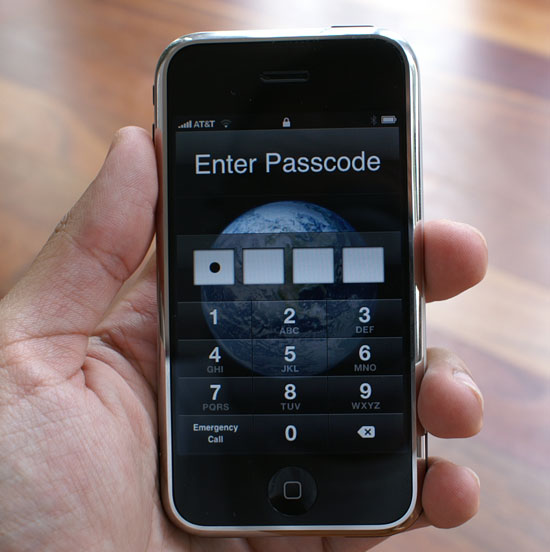
Entering in your passcode is super easy thanks to the large touch screen and 10 digit keypad. The iPhone will auto-lock itself after a user selectable time period.
Originally published at https://www.anandtech.com/show/2265 (Wayback Machine).