
Logitech MX Revolution: New Technology means a Smarter Mouse
- Posted in
- Peripherals
Features
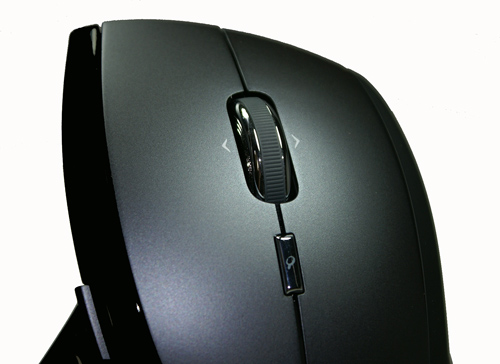
The single most touted feature on the MX Revolution and one not offered by other manufacturers is the new MicroGear Precision Scroll Wheel. This new creation from Logitech's rodent lab has two modes of operation and is fully configurable. The standard click or ratchet method offers the typical line-by line scrolling mode that we're all accustomed to now. The new free-spin mode allows the redesigned scroll wheel to switch from a ratchet mechanism into a spinning flywheel. This 14-gram solid metal flywheel is capable of spinning for up to seven seconds from a single flick that allows the scrolling of numerous pages of information quickly.
Logitech refers to this as hyper-scrolling and it's a feature you will miss once you're used to it. If flicking the flywheel as fast as possible in order to reach your destination quickly is not interesting then you can alter your flick speed to smoothly glide through the information. We typically preferred this mode to hyper-scrolling or the standard click scrolling after a little practice as it combined the best of both worlds. A simple click of the scroll wheel electronically switches between both scrolling methods on the fly. Interestingly enough this switch is software controlled which allows you to disable the auto-switch capability and reassign the wheel for standard middle click mode or others depending upon your choice. If you reassign the button then you lose the ability to manually switch between scrolling modes; however, the mouse is intelligent enough to automatically allow either mode depending upon your application. How is this possible and are mice really intelligent creatures?
The MX Revolution is equipped with Logitech's new SmartShift Technology. This technology is actually intelligent enough to detect and automatically determine the scrolling mode based upon the open application. For instance, opening up Internet Explorer will instruct the mouse to enter free-spin mode but switching over to Excel will then reactivate the ratchet mode for standard scrolling. If your application is not supported by Logitech or you want a different scrolling mode then you can simply click the mouse to enter the other mode and SmartShift will remember that setting when you reenter the program. In order for this technology to work you must have the scroll wheel set to default options. We did find that if you set the scroll method in the program, then reassign the scroll button to middle click as an example that the mouse would remember your scroll method for programs supported by Logitech. We are still testing programs that are not in the SetPoint database and so far we have had limited success with this method.
Another customization feature that utilizes the SmartShift Technology is the ability to activate the free-spin mode based on how fast you flick the scroll wheel when you are in the standard ratchet mode. The wheel automatically detects how fast it is spinning in ratchet (line-by-line) mode to determine when to switch over to free-spinning mode. If you're in a program while in ratchet mode and want to hyper-scroll, then quickly flicking the wheel will result in the mouse entering free-spin mode automatically. Once the wheel stops spinning then the Revolution will go back to the normal line-by-line scrolling mode.
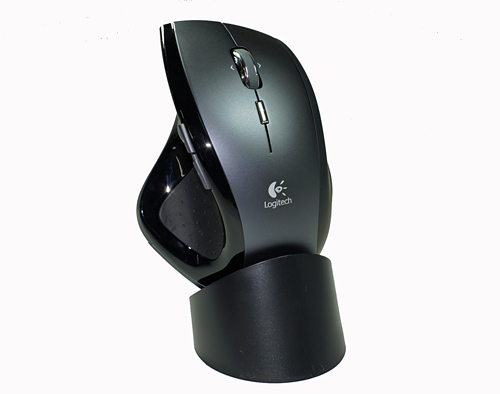
The thumb rest area contains the Document Quick-Flip wheel that when pressed will open up a window of current programs running. The Document Flip program is a different way of accessing open programs or files without using the taskbar or Alt-Tab. Turning the wheel with your thumb will allow scrolling of the open programs and once highlighted you simply click the wheel to switch to that application. We found this feature to be helpful but not all open programs appeared in the Document Flip window so it still needs some work. The two buttons can be configured numerous ways as we will see in our software overview. The wheel is limited by the SetPoint software at this time to either zoom or quick-flip operation. We had trouble in a few games binding this wheel to any task.
Logitech's last highly touted feature is the one-button web search capability. This is a feature for the geek in all of us but one that is probably the least useful at this time. By assigning the small button located below the scroll wheel to One-Touch Search (default setting) you can instantly bring up Google or Yahoo's home page. You can set the default search engine in the SetPoint software. While this is not really earth shattering on its own, the area where Logitech differentiates itself is that users can highlight a word or phrase and have Yahoo! LiveWords pop up or display the search results for the highlighted items in Google or Yahoo automatically. We used this feature a few times and found it somewhat interesting but still a little immature. At various times it would open up an additional tab in our browser and display the same search criteria. If we had both Internet Explorer and Firefox open at the same time the program would get confused and randomly open the search results in either browser.
The single most touted feature on the MX Revolution and one not offered by other manufacturers is the new MicroGear Precision Scroll Wheel. This new creation from Logitech's rodent lab has two modes of operation and is fully configurable. The standard click or ratchet method offers the typical line-by line scrolling mode that we're all accustomed to now. The new free-spin mode allows the redesigned scroll wheel to switch from a ratchet mechanism into a spinning flywheel. This 14-gram solid metal flywheel is capable of spinning for up to seven seconds from a single flick that allows the scrolling of numerous pages of information quickly.
Logitech refers to this as hyper-scrolling and it's a feature you will miss once you're used to it. If flicking the flywheel as fast as possible in order to reach your destination quickly is not interesting then you can alter your flick speed to smoothly glide through the information. We typically preferred this mode to hyper-scrolling or the standard click scrolling after a little practice as it combined the best of both worlds. A simple click of the scroll wheel electronically switches between both scrolling methods on the fly. Interestingly enough this switch is software controlled which allows you to disable the auto-switch capability and reassign the wheel for standard middle click mode or others depending upon your choice. If you reassign the button then you lose the ability to manually switch between scrolling modes; however, the mouse is intelligent enough to automatically allow either mode depending upon your application. How is this possible and are mice really intelligent creatures?
The MX Revolution is equipped with Logitech's new SmartShift Technology. This technology is actually intelligent enough to detect and automatically determine the scrolling mode based upon the open application. For instance, opening up Internet Explorer will instruct the mouse to enter free-spin mode but switching over to Excel will then reactivate the ratchet mode for standard scrolling. If your application is not supported by Logitech or you want a different scrolling mode then you can simply click the mouse to enter the other mode and SmartShift will remember that setting when you reenter the program. In order for this technology to work you must have the scroll wheel set to default options. We did find that if you set the scroll method in the program, then reassign the scroll button to middle click as an example that the mouse would remember your scroll method for programs supported by Logitech. We are still testing programs that are not in the SetPoint database and so far we have had limited success with this method.
Another customization feature that utilizes the SmartShift Technology is the ability to activate the free-spin mode based on how fast you flick the scroll wheel when you are in the standard ratchet mode. The wheel automatically detects how fast it is spinning in ratchet (line-by-line) mode to determine when to switch over to free-spinning mode. If you're in a program while in ratchet mode and want to hyper-scroll, then quickly flicking the wheel will result in the mouse entering free-spin mode automatically. Once the wheel stops spinning then the Revolution will go back to the normal line-by-line scrolling mode.
 |
 |
| Click to enlarge | |
The thumb rest area contains the Document Quick-Flip wheel that when pressed will open up a window of current programs running. The Document Flip program is a different way of accessing open programs or files without using the taskbar or Alt-Tab. Turning the wheel with your thumb will allow scrolling of the open programs and once highlighted you simply click the wheel to switch to that application. We found this feature to be helpful but not all open programs appeared in the Document Flip window so it still needs some work. The two buttons can be configured numerous ways as we will see in our software overview. The wheel is limited by the SetPoint software at this time to either zoom or quick-flip operation. We had trouble in a few games binding this wheel to any task.
Logitech's last highly touted feature is the one-button web search capability. This is a feature for the geek in all of us but one that is probably the least useful at this time. By assigning the small button located below the scroll wheel to One-Touch Search (default setting) you can instantly bring up Google or Yahoo's home page. You can set the default search engine in the SetPoint software. While this is not really earth shattering on its own, the area where Logitech differentiates itself is that users can highlight a word or phrase and have Yahoo! LiveWords pop up or display the search results for the highlighted items in Google or Yahoo automatically. We used this feature a few times and found it somewhat interesting but still a little immature. At various times it would open up an additional tab in our browser and display the same search criteria. If we had both Internet Explorer and Firefox open at the same time the program would get confused and randomly open the search results in either browser.
Originally published at https://www.anandtech.com/show/2090 (Wayback Machine).