
ASUS AiGuru S1: Skype goes WiFi
- Posted in
- Laptops
Basic Features: Skype
After downloading Skype, you simply install it, create a user account, and in a matter of a few minutes you can be calling or chatting with friends, family, or business associates anywhere in the world. We will give a brief rundown of the major Skype features and will follow up with a comparison of Skype to other VoIP services in the near future.
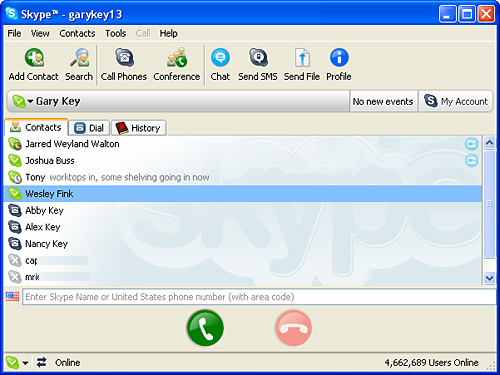
This is the main Skype panel where the contact list, dial out program, and history of phone calls or chat times are listed under individual tabs in the center section. The icons next to each contact name signify the Skype status of each contact, and they also indicate if the user has SkypeOut. The activity based icons are located in the main tool bar along with additional options that are available from the drop down menu selections.
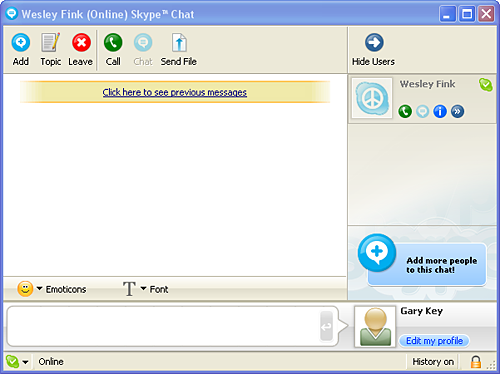
The chat session works like most IM programs and you can also talk with the person while chatting. You simply choose the contact you want to chat with and click on the chat icon. If the person is not online your chat message is held in a pending status until they log on or change their online status. You can have up to 100 people in a chat session at one time, save chat group profiles, and the program will save your chat history for viewing at a later date.
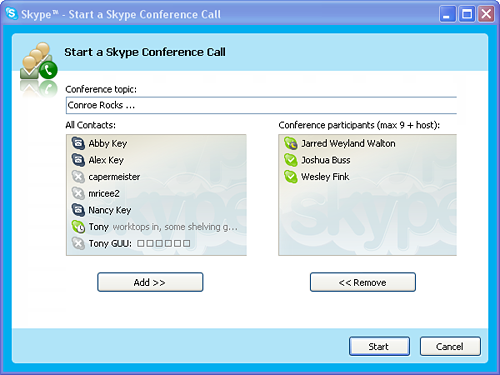
The conference call section is very easy to use. You simply click on the Conference icon on the main toolbar which brings up the secondary window where you add the contacts you wish to conference with at the start of the call. You are allowed up to nine attendees in version 2.5 for Windows XP at this time. You can also conference in various contacts (not to exceed nine)while you are on a call with another contact.
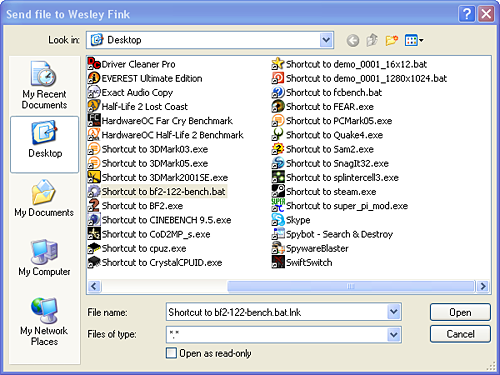
The file upload program works in much the same way as a typical P2P or FTP application does at this time. The user simply clicks on the Send File icon on the main toolbar that will bring up (in this example) the Windows Explorer window where you select the file or files you want to send, click on Open, and the file or files is now ready for delivery once the receiving contact accepts the download. Once the contact accepts receipt of the file or files, the upload/download process begins, and then completes once the file or files are delivered. Alternatively, you can simply drag and drop files onto the chat/conversation window to send them. The speed of the connection is based upon your internet connection and network traffic. We find the speeds to be very acceptable during most transfers and equal that of email, P2P, and FTP applications the majority of time.
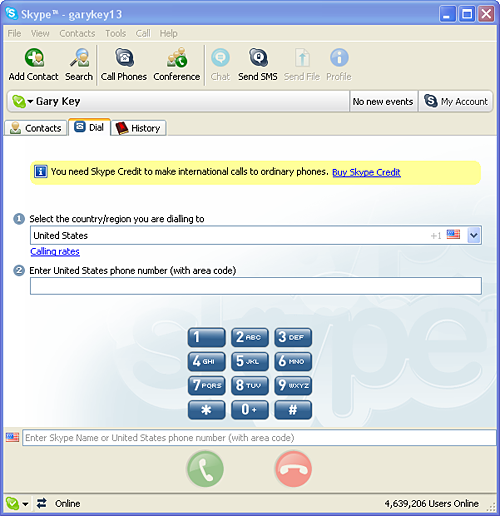
The dial out section can be reached by clicking on the Dial tab in the main window, the Call Phones icon on the main toolbar, or if you already have a SkypeOut contact setup then you can double click on the contact's name to start the call or click on the name and then the call button. The SkypeOut function is designed to call landline or mobile phones and requires that you purchase Skype credits as the call time is charged on a minute basis unless you are currently a US or Canadian user calling within either country until the end of 2006.
Overall, our experience with Skype has been very positive -- unless of course our Internet connection is unavailable. The audio quality is very good and at times rivals or exceeds that of analog phone lines when using decent quality headphones. We have found the Logitech USB 250 headset to offer excellent performance, although we still have audio out glitches using this headset and our 5.1 audio output on the Audigy X-FI sound card. Now that we've covered the basics of Skype, let's take a look at the ASUS AiGuru S1 Skype phone.
After downloading Skype, you simply install it, create a user account, and in a matter of a few minutes you can be calling or chatting with friends, family, or business associates anywhere in the world. We will give a brief rundown of the major Skype features and will follow up with a comparison of Skype to other VoIP services in the near future.
This is the main Skype panel where the contact list, dial out program, and history of phone calls or chat times are listed under individual tabs in the center section. The icons next to each contact name signify the Skype status of each contact, and they also indicate if the user has SkypeOut. The activity based icons are located in the main tool bar along with additional options that are available from the drop down menu selections.
The chat session works like most IM programs and you can also talk with the person while chatting. You simply choose the contact you want to chat with and click on the chat icon. If the person is not online your chat message is held in a pending status until they log on or change their online status. You can have up to 100 people in a chat session at one time, save chat group profiles, and the program will save your chat history for viewing at a later date.
The conference call section is very easy to use. You simply click on the Conference icon on the main toolbar which brings up the secondary window where you add the contacts you wish to conference with at the start of the call. You are allowed up to nine attendees in version 2.5 for Windows XP at this time. You can also conference in various contacts (not to exceed nine)while you are on a call with another contact.
The file upload program works in much the same way as a typical P2P or FTP application does at this time. The user simply clicks on the Send File icon on the main toolbar that will bring up (in this example) the Windows Explorer window where you select the file or files you want to send, click on Open, and the file or files is now ready for delivery once the receiving contact accepts the download. Once the contact accepts receipt of the file or files, the upload/download process begins, and then completes once the file or files are delivered. Alternatively, you can simply drag and drop files onto the chat/conversation window to send them. The speed of the connection is based upon your internet connection and network traffic. We find the speeds to be very acceptable during most transfers and equal that of email, P2P, and FTP applications the majority of time.
The dial out section can be reached by clicking on the Dial tab in the main window, the Call Phones icon on the main toolbar, or if you already have a SkypeOut contact setup then you can double click on the contact's name to start the call or click on the name and then the call button. The SkypeOut function is designed to call landline or mobile phones and requires that you purchase Skype credits as the call time is charged on a minute basis unless you are currently a US or Canadian user calling within either country until the end of 2006.
Overall, our experience with Skype has been very positive -- unless of course our Internet connection is unavailable. The audio quality is very good and at times rivals or exceeds that of analog phone lines when using decent quality headphones. We have found the Logitech USB 250 headset to offer excellent performance, although we still have audio out glitches using this headset and our 5.1 audio output on the Audigy X-FI sound card. Now that we've covered the basics of Skype, let's take a look at the ASUS AiGuru S1 Skype phone.
Originally published at https://www.anandtech.com/show/2042 (Wayback Machine).