
GIGABYTE Z590 Aorus Master Review: Soaring High With Rocket Lake
BIOS
The GIGABYTE UEFI firmware going from Z490 to Z590 looks visually identical, and aside from some new features from Intel around the Z590 chipset and Rocket Lake processors, not much else has changed. GIGABYTE uses an Aorus themed design, with orange highlighting on a primarily black background, with white text. It comes with two primary modes for users of different experience levels, Easy and Advanced.
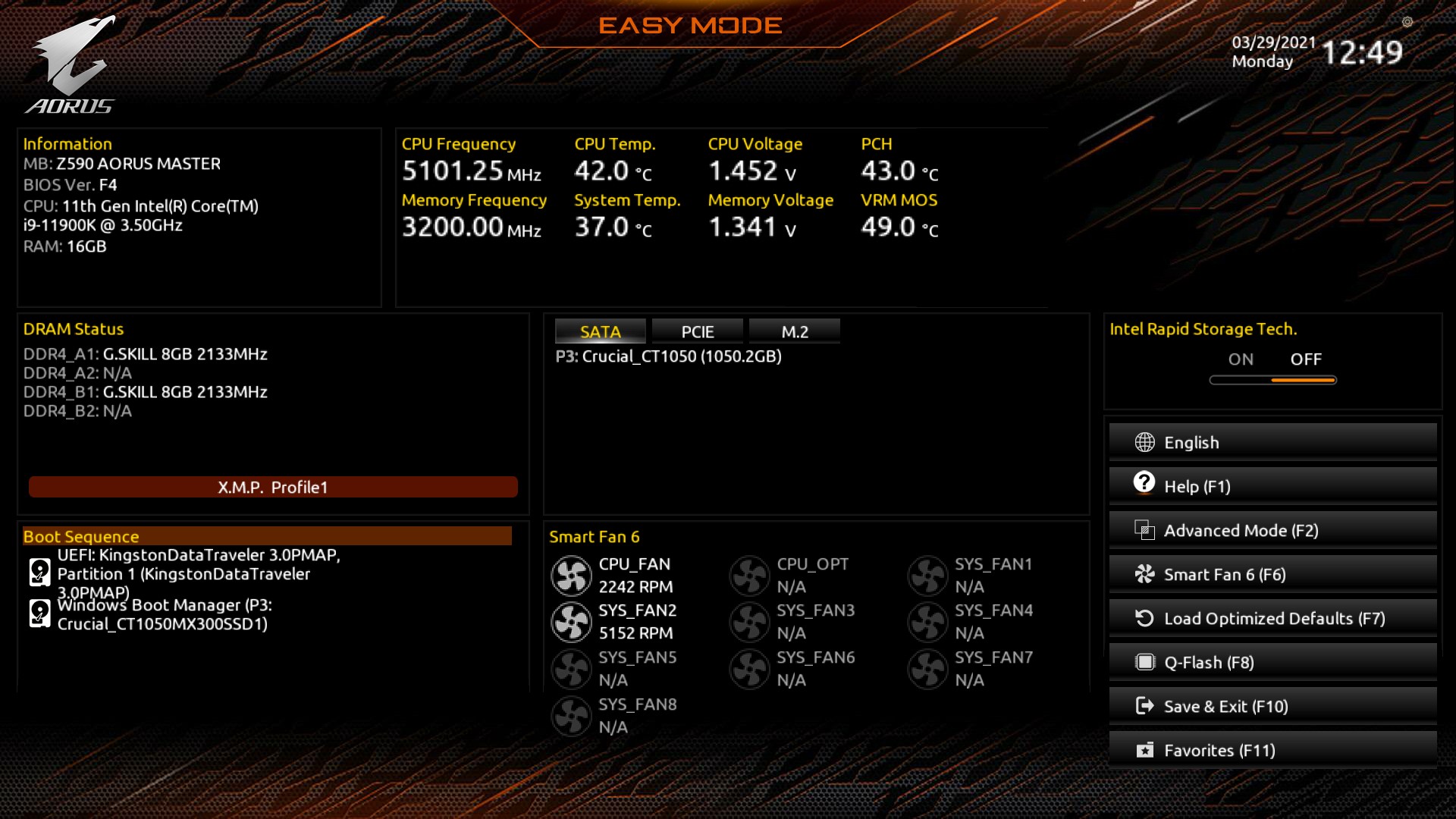
Upon turning the system on for the first time and pressing either the Del or F2 key, users can enter the BIOS. Upon entry, the initial splash screen will be the Easy mode, which displays a useful and informative list of information such as the firmware version, CPU frequency, and temperature in real-time and a list of basic information on the memory that's installed. The Easy Mode also allows users to enable memory with supported X.M.P 2.0 profiles too with one click. Towards the center at the bottom is a list of installed fans, including current fan speed, with a menu along the right-hand side, including shortcuts to various firmware areas. This includes F1 for the Help menu, F2 which switches to the Advanced mode, F6 to enter GIGABYTE's Smart Fan 6 utility, F7 to restore the BIOS to default settings, F8 to flash the firmware, F10 to save and exit the current settings, and F11 to access the most used and defined favorite settings within the firmware.
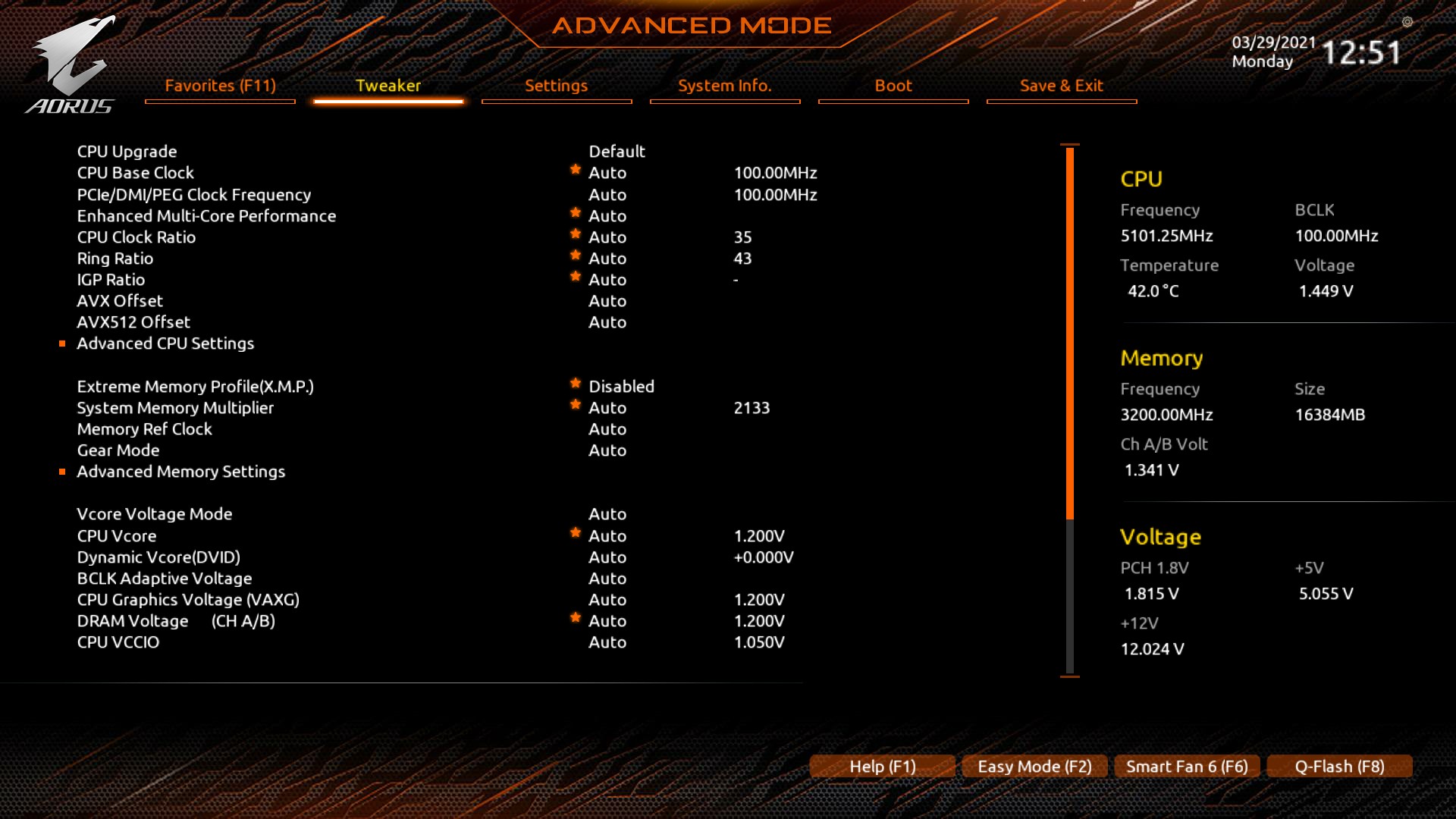
The Advanced mode, which can be accessed by pressing the F2 when in the BIOS, hosts all of the board's overclocking, chipset, controller, and power-related options. Within the Tweaker sections are all of the board's overclocking options for CPU, memory, and integrated graphics. This includes extensive options for CPU with CPU, Cache, and Baseclock frequency settings, plenty for memory, including lots of latency options, voltage, and Intel's new Gear Mode, which allows users to half the clock speed of the memory controller to allow for higher memory overclocks. For enthusiasts and the more experienced overclockers, there are options to change power limits for Intel's Turbo settings and load-line calibration profiles, which will vary the levels of VDroop of the CPU VCore under load.


As we've experienced with GIGABYTE motherboards over the last couple of generations, the firmware itself is easy to navigate and is well laid out. With both an Easy and Advanced mode, it caters to users of different experience levels, and it's good that in both modes, users can enable X.M.P 2.0 memory profiles with just two clicks. The Aorus firmware is easy to navigate and is responsive to both USB keyboards and mice.
Software
GIGABYTE has a basic yet functional software suite that can all be found within the Aorus App Center. This is like a plexus, although users will need to install the Aorus App Center first and then the fundamental applications such as the EasyTune software, the System Information Viewer (SIV), its RGB Fusion 2.0 customization software, as well as the @BIOS software.

Perhaps the most functional software in GIGABYTE's suite is the Aorus EasyTune software. This allows users to overclock the CPU, memory, and tweak voltages such as the CPU VCore, DRAM voltage and change the board's loadline calibration profiles. The EasyTune is one of the most advanced overclocking tools from the big four vendors, as we've noticed a lot of them don't allow memory alterations. These can be done, but they will require a restart. Overclocking the CPU can be done per core or synchronized across all cores on the fly.


Another notable utility included in the package is the @BIOS, which allows users to update the board's firmware within Windows. However, we recommend this is done through the BIOS to avoid any possible shutdowns or operating system errors during flashing. The GIGABYTE RGB Fusion 2.0 software allows users to customize the board's integrated RGB LEDs and any external devices plugged into the onboard headers. There are also options to sync these up with compatible graphics cards, memory, and peripherals for a matching system. Users looking to make auditory enhancements will need to download the Realtek Control Center software directly from the Microsoft Store, which we've highlighted in many reviews over the last couple of years. The Realtek ALC1220-VB HD audio codec and the DTS driver can both be downloaded directly from the official product page.
Originally published at https://www.anandtech.com/show/16618/gigabyte-z590-aorus-master-review (Wayback Machine).