
DSC-L1: Sony's Latest Ultra-Compact Digicam
- Posted in
- Digital Camera
Playback Features
To switch to playback mode on the L1, slide the Mode Switch to Play. The lens will retract automatically after approximately 15 seconds. If the camera is started up in Play mode, the lens will not extend.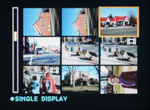 Thumbnail view |
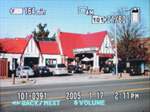 Image regular view |
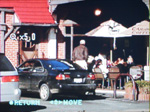 Image magnified 5x |
Images can be viewed as a 3x3 grid of thumbnails or one at a time as full screen images. To switch to thumbnail mode, slide the zoom controller toward the wide end. To switch back to single image view, slide the zoom controller to the telephoto position. You can also magnify an image up to 5x in 17 increments by sliding the zoom controller further in the telephoto direction. To view different portions of the image while you are zoomed in, use the multi-directional controller. If you want to zoom all the way out all at once, you can press in on the multi-directional controller to do so. To play/pause a video clip, simply press in the multi-controller. The volume can be adjusted while the clip is playing by pressing up/down on the multi-controller. In addition, you can skip back and forth in the clip by pressing left/right on the multi-controller and pressing in to play.
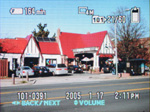 Info. |
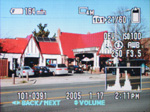 Detailed Info. |
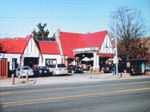 No info. |
The playback display can be selected from one of 4 options: normal, normal w/histogram and shooting details, no information, and backlight off. The normal display will have the battery remaining (minutes), image resolution, folder, image number out of total images in folder, file number and date/time. On the display with the histogram, the following information is also added: exposure compensation, ISO, flash, white balance, shutter speed, and aperture.
By pressing the Menu button, there are a number of additional options at your disposal. Below is a table outlining these options:
| Playback Menu | |
| Folder | Select |
| Protect | Tag |
| DPOF | Tag |
| All in this folder, DPOF image, Select, This image, Cancel | |
| Slide | Interval (3, 5, 10, 30 sec., 1 min), Image (Folder, All), Repeat (On, Off), Start, Cancel |
| Resize | 4M, 3M, 1M, VGA, Cancel |
| Rotate | Rotate, OK, Cancel |
| Divide/strong> | Set dividing point, Ok, Cancel, Exit |
| Setup | Enter |
The Folder option allows you to specify which folder contains the images/videos that you want to view. The Protect option allows you tag specific files so that they cannot be deleted accidentally. Protected files can, however, be erased if the memory stick is formatted. DPOF (Digital Print Order Format) allows you to specify images that you wish to print and the Print option allows you to print images on a PictBridge-compatible printer. The Resize option will allow you to upsize and downsize images to one of the higher/lower resolutions. With the Rotate option, you can rotate images full circle, 90 degrees at a time. The Divide option is for movie clips and it allows you to specify a point to split the movie into two files. This feature is handy for removing unneeded footage in order to save precious flash card space. The Setup option leads to the options that we discussed at the end of the Recording section.
Originally published at https://www.anandtech.com/show/1599 (Wayback Machine).