
Apple's Mac mini - Tempting PC Users Everywhere
- Posted in
- Mac
A First Look at Pages
The idea behind Pages is to make document creation, layout and publishing easier than ever before. If you've ever used Word for anything above and beyond just a text editor, it often times have little quirks that can frustrate you after dealing with them for a while - such as footnotes that don't always work properly, an ornery table of contents or especially dealing with graphics and text boxes and getting them to not screw up the pagination of your document. Word is a very powerful word processor, but in all of its might, it has lost a considerable amount of simplicity. Then there are page layout and publishing applications that generally require a higher level of expertise than what the beginner user is going to have, and they are generally much more expensive than $79. So there is a need for something else. The question is whether or not Pages happens to be it.
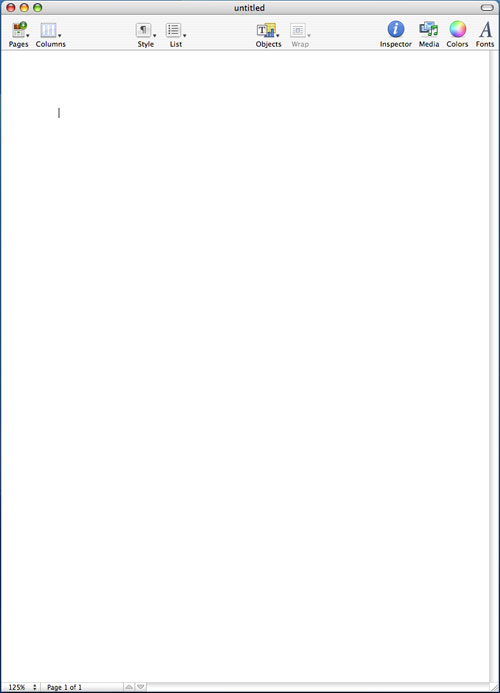
Before I get to the built-in templates within Pages, let me talk a bit about the interface. When you're first dropped into Pages, you immediately notice that the interface is extremely bare, almost to the point where it is bland. There is no font drop-down - all of the buttons you're used to seeing in a word processor or any application for that matter are all gone. There's a row of 10 oversized buttons at the top of the page and that's it.

The default view in Pages has no rules, no layout markers, nothing. You can turn all of those on, but for me, they unnecessarily clutter the interface to be on all the time.
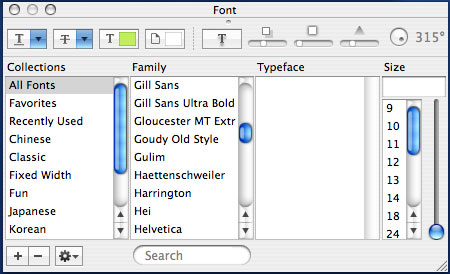
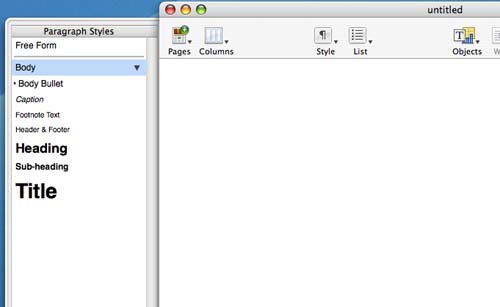
I mentioned that there is no font drop-down in Pages. Instead, in order to change the fonts and settings, you have to use the font panel, which you bring up by either hitting the button on the tool bar or hitting Command + T. Despite my initial reactions to it, I actually preferred Apple's decision here simply because I rarely adjusted my fonts when typing in Word; it was just something that I had expected to be in the toolbar and unnecessarily so. Font sizes are another thing, and this is one area where Pages encourages you to go in a much different route from what you may be used to. Normally, you create page or paragraph headers by either making the header bold or increasing the font size. You can obviously do the same using the font panel in Pages, but there is an alternative. Pages heavily encourages the use of styles for text, which are both pre-defined and user-definable.
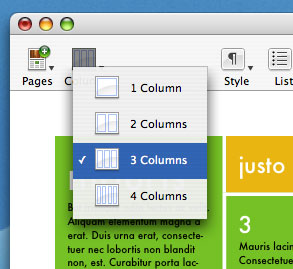
The other thing that Pages does extremely well is its handling of columns - there's a columns drop-down at the top of the page that will let you select from 1 - 4 columns. You can adjust the number of columns within any shape object or apply it to the document as a whole, quite easily.
Despite the relatively simple interface, there are quite a few controls offered within Pages, they just remain hidden until you bring up the Pages Inspector. The Inspector window is a small window that lets you adjust options for everything in Pages, as well as features things like document information. If there's anything that you need to do or find in Pages, it's in the Inspector.
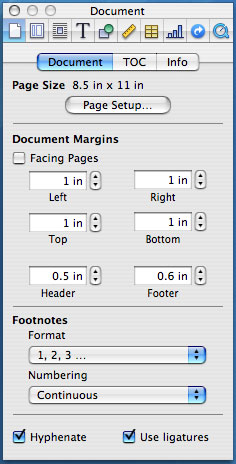
For example, if you want to define more than 4 columns, click on the column button in the Inspector. If you want to change how text wraps around objects, click on the appropriate button in the Inspector. Colors, tables, charts, everything is customizable from the Inspector - and when you're done, you can leave it on the desktop or hide it. You can also open up multiple Inspectors, each at a different settings page if you like having access to everything without bringing up more windows.
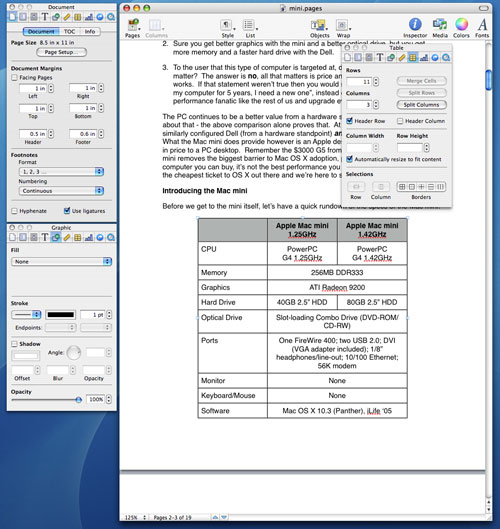
Multiple Inspectors
Originally published at https://www.anandtech.com/show/1596 (Wayback Machine).