
Apple's Mac mini - Tempting PC Users Everywhere
- Posted in
- Mac
iPhoto 5
For the most part, I detest photo management applications. They are usually riddled with cumbersome interfaces and/or lack any sort of real editing power. I tried using iPhoto 4, which was a part of the iLife '04 suite, and I was left fairly disappointed. I had to switch between editing and organizing modes to edit or just flip through my pictures. Images took entirely too long to flip through and despite the fact that iPhoto had the best interface of any photo management application that I'd used, it was still not enough. In the end, it was just like everything else to me and I happily continued using Photoshop for editing and saving pictures for AnandTech articles. I used folders to organize the pictures according to article, so I didn't need the organizational aspects of iPhoto for that. But then came iPhoto 5 - time to give it another try, but this time, it looked like there was hope.
During his keynote at Mac World San Franciso, Steve Jobs talked about iPhoto 5 as the only application that you'd need for both editing and organizing your photos. For my uses, Photoshop is basically overkill, but I've never found anything to suit my needs better without sacrificing usability in one way or another. But with a better interface and a new editing dashboard, iPhoto 5 seemed promising.
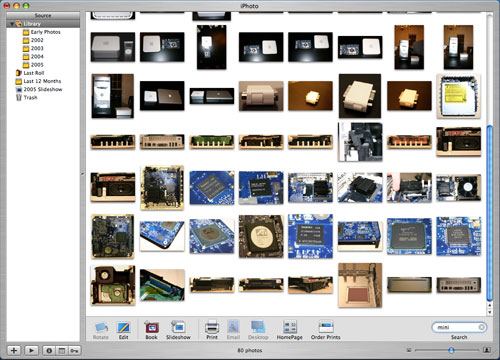
The iPhoto 5 interface has been greatly simplified. No longer are there different modes to switch between, everything happens in the same browsing mode. You get photos into iPhoto using its import feature, which is activated automatically whenever you connect a digital camera or a removable disk (a configurable option).
Thankfully, iPhoto gives you the option of deleting your photos automatically from the media/camera after it is done importing them. Once you confirm your intentions, iPhoto goes off and copies all of the photos into your iPhoto Library. Your photo library can be viewed at variable sized thumbnails, adjustable by a slider in the lower right of the application. The scaling of the number of pictures on your screen at one time happens very quickly as iPhoto will render the thumbnails quickly, and then later, sharpen the images once you're done playing with the slider. iPhoto is much faster (especially on the G5) now, and photos no longer take a little bit of time to come into focus when browsing through them one at a time (as opposed to a page of thumbnails). Also, when browsing quickly, they will appear as thumbnails rather than blurry images (more useful in my opinion).
The iPhoto Library is organized by year and feeds off of the information written by your camera to the images. If you have a lot of photos, the Library quickly becomes cluttered, since it is organized by nothing more than date. This is where some of the indexing features of iPhoto come into play, but they do require a bit of user intervention.
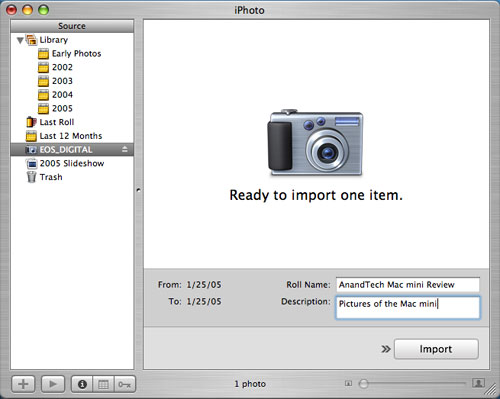
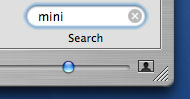
When you import images into the Library, you have the option of tagging the images that you import with a title. For example, when I imported the images for this review, I titled them "Mac mini". Now, even if I have thousands of images taken in 2005, I just type in "mini" in the search box and all my Mac mini images come up instantly, thanks to a fully indexed search in iPhoto. Now, titling images isn't something that I'd normally take the time to do, but the way iPhoto works is that you just create one general title and it will apply it to all of the photos that you're importing (or you can selectively import them).
After they are imported, you can go back and add ratings, keywords and comments to photos on an individual basis, all of which are fully searchable fields. You also have the option of populating these fields after the fact using iPhoto's batch processing. Just highlight what photos you want and you can add a title, comments or even modify the date/time. And if you actually take the time to make good use of these searchable fields, or even if you just make use of the batch titling upon import, you can create Smart Albums based on searches of these fields. For example, you can create an album of all pictures of "video cards" or "cars I'd like to buy" or just about any other combination that you can think of.
Personally, I'm not enough of a photo enthusiast to put that much time into my digital library, but if you have a habit of taking a lot of pictures, iPhoto 5 offers some very excellent and intuitive ways of organizing them. Plus, the interface works and feels just like the rest of OS X, which is a very strong point of iPhoto. There is one exception to my last statement, however. Hitting Command + W will actually exit the iPhoto program itself, something which breaks the way that almost all OS X applications work. One thing that I was a fan of with OS X is the consistency with which all applications behaved, and iPhoto unfortunately breaks that consistency - not something I was too happy with.
Originally published at https://www.anandtech.com/show/1596 (Wayback Machine).