
How to Set up a Source Control on Windows without spending a dime.
- Posted in
- IT Computing
Viewing the history of files
CVS keeps track of every change to a file. These changes, including who made them and when they were made, can be very useful when you run into issues or have questions about a change that was made. Tortoise allows you to view the history of a file by right clicking on the file and selecting "History" under CVS. You will be prompted with a history of the file along with any comments for each change.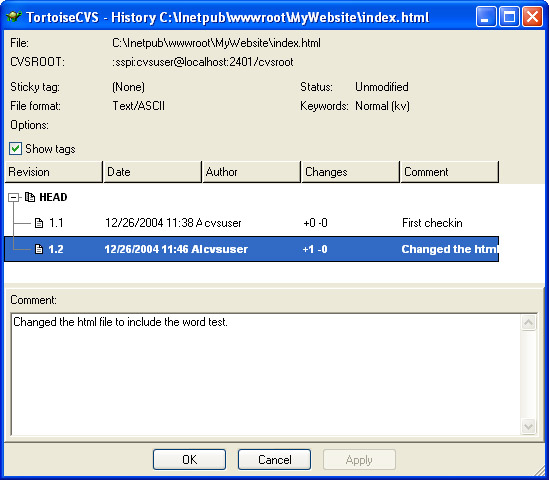
ViewCVS
In a team-based environment, being able to view changes on files and compare versions of files can be incredibly useful. ViewCVS is a web-based application that runs on either UNIX or Windows and allows developers to use a browser to view the CVS source tree. You can obtain the windows port of ViewCVS here, and the instructions for installing ViewCVS on windows are located here. Once installed, you should see a listing of your modules when you navigate to viewcvs.cgi.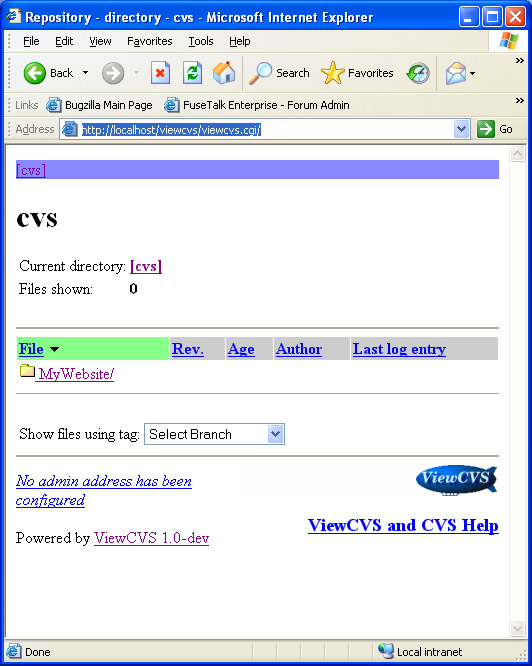
You can then drill down on the module and get a listing of the files in your module. ViewCVS will list the file, its version, age, and last comment. If you click on the file, ViewCVS will list all the revisions to that file, when they were made, by whom, and the comment associated with each change. The most useful feature in ViewCVS is [select for diff]. By doing this, you can compare versions of the selected file and see what changes were made (see below).
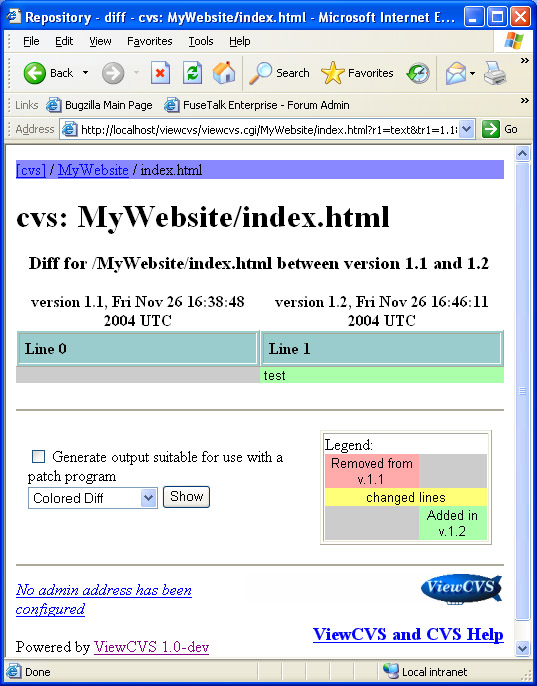
Originally published at https://www.anandtech.com/show/1578 (Wayback Machine).