
The ASRock DeskMini A300 Review: An Affordable DIY AMD Ryzen mini-PC
HTPC Credentials - Local Media Playback and Video Processing
Evaluation of local media playback and video processing is done by playing back files encompassing a range of relevant codecs, containers, resolutions, and frame rates. A note of the efficiency is also made by tracking GPU usage and power consumption of the system at the wall. Users have their own preference for the playback software / decoder / renderer, and our aim is to have numbers representative of commonly encountered scenarios. Towards this, we played back the test streams using the following combinations:
- MPC-HC x64 1.8.5 + LAV Video Decoder (DXVA2 Native) + Enhanced Video Renderer - Custom Presenter (EVR-CP)
- MPC-HC x64 1.8.5 + LAV Video Decoder (D3D11) + madVR 0.92.17 (DXVA-Focused)
- MPC-HC x64 1.8.5 + LAV Video Decoder (D3D11) + madVR 0.92.17 (Lanczos-Focused)
- VLC 3.0.6
- Kodi 18.1
The thirteen test streams (each of 90s duration) were played back from the local disk with an interval of 30 seconds in-between. Various metrics including GPU usage and at-wall power consumption were recorded during the course of this playback. Prior to looking at the metrics, a quick summary of the decoding capabilities of the Radeon RX Vega 11 is useful to have for context.

While the NVIDIA and Intel GPUs support decoding of 8K streams also, AMD has decided to limit support to 4K. 8K is mainly of academic interest right now, and the range of supported codecs is more important. Fortunately, the driver reports supports for MPEG2 (up to 1080p), H.264, HEVC (both 8b and 10b), VC1 (up to 1080p), and VP9 (both 8b and 10b).
All our playback tests were done with the desktop HDR setting turned on. It is possible for certain system configurations to have madVR automatically turn on/off the HDR capabilities prior to the playback of a HDR video, but, we didn't take advantage of that in our testing.
VLC and Kodi
VLC is the playback software of choice for the average PC user who doesn't need a ten-foot UI. Its install-and-play simplicity has made it extremely popular. Over the years, the software has gained the ability to take advantage of various hardware acceleration options. Kodi, on the other hand, has a ten-foot UI making it the perfect open-source software for dedicated HTPCs. Support for add-ons make it very extensible and capable of customization. We played back our test files using the default VLC and Kodi configurations, and recorded the following metrics.
| Video Playback Efficiency - VLC and Kodi | |||
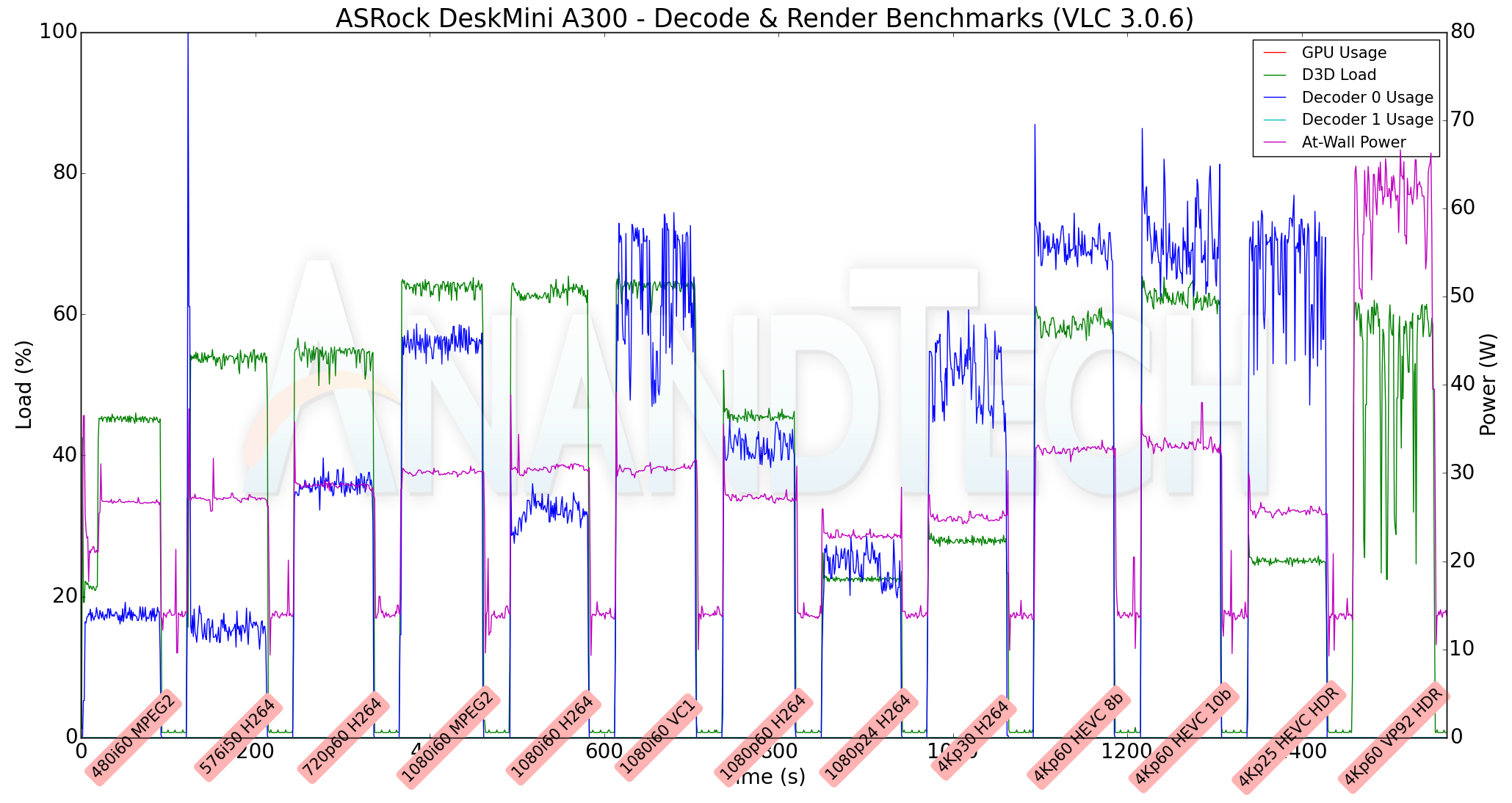
The key aspect to note here is that VLC is unable to take advantage of the hardware acceleration for VP9 Profile 2 videos. Instead, it relies on software decoding for that stream. Otherwise, we see the hardware decoder being used (with usage ranging from 18% for the 480i60 MPEG2 streams to as high as 75% for the 4Kp60 HEVC Main 10 video). D3D loading of up to 65% is triggered due to scaling requirements for non-4K videos. The at-wall power consumption is between 25W to 35W for the hardware accelerated codecs. Software decoding of 4Kp60 VP9 Profile 2 videos drops lots of frames, and the recorded metrics for that stream do not present any useful information. Kodi, on the other hand is able to play back all the videos in our test suite with hardware acceleration. We see the decoder usage go as high as 90% for the 4Kp60 10-bit encodes. The at-wall power consumption is between 30W and 35W for all the streams.
MPC-HC
MPC-HC offers an easy way to test out different combinations of decoders and renderers. The first configuration we evaluated is the default post-install scenario, with only the in-built LAV Video Decoder forced to DXVA2 Native mode. Two additional passes were done with different madVR configurations. In the first one (DXVA-focused), we configured madVR to make use of the DXVA-accelerated video processing capabilities as much as possible. In the second (Lanczos-focused), the image scaling algorithms were set to 'Lanczos 3-tap, with anti-ringing checked'. Chroma upscaling was configured to be 'BiCubic 75 with anti-ringing checked' in both cases. The metrics collected during the playback of the test files using the above three configurations are presented below.
| Video Playback Efficiency - MPC-HC with EVR-CP and madVR | |||
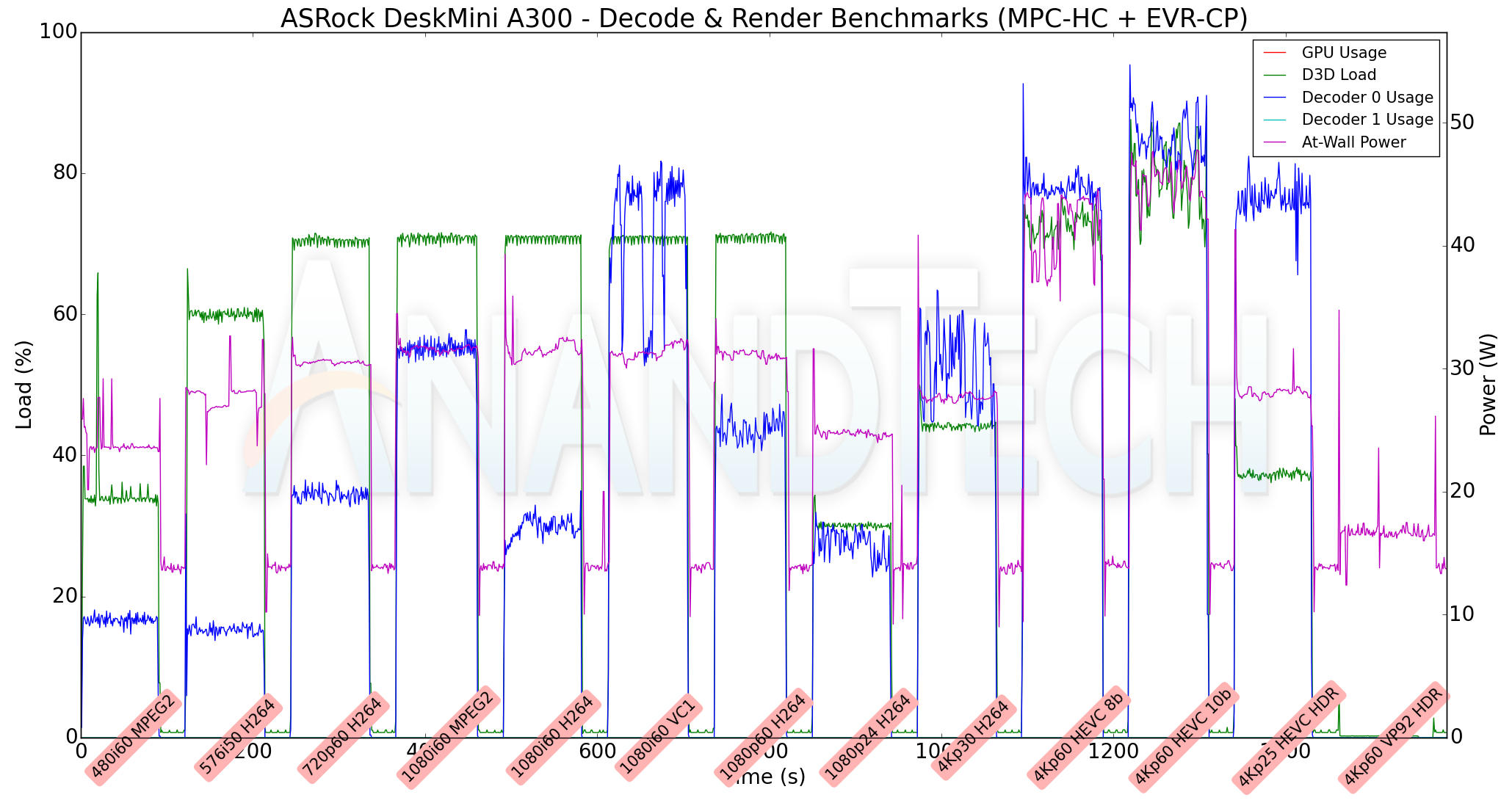
Similar to VLC, MPC-HC / LAV Video Decoder is unable to play back the 4Kp60 VP9 Profile 2 video with hardware acceleration. In fact, with the default configuration (EVR-CP), the video just shows a blank screen (and there is hardly a significant change in the at-wall consumption for the stream). With madVR as the renderer, and the LAV Video Decoder set to D3D11, we do manage to get the software-decoded (avcodec, as reported by LAV Filters) stream on the display. The madVR DXVA configuration works decently without dropping frames for 1080p and lower resolution videos. The 4K videos see significant frame drops, as evident from the D3D Load in the above graphs. For the Lanczos configuration, 1080p and higher resolution videos with a frame rate of more than 50 fps suffer from playback issues. These results are along expected lines for an integrated GPU. However, they are significantly better than the performance of madVR with Intel's integrated GPU.
Overall, we can recommend Kodi 18.1 as the playback software for local media on the DeskMini A300. Other open-source softwares such as VLC and MPC-HC / LAV Video Decoder do not play well with the current drivers for certain types of video streams.
Originally published at https://www.anandtech.com/show/14251/asrock-deskmini-a300-review-an-affordable-diy-amd-ryzen-minipc (Wayback Machine).