
Voodoo Envy M:860 - AMD 64-bit at Widescreen
- Posted in
- Laptops
Construction - Build, Appearance, Size
When we first saw this notebook, our first thought was "the Dell Inspiron XPS has another competitor." The last Voodoo notebook that came through our door was the M:855, which also used an Athlon 64 DTR processor (read more), but didn't come with a widescreen display.Opening the M:860 is as simple as sliding the security tab to the right and lifting the display lid. The single security tab actually is hinged to two security clips, which unclip themselves from the notebook base when the tab is slid to the right.

Click to enlarge.
The first thing that you notice when you open the M:860 is the 15.4" WXGA+ display (1680 x 1050). Compared to the Inspiron 8600, which is probably the most common 15.4" widescreen display laptop, the screen on the M:860 seems a bit brighter and brilliant at its highest setting (there are 11 of them). It's been a while since we have looked at an Inspiron XPS, so we can't really compare the two units fairly.
After using the M:860 for a while, we got an eerie feeling that we were using a laptop from Compaq. The keyboard style, front, feel, layout, etc. are all very reminiscent of the Compaq Presario notebooks that we have used in the past. In all likelihood, they use the same ODM. One of the distinguishing markers of Compaq Presario notebooks has been their consistent, incorrect placement of the function key on the bottom right, with the control key directly to the right and second function symbols in a square icon. The correct placement should be the other way around, since that follows general usage keyboard patterns.

Click to enlarge.
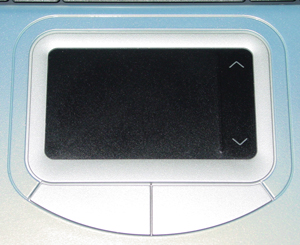
The touchpad's surface area is a bit larger than we are traditionally used to seeing, mainly because the M:860 has a portion of the touchpad cornered off for a scroll dial, which basically functions in place of a mouse wheel. It took a while for us to get accustomed to it, but we ended up liking it, since we are fans of shortcut keys and functions. This is going to be another one of those like-it or hate-it features, since you can't force the scroll dial area to function as a touchpad. Between the 4-way scroll buttons that we have seen on other notebooks, it's really a toss up. Personally, we prefer the 4-way scroll button, but they have to be done right with a low profile like on our Compaq Presario 1500T. The benefit of the 4-way scroll button is that it gives control over horizontal scrolling too.
Aside from the scroll dial, the touchpad for the M:860 is much better than the one on the M:855. The texture is different in the sense that it is smoother, but it isn't so smooth that you don't get a natural feel for it. If you have used a Presario notebook, you will know what we are talking about. We also liked the fact that the buttons aren't curved as much as the M:855; easy accessible buttons are generally nice and large without protrusions.
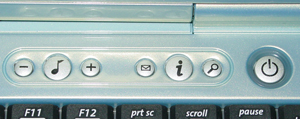
The only function buttons are located near the power button in the upper right-hand corner of the laptop (left to right): volume down, media player, volume up, mail program, internet browser, and search file(s). The power button is rimmed by a translucent plastic piece that lets blue light through if the unit is powered on.
There are two sets of LEDs on the M:860: one below the touchpad buttons and another on the front side of the unit, directly beneath the display's security clip. The lower set of LEDs represents power on (blue) and battery status (orange = charging, orange blinking = low battery). The LEDs beneath the touchpad are for (from left to right) power supply connection status (blue if connected), wireless activity (blinking blue during activity), cap lock (blue if active), num lock (blue if active), and hard drive activity (blinking blue when active corresponding to HDD activity).

Originally published at https://www.anandtech.com/show/1423 (Wayback Machine).