
Nikon Coolpix 5200: Does It Deliver?
- Posted in
- Digital Camera
Playback Features
You can enter Playback mode in 2 different ways. If you are already in Record mode, you can simply press the Play button. However, if you wish to enter Playback mode when the camera is off, you can hold down the Play button for 2 seconds to enter Playback mode without extending the lens. The following information is available when viewing a picture: date and time of picture, folder name, file number, storage location (internal memory or SD card), transfer (on or off), whether or not a voice memo has been recorded, image quality setting, and the picture number (out of the total number of pictures).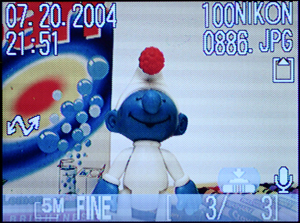
(Sample playback screen)
You can move from picture to picture by using the left/right arrow pads or you can view the pictures as thumbnails by pressing the W (zoom out) button on the zoom control. Pressing the W button once will display a screen with 4 pictures at a time and pressing it again will display 9 pictures on the screen. You can then select a picture to view full-screen by using the arrow pad controls. While viewing a picture in full-screen mode, you can use the T (zoom in) button on the zoom control to magnify the image by up to 6x in 0.2x increments. While zoomed in on a picture, pressing the shutter button all the way down will bring up a dialog that asks if you want to "Save this image as displayed?" Selecting "Yes" will copy a cropped version of the original image to the original image's storage location. To exit the zoom mode quickly, you can press the middle Enter button. If you press the Enter button again, a histogram will appear onscreen along with new information about the metering mode, exposure compensation, and flash mode used in the picture.
A cool feature that the CP5200 offers is the ability to record voice memos. When viewing a full-screen image, you can hold the shutter button down to record a memo that will be linked to the picture. Pressing the Menu button in Playback mode will display the following list of options: Print set, Slide show, Delete, Protect, Auto transfer, Small pic., and Copy. Selecting the Print set option will bring up a display that allows you to pick which pictures to print on a DPOF (Digital Print Order Format) printer. The Slideshow option allows you to display all the pictures on the camera either one time through or in a loop. With the Delete option, you can either select pictures to erase or you can delete all of them. By using the Protect feature, you can safeguard yoru pictures against accidental deletion pictures; however, formatting the card (in Set up mode) will erase everything including protected pictures. The menu option Auto transfer is used to tell the camera which pictures to transfer to your computer when it is connected. You can choose All on, All off, or Select images. With the Small pic. feature, you are able to resize pictures to 640x480, 320x240, or 160x120. Selecting one of the resize options will create a copy of the image in the newly specified size. Lastly, the Copy option allows you to copy images from the internal memory to an SD card or vice versa.
Something that disappoints us about the CP5200 is the absence of a shooting-priority feature in Playback mode. In many digital cameras, pressing the shutter button down halfway will automatically return the camera to Record mode. Interestingly, a shooting-priority feature is available in Record mode during menu navigation. This feature would have been nice to include in Playback mode as well because it makes quick shooting possible. Instead, you must press the Play button to switch the camera to Record mode.
Originally published at https://www.anandtech.com/show/1402 (Wayback Machine).