
iBuyPower Element Gaming PC Review: i7-8086K and GTX 1080 Ti Inside
BIOS
This particular setup from iBuyPower is using the ASUS TUF Z370-Plus Gaming motherboard from the TUF lineup. ASUS's TUF lineup used to be more of a premium type of motherboard with loads of built-in sensors and physical armor for protection, but has since seemed to become a bit tamer in its look as well as forgoing the plethora of sensors it used to have. That said, it is still a very capable board and seems to be able to handle a flat 5 Ghz i7-8086K without flinching. The BIOS includes both an EZ Mode (pictured below) as well as an advanced mode for further tweaking of the system.
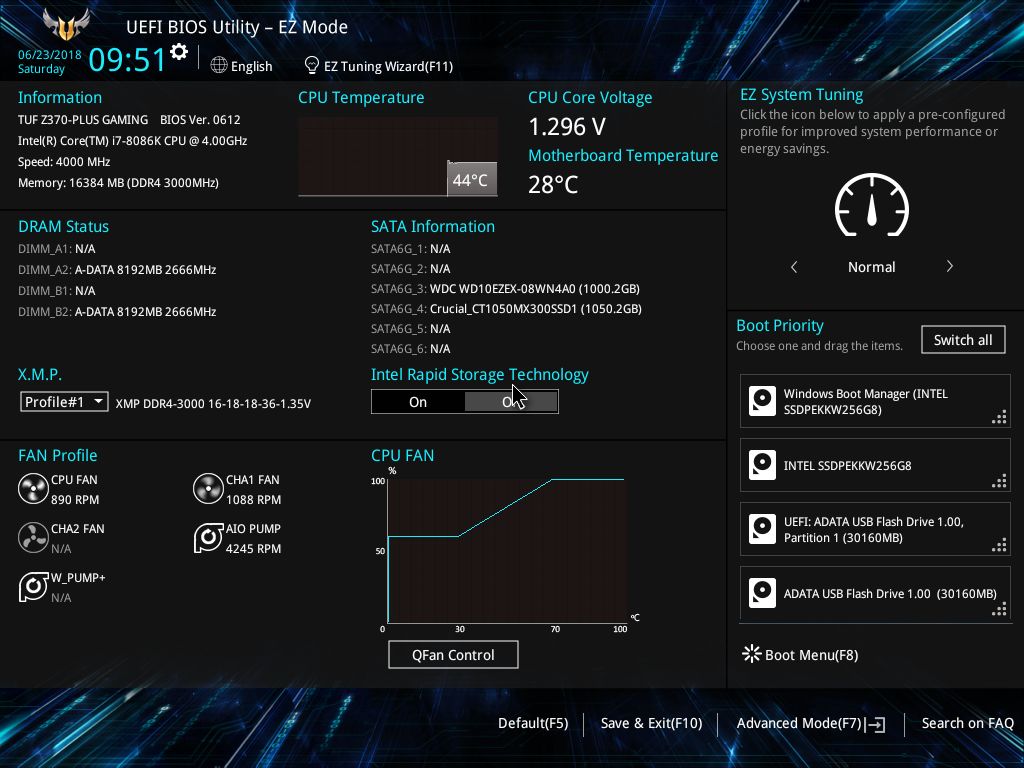
The EZ Mode portion of the BIOS offers a view of the system in its current state as well as allowing a few options to be edited. It shares information such as motherboard BIOS version, installed CPU and Memory speeds as well as CPU and motherboard temperature and CPU Core Voltage. Users are able to enable XMP profiles for the memory, enable Intel Rapid Storage technology, change the boot order, and access to the QFan control for adjusting fan speeds and profiles as well. There is also an EZ System Tuning section for one-touch overclocking. Overall the EZ Mode is a useful tool for system status and high level information needed at a glance, but the advanced section is where most of the options reside.

The Advanced section of the BIOS gives access to everything the BIOS has to offer from overclocking capabilities to enabling and disabling hardware. The BIOS has several headers across the top with each section housing a group of functions. The first section is labeled Main and is generally an informative tab disclosing information about the BIOS version and processor information. The only item that is editable is the system language.
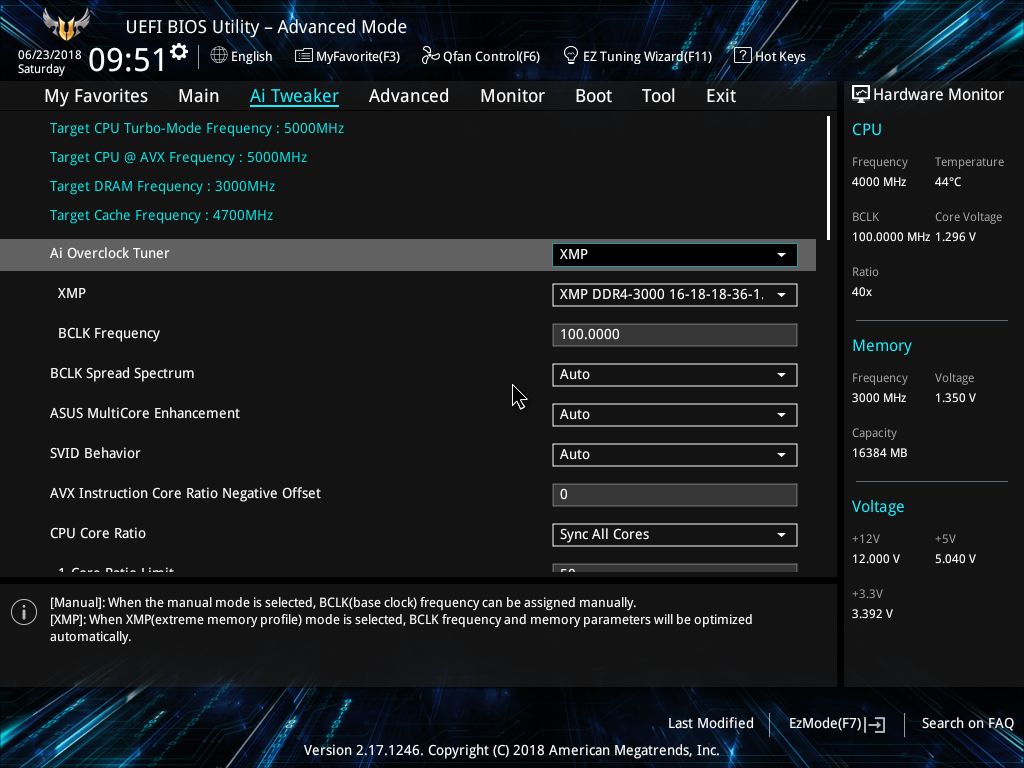


The Ai Tweaker section is where overclockers will find their home. This section houses everything needed to overclock the processor and get the most out of it including BCLK and CPU ratio as well as voltage adjustments and power options. Since this is coming in a system, it is likely some options are already raised from default (as seen in the screenshots). All CPU adjustments including BCLK and CPU ratio as well as voltages are all located under the Ai Tweaker heading.

The Advanced section gives users options to adjust certain functions on the system from the storage configuration attached to the chipset to other onboard devices.

The Monitor section displays system information from temperatures to voltages on the processor and from the power supply. Users are able to access the ASUS QFan functionality in order to adjust fan speeds and create custom cooling profiles to balance performance and quiet.

The Boot section is where users are able to adjust boot priorities as well as enable fast boot and other boot-time options.

The Tool section is a landing pad for a couple of BIOS utilities that can help with BIOS flashing as well as a repository for any overclocking profiles. The ASUS EZ Flash 3 utility is used to flash the BIOS while the Overclocking profile will hold any BIOS settings for easy retrieval.


Software
The ASUS TUF Z370-Plus Gaming motherboard used on the board includes a driver disk (though it says Z370-A Pro) that has all the drivers needed to get a user up and running in case of a system update or failure. It includes the chipset and realtek audio drivers, the Intel Management Interface along with Rapid Storage Technology drivers and a value add software piece in Norton Security. Being a pre-built, the drivers were already installed at the factory.


The disk also bundles ASA utilities such as AI Suite 3 - a complete app that is used to monitor and control the motherboard, Turbo LAN for network traffic management, as well as AURA to control lighting. The latest versions of these applications can be found online at the ASUS webpage for this motherboard.
Originally published at https://www.anandtech.com/show/13008/ibuypower-element-gaming-pc-review-8086k-and-gtx-1080ti-inside (Wayback Machine).