
Voodoo Envy M:855 Part 2 - Take Two
- Posted in
- Laptops
Construction - Build, Appearance, Size
Voodoo has been known for putting in that extra effort, which is particularly apparent in the very slick high gloss paint job. Many of our pictures don’t do Voodoo enough justice on the paint job; it can only be experienced up close. Of all the systems we have seen, Voodoo probably does the best paint job in this respect.
Accessing this powerhouse notebook is as simple as sliding the single clip that secure the lid and opening.

The M:855 is unlike the M:700, as it is a desktop replacement notebook that doesn’t use a 17” WXGA (1440x900) wide aspect screen. Instead, the M:855 resorts to the more common 15” SXGA+ (1400x1050). There are no other available options for display configuration.
On many notebooks, the 15” screen makes the system look overly large, even though the system maybe of the thin and light variety. In contrast, Voodoo’s use of a 15” SXGA+ actually helps to give the perception that the notebook is compact and small. Voodoo's implementation of the SXGA+ also has the ability to use Windows XP's virtual desktop, where higher resolutions can be scrolled through by the mouse instead of being out of sync.
The keyboard is something that we come to expect from desktop replacement notebook: full sized, good response, and a tactile feel. Unlike many of the notebook keyboards we have seen, the Voodoo keyboard is translucent, which adds to the aesthetic appeal. Though, this has another unforeseen benefit. Over time, notebook keyboards get dirty and or some smart article lodges itself between keys and prevents full functionality. The translucent keyboard allows for the use to tell how dirty the keyboard is and if anything is lodged between keys. On the other hand, a non-translucent hides the dirt.
The problem we have with the keyboard is that the control key is not in the correct place on the keyboard. This isn’t a limited to Voodoo, as we have seen this on several other notebooks. Our M:855 was an engineering sample so there were a couple of keys that didn’t function correctly, but production units shouldn’t be effected.
There are no buttons other than the one for power and wireless connectivity. The power button is located in the upper right hand corner of the laptop, left of the right speaker. Meanwhile, the wireless connectivity button is on the front of the system and lights up to a bright blue hue when active.
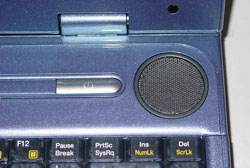
The layout of the M:855’s touchpad is fairly similar to the type seen on HP and Compaq notebooks: oval-shaped with curved buttons. The buttons have a reasonable level of feedback, quite similar to Dell’s Inspiron 8600. The 4-way scroll button is recessed more than what we have seen on other systems. In our opinion, we would prefer to see it recess a bit less.
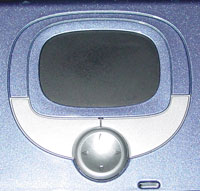
Directly south and to the left of the touchpad, there is a set five status LEDs. These LEDs indicate (left to right): wireless status, hard drive activity, number lock status, caps lock status, and scroll lock status. All of the LEDs are green to indicate status. The conflict in placement of the LEDs here is that they will be covered by the left wrist while typing, which defeats the purpose of monitoring the LEDs.

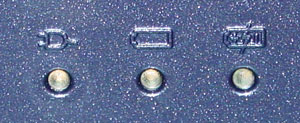
There is another set of LEDs near the bottom and inversely on the back side of the LCD panel. Our M:855 had three LEDs in these two locations (left to right): one for AC power status (green while active), one for battery status (green while charging and red while low), and one for battery charge (orange while standby and green when AC is on).
Originally published at https://www.anandtech.com/show/1196 (Wayback Machine).