
Dell Latitude X300: A Traveler's Companion
- Posted in
- Laptops
Construction — Build, Appearance, Size
The X300 continues the Latitude tradition with its Ion Silver color scheme. The notebook is easy to open via a single sliding clip.
Click to enlarge.
Opening up the Latitude X300 reveals a 12.1" XGA (1024x768) screen, which is the standard for ultraportable notebooks. Anything larger wouldn't keep the small footprint needed to design a notebook of this style. As we have noted before, slightly larger screens supporting only XGA resolutions at many times look odd, but 1024x768 fits the 12.1" screen perfectly.
One of the tendencies of moving to an ultraportable design is the necessary sacrifices needed to be made to maximize the use of space. Often, the keyboard layout is the first thing to be altered, and this results in keyboard keys that are a bit too small for conformability. Similar to the IBM ThinkPad X31, the X300 uses a full size keyboard similar to higher end Dell notebooks, specifically the Inspiron 8600. The alphanumeric keys are full-sized and very comparable to the Inspiron 8600, and so, to cut down on the space used, the real estate of function keys (control, shift, etc.) have been slightly reduced. We still prefer the quality of the keyboard on the X31 compared to the X300, as IBM's ultraportable has a better tactile feel.
On the subject of layout, Dell includes a windows key, which IBM doesn't. The X300 also makes a good note of placing the control key on the far left, which is definitely a plus.

Click to enlarge.
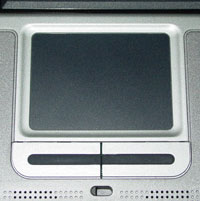
Oddly enough, we were a bit surprised that the set of buttons for the touchpad has a strip of rubber. Dell told us this was for aesthetic detail and to add tactile response (basically, some grip). This did take some time to get used to, but we did like this little add-on, and some texture in the rubber strip is something we would like to see in the future. Perhaps, Dell can create different rubber strips, like there is for the IBM track stick, which is missing from this notebook. This is a love-it or hate-it feature, but something we are personally fans of. Sound is supplied via two small speakers, which are directly below the touchpad buttons. This placement keeps them a bit away from typing hands, but placed so they can still direct sound toward the user.
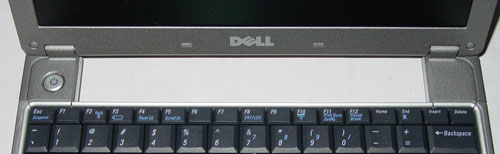
There are no function buttons on the X300, as the power button is the only button apparent. It is interesting to note that once the battery is removed, there is a significant gap between the keyboard and the screen. The screen hinges on two parts of the frame that extend toward it. There is no hinge in between.
There is only one set of LEDs on the X300, which are present on the lower right hand edge of the frame. The front of the X300 slopes down slightly, which allows the LEDs to be partially visible while closed. There are seven LEDs at this location (left to right): number lock status, caps lock status, scroll lock status, power state, hard drive activity, battery state, and Bluetooth receiver status. We didn't have Bluetooth in our sample, so we aren't able to say what color LED it uses, though we suspect it is green. All of the LEDs use green to indicate status, but the battery LED will turn orange when low.

Originally published at https://www.anandtech.com/show/1188 (Wayback Machine).